


1. Create a new Flash document, set its size to 300×300.
2. In the First frame put in this script:
| loadVariables("texteffect.txt",""); |
3. Right click on the Second frame, and Insert a Blank Key Frame.
Insert this following code in the second frame:
| if (loaded != "yes") {
gotoAndPlay(1); } |
4. Right click on the Third frame, and Insert Blank Key Frame.
With the Text tool, draw a rectangle, and set it properties to Dynamic Text,
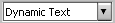
and set its variable to texteffect.
Then set the "Line Type" to Multiline. And set the font style you want the effect to use.
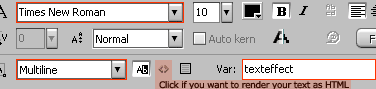
note: If you select the "render text as HTML" button, you'll be able to incorporate a link in this typewriting effect by using HTML stage in the txt file. see step 6
5. In the Third frame put this script:
| stop();
var i = 0; texteffect = ""; function textwritter() { texteffect = txt.slice(0, i); i++; if (texteffect.length == txt.length) { clearInterval(intervalID); } } var intervalID = setInterval(textwritter, speed); |
Your layer should look similar to this:
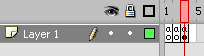
6. Now we need to make the text file that will contain the text, and the variable that will determine the typing speed. Make a text file and name it: texteffect.txt, put the following lines in the text file, then save the text file in the same directory as the .swf file
note: loadVariables (step 1) is the script that loads the information from the txt file.
| &loaded=yes&
//Please do not edit this line. &speed=50& //The variable "speed" is actually the interval time in ms. //Therefore the greater "speed" is, the slower the typing speed will be. &txt=Type your text here.& |
note:Type the text you want to apply the typewritter effect to between: '&txt=' and '&'
note: If you have selected the "render as HTML" (step 4) and that you want to add a link in this effect, just write something similar to this: '&txt=Click here&'
Now you're done, just run the swf file and you shall get this effect right away. Then, you can modify the speed. (located in the text file.)
