Step 1: Open a new image (width 400 pixels, height 100 pixels in this case).
Step 2: Pick a background color, in this case we are going to use a light grey (#B8B8B8).
Step 3: Click on the text tool and change the text color to white (#FFFFFF).
Step 4: Type something with the text tool in the font of your choice and around font size 72 (for this example I am typing fusionx2 using Bitsumishi at size 60).
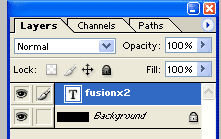
Step 5: Click the text layer in the layers palette.
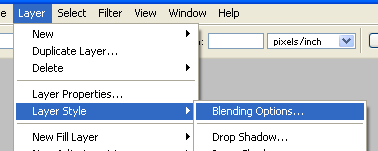
Step 6: Click layer--> layer style--> and blending options.
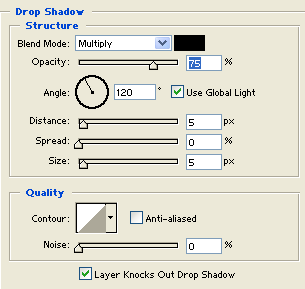
Step 7: Click onto Drop Shadow, and make sure the options are set to these (roughly the same to get the effect, playing around with this setting can give you different effects).
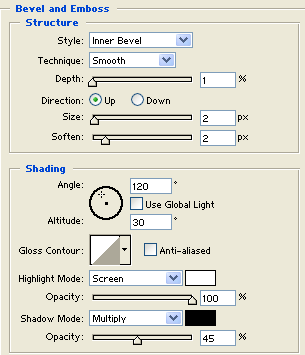
Step 8: Click onto Bevel and Emboss and make sure the options are set to these (roughly the same to get the effect, playing around with this setting can give you different effects).
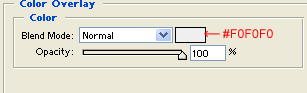
Step 9: Click onto Color Overlay and make sure the options are set to these (roughly the same to get the effect, playing around with this setting can give you different effects). The color in there is #F0F0F0.
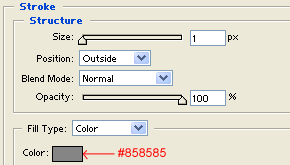
Step 10: Click onto Stroke and make sure the options are set to these (roughly the same to get the effect, playing around with this setting can give you different effects). The gray is #858585.
Step 11: Click Ok and your image should look like this.

Final Product
Congratulations! You have learned how to make a plastic type of effect! Below is an example of a final product.