Just got Photoshop CS 2. It's nice and some nice new things.
This is an Introduction to the Smart Blur, a Blur in Adobe Photoshop CS and CS 2.
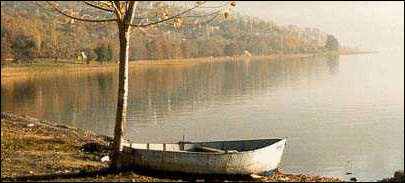
1. Smart Blur is great for pictures with lot of water in the background.
Open a picture and go to Filter - Blur -Smart Blur. Here set everything like I did. Attention to the Mode, the last thing you have to set. First you set the Mode: Normal.
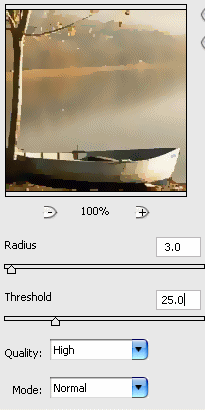
See the way the water is changed.

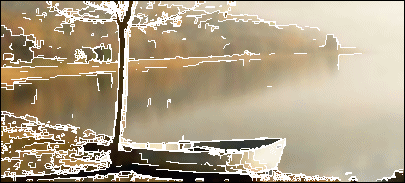
2. Go to Filter - Blur -Smart Blur again. And this time set the Mode: Edge Only . You get this.

3. Go to Filter - Blur -Smart Blur again. And this time set the Mode: Overlay Edge . You get this.