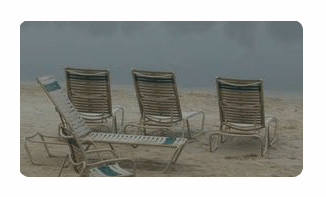
Headers with round corners are very trendy now. With Photoshop and with the help of this tutorial you will learn an easy way to transform a picture you like in a rounded corners header or just to make the corners rounded.
1. First take your picture and choose Rounded Rectangle Tool (U).
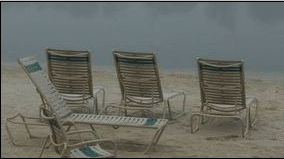
Now with your Rounded Rectangle Tool(U) selected, look up and under the menu you have 3 rectangular, choose the one in the middle.

2. Draw a shape over your picture from right to left corner. You can set how round the corners should be by setting the Radius.
3. Now go to Window - Paths. Now look in the last box on the left and you see something like this .
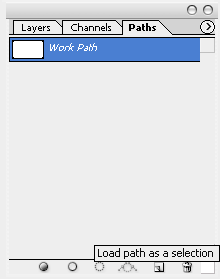
Here choose the 3 circle from right to left.
4. Go to Select - Inverse and the selection will change. Now make sure that Move Tool is selected and press CTRL+X and here you round corners.