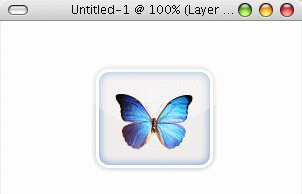
1. Start Photoshop. Open a new document 300 x 300 with white background. Now set your foreground color to a dark one and go to Layer - New Layer.
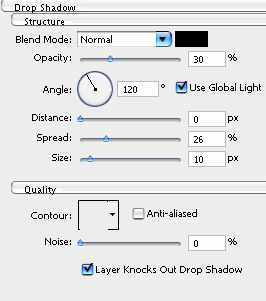
2. With your Rounded Rectangle Tool draw a shape as big as you want. Go to Layer - Layer Style and the first stop is Drop Shadow
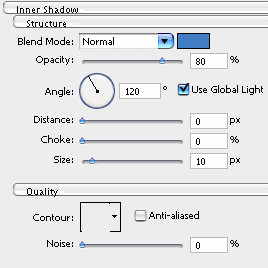
3. Next is the Inner Shadow and use the color (#417DC3).
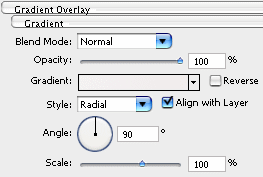
4. Gradient Overlay. The colors are (#F5F2F2) and (#F1ECEC).
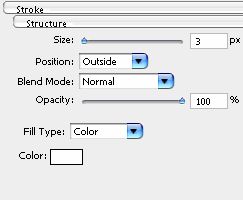
5. The final Layer Style is the Stroke
6. Now we add the picture with the blue butterfly.

7. Now create a new layer and set "Soft Light" and "75% Opacity". With your Elliptical Marquee Tool draw a circle , half over the button , and half outside it and fill it with white. The result is this.