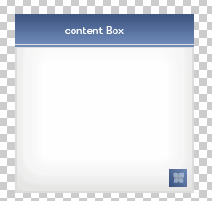
1. Start Photoshop.Open a new document 300 x 300 with transparent background. Then with your Rectangular Marquee Tool make a shape as big as your content box should be and fill it with white (#FFFFFF).
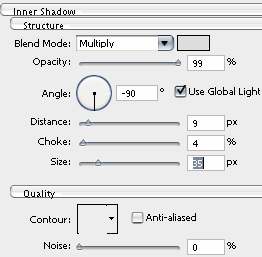
2. Then go to Layer- Layer Style and choose Inner Shadow. the color i choose is (#DDDDDC), really easy to remember when you need a light grey.
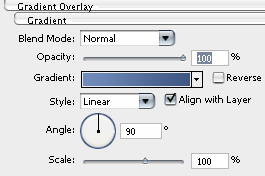
3. Go to Layer-New- Layer. With your Rectangular Marquee Tool create a little rectangle in the upper part, in this rectangle you will add the title. Now fill it up with white (#FFFFFF) and then go to Layer-Layer Style again and choose the Gradient Overlay. For the light blue use (#718CBB) and for the darker one choose (#3F5783).
4. The box is almost done. With your Single Row Marquee Tool cut a line, just put it on the bottom of the second rectangle and press delete. Add some text and the final result will be this.