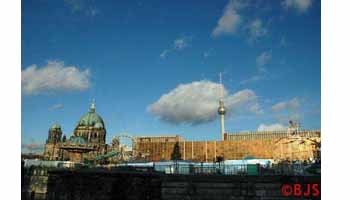
This tutorial will show you how to make a panorama from two pictures. With Photoshop options you can make giant pictures.
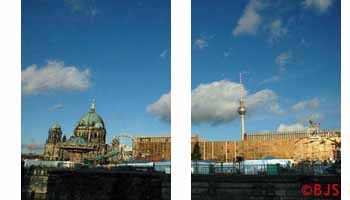
1. Go to File - Automate - PhotoMerge. Now in the new window click browse and find you photos on your pc. Now a special windows open and here you see that in the up part you have the 2 photos. Here in the left side you have the tool pan.
2. Drag and drop the photos from the upper part in the center (work part). Here you can play with them. You can rotate them by selecting this option:
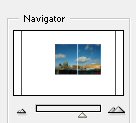
You can zoom in, so you can match all the details. You have the zoom option in the right.
3. Now, after you did match the picture hit ok and here you have the result.