Step 1
Create a new document and reset your colors.
Step 2
Grab the Text Tool (Pick a bold and thick font. In this case we choose Arial Black at a reasonably big size of 50) and type something.

Step 3
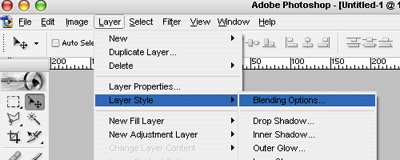
While on the text layer Click Layer--> Layer Style--> and Blending Options.
Step 4
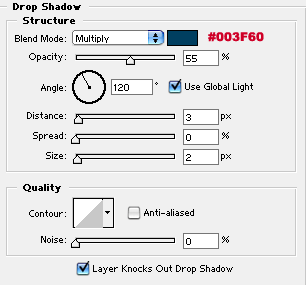
Click onto Drop Shadow, and make sure the options are set to these (roughly the same to get the effect, playing around with this setting can give you different effects).
Step 5
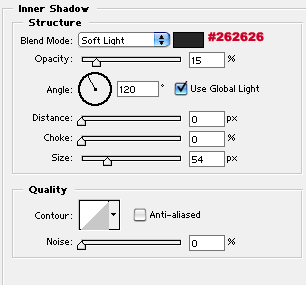
Click onto Inner Shadow, and make sure the options are set to these (roughly the same to get the effect, playing around with this setting can give you different effects).
Step 6
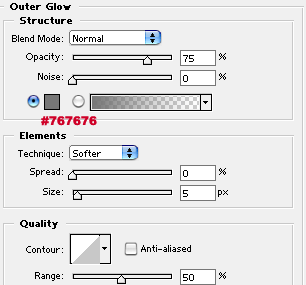
Click onto Outer Glow, and make sure the options are set to these (roughly the same to get the effect, playing around with this setting can give you different effects).
Step 7
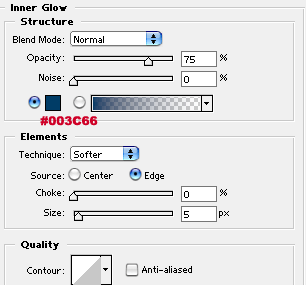
Click onto Inner Glow, and make sure the options are set to these (roughly the same to get the effect, playing around with this setting can give you different effects).
Step 8
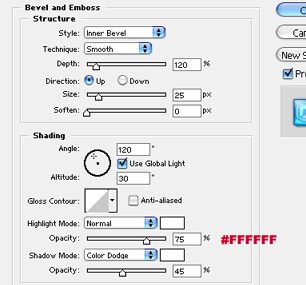
Click onto Bevel and Emboss, and make sure the options are set to these (roughly the same to get the effect, playing around with this setting can give you different effects).
Step 9
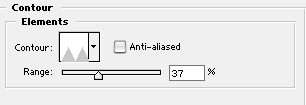
Click onto Contour, and make sure the options are set to these (roughly the same to get the effect, playing around with this setting can give you different effects).
Step 10
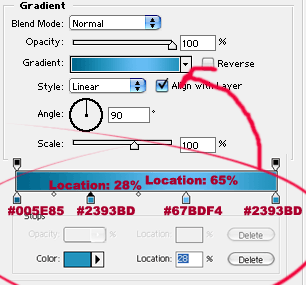
Click onto Gradient, and make sure the options are set to these (roughly the same to get the effect, playing around with this setting can give you different effects).
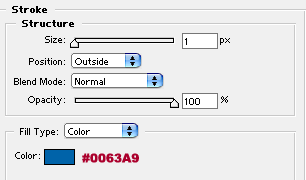
Step 11
Click onto Stroke, and make sure the options are set to these (roughly the same to get the effect, playing around with this setting can give you different effects).
Final Product
And your done, simple right? Below is examples of what we made with a different font type.