Learn how to create this fancy metallic text...
Step 1 Begin your document with black text of any choice

Step 2 Select the text and create a new layer and go to Select>Modify>Expand and choose a setting that expands your selection by doubling it
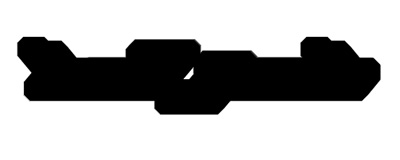
Step 3 Apply my Smoothing Tutorial on the object
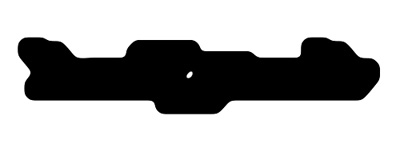
Step 4 Add these layer-styles to the object and place it behind the text
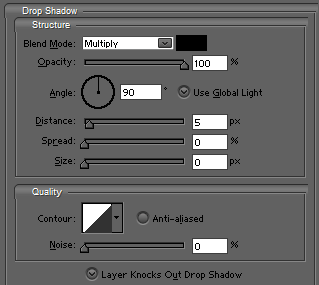
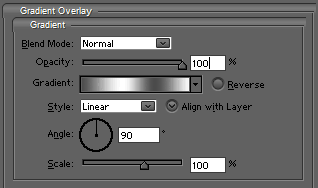
Step 5 Select the silver and go to Select>Modify>Contract and choose 3 pixels.
Then press Ctrl+Shift+I to invert the selection and fill this with black.
Select the silver once again and again press Ctrl+Shift+I and click on the black layout and press delete.
Then lower the opacity...

Step 6 Duplicate the silver layer and delete all layer-styles and place it underneath everything a tad lower

Step 7 You could add fancy lines with the Pen-Tool or Polygonal Lasso-Tool if you want.

Step 8 Merge the text together with the lines, if you have them and apply these layer-styles to it:
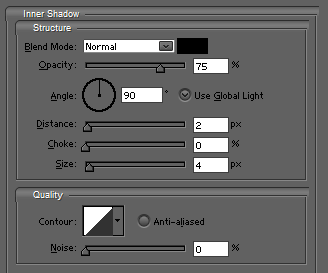
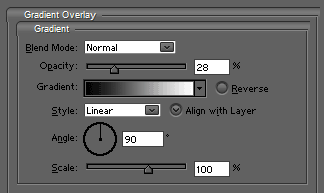
Step 9 Et voila! Your metal text is completed. Resize this to a smaller size and it will look even cooler!