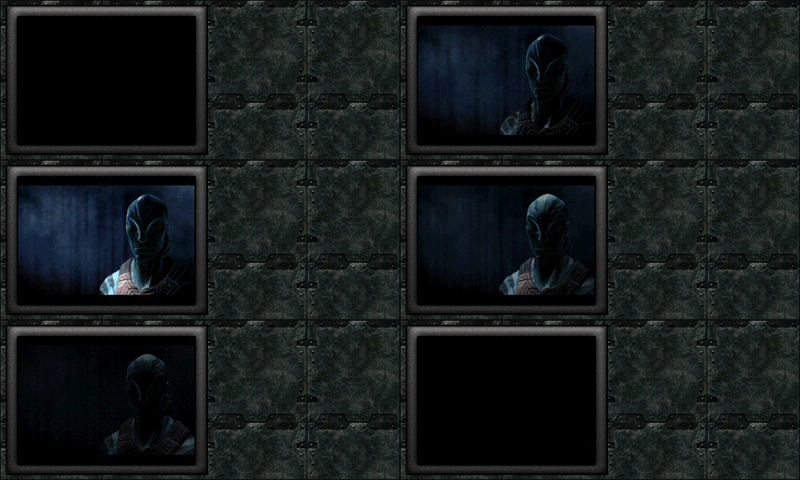
Learn how to add movies to your graphics and save them as a .gif-file...
Step 1 For this tutorial, you are gonna need a movie which is in the file type .mov. No other filetype will work!
Hop on to image-ready first and click File>Open and select your movie.
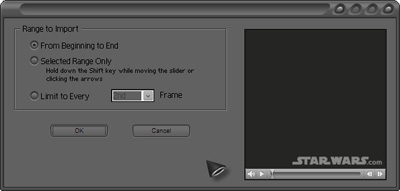
The following screen will pop up and you must choose the second option and select a piece of the movie with SHIFT as explained
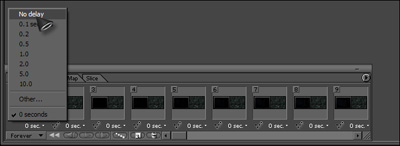
Step 2 Once you have your piece of movie, and making sure it ain' t huge, select all layers and set the time to no delay
Step 3 Export this piece to Photoshop, where we will put graphics around it. Make sure you have the 1st frame in Image-Ready selected before you export it.
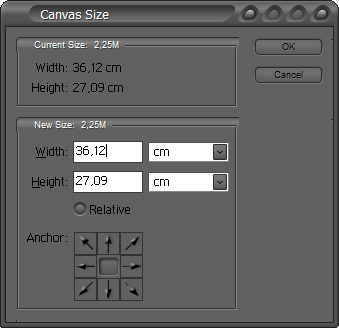
When you're in Photoshop, go to Image>Canvas Size and select a size of your choice...
Step 4 Build something around it, while making sure you don't touch the layers that contain the animation!!!
Step 5 And then finally, move over to Image-Ready and save the .gif