
This tutorial shows a quick way to take your normal, boring product shot and make it look more professional and elegant. This isn't a new trick, but it's a really quick process with Photoshop.
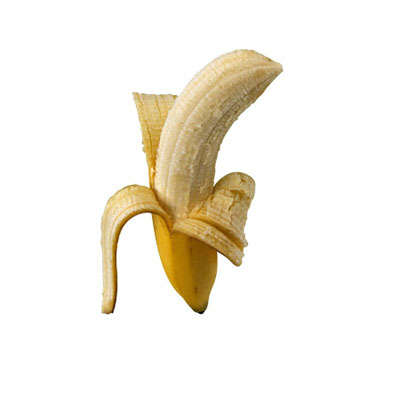
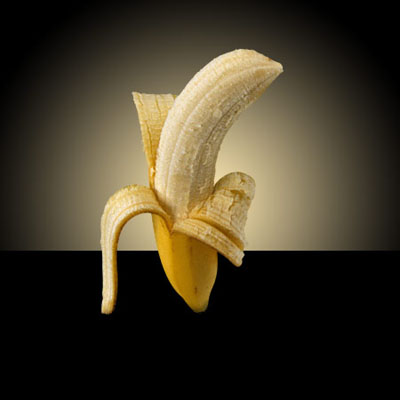
Open your image. I started with this photo of a banana from PhotoSpin.com. I masked out the banana and slightly rotated it.
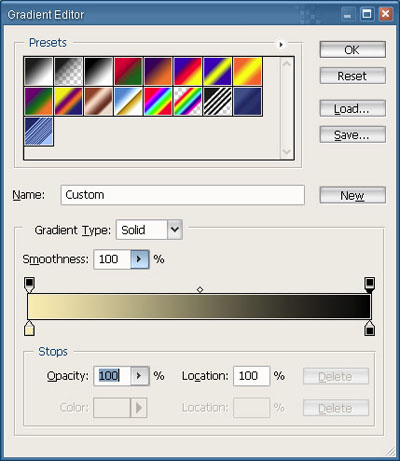
Behind my banana layer, I added a Gradient Adjustment Layer. Adjust the colors
to something yellowish, or whatever color you want, and fading to black.
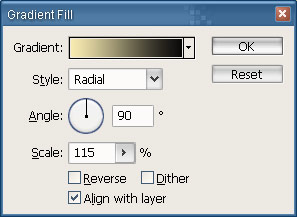
Set the Gradient Adjustment Layer to Style: Radial. I increased the scale to fit my banana better.
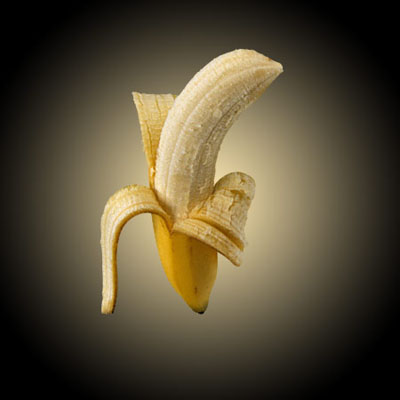
Make a rectangular selection on the lower 1/3 of your image. Add a new Solid Color Adjustment Layer under the banana layer and above the Gradient layer. Fill it with black.
Select your banana layer and press Command + J to duplicate it. Select your lower, original banana layer and press Command + T to bring up the free-transform. Right-click on your bounding box, and choose "Flip Vertical".
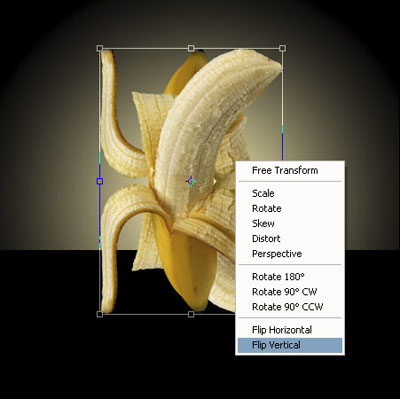
Drag your new, flipped layer down, so that the bottom of the top layer, matches the top of the bottom layer. Confused? Picture:
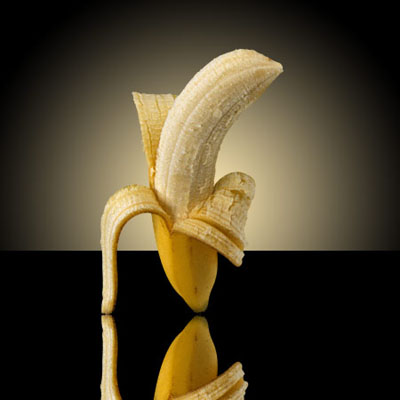
Click on the Add Layer Mask button on your Layers Palette or go Layer > Add Layer Mask > Reveal All. Select the Gradient Fill Tool G and select your default colors D. With your Layer Mask selected, drag your Gradient from top to bottom until you get a nice reflective effect.
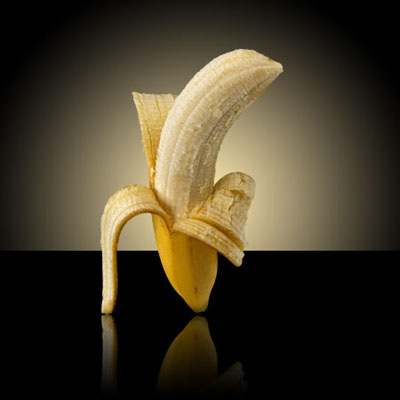
And that's pretty much it. I explained it out in this tutorial, but it's a few quick steps for a nice effect.
