

Flash serves many purposes for a modern computer user - it helps create and view web design masterpieces, animated cartoons, etc. Today I will show you how to use flash to create your very own simple, but exiting game. The gist of the game is simple: you have to drag the mouse cursor from one point to the other inside a shape without touching the edges of the shape. In case you've touched them, the game starts all over again. To let it sink in, I'll show you the final result:
You'll need a few frames for the game, at least 4 - for the simplest kind with just 1 level. Each additional level will consist of a couple of frames.
- The starting frame (contains the rules and the entrance point to the first level).
- The game frame (contains the game level, where you need to move the mouse, and a transition).
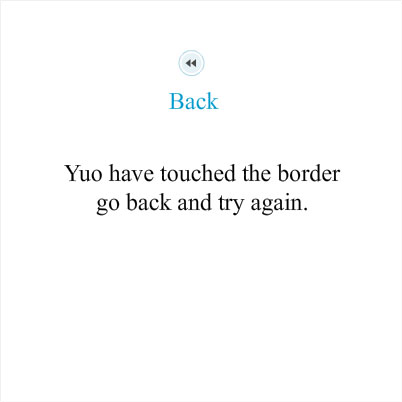
- Restart level frame ( a player will get here if they cross the borders of the figure; the frame contains the transition to the beginning of the level).
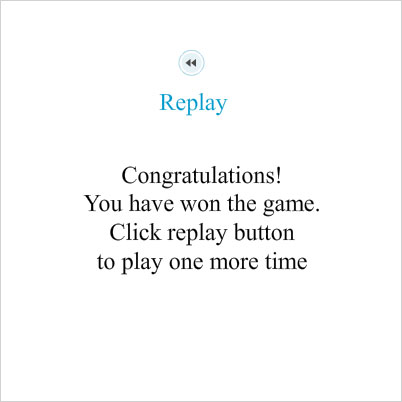
The finish frame (a player gets here in case they've completed all the levels; contains transition to the very start of the game).
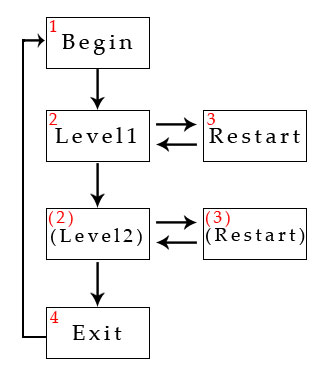
To make it easier, let's create a game with one level now. You can start from opening flash and creating a new document. Go into its properties (J) and set the values:
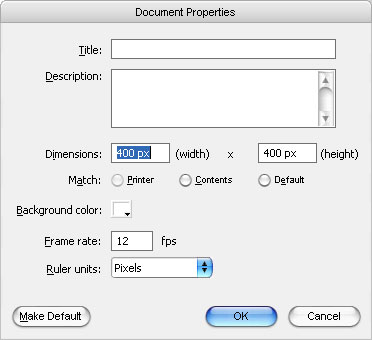
In Actions (F9) for the first frame write
| stop(); |
Select the Text tool (T) and write some text describing the rules of the game. Then add the word Start. After that, go to Window>Common Libraries>Buttons to add another button, which will take a player to the next frame (I used flat blue play).
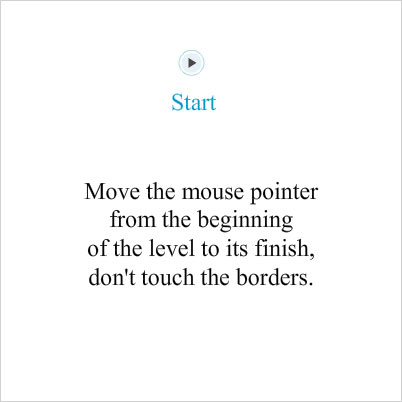
Create a new frame in the Timeline (Ctrl+Alt+T) panel, right-click the second frame and select Create Blank Keyframe.
Go there and select the Paint tool (P). Use the tool to draw a curved line conatining a lot of curves, with one end in the same point as the Start button in the previous frame. Select this object and convert it into a button (Modify>Convert to Symbol....select button). Now choose the Brush tool and draw another color dot in the other end of the line. Convert this one into a button as well.
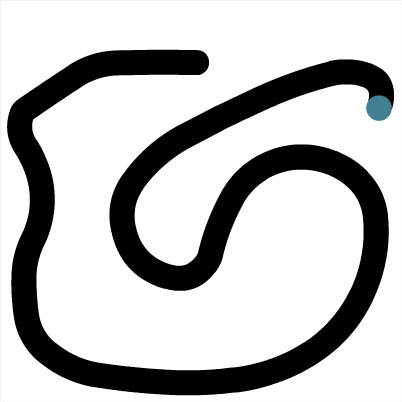
Now create new blank Keyframe in the Timeline panel (this will be the return menu in case the level is not successfully completed).
There, add a Blat Blue Back button (form Button Library) and put it on the same spot, as in the first frame. Add some kind of text explaining that the level was not successfully completed and the "Back" command under the button.
Duplicate the third keyframe (copy and paste it). After that, change the texts - instead of Back, put Replay, and instead of the main text, put congratulations and an offer to play once again.
The game frames are over with. Now you have to add the transitions between the frames and specify the conditions of a victory or loss.
Go to the first frame, click Actions and insert the following code:
| on (release)
{ gotoAndStop(2); } |
It implements the transition to the first game level.
Now go to the second frame. Select the curve and ad this code in Actions:
| on (rollOut)
{ gotoAndStop(3); } |
It will take you to the restart level frame on condition that the mouse cursor will cross the boundaries of the curve.
Select the point at the end of the curve and add this code to Actions :
| on (rollOver)
{ gotoAndStop(4); } |
When the mouse if rolled over it, the player will be taken to the next level (as we have just one level in our case, the transition will take the player to the fourth and last frame where they will find congratulations on completing the game.
Go the third frame. Select the Back button and insert the following code there:
| on (press)
{ gotoAndStop(2); } |
It will take the player back to the level where they faltered. If you create several layers, indicate the number of the frame, in which the player faltered, in the gotoAndStop function: gotoAndStop (NUMBER).
Go to the fourth frame. Select the Replay button and put the following code there:
| on (press)
{ gotoAndStop(1); } |
This will make the transition to the initial window that carries a greeting.
Now you're all set. Press Control+Enter and you can start to play!
