


Photoshop CS2 has a new feature called Smart Objects. Smart Objects allow you to alter, transform, and warp your photo, without ruining the original information.
Here, let me explain:
Let's say you transform your object by scaling it down. Then press Enter to set the transformation, in case you haven't.
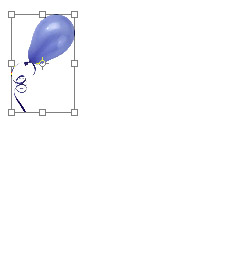
Then you want to re-scale it to the original size. You end up with a blurry, pixelate object, like this:

Now, let's convert our layer into a Smart Object Layer > Smart Objects > Group Into New Smart Object or use the Layers palette menu.
Now we scale our object down. Press Enter to set the transformation.
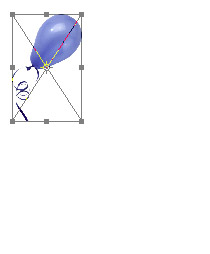
Then, we re-scale the object back to the original size.
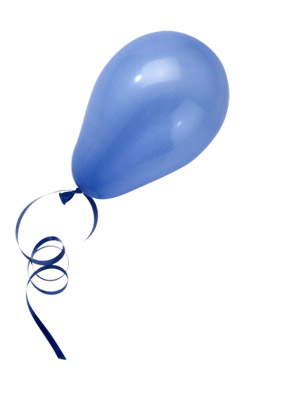
And no blurry, pixelated image. This is called non-destructive editing... and Photoshop isn't the first to use it, some people may remember a program called Live Picture.
Anyway, let's look at what else we can do with Smart Objects.
Let's duplicate our Smart Object layer with Ctrl + J, then scale the new layer down.
Double-click on the Layer thumbnail in the Layers palette. You should get a dialog like this:
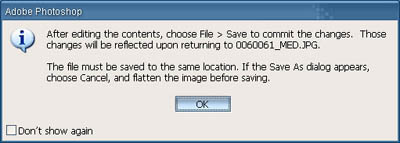
Click OK, and you'll get your object in it's own window.
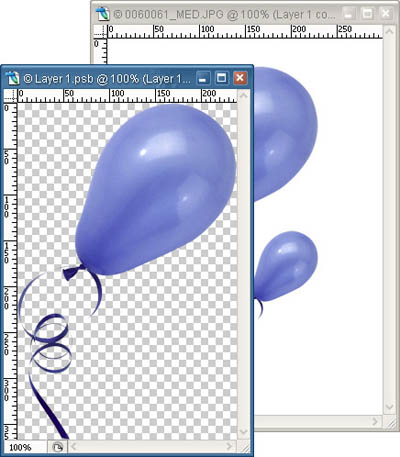
Now you can alter your object in the new window. We'll start by adding a Hue/Saturation Adjustment layer and changing the color.
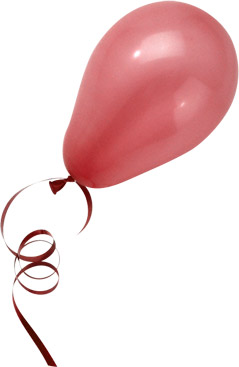
Whoah... exciting, huh? Well, hit Ctrl + S to save, then click back on your original image.
Holy crap. As soon as you clicked, the images changed.
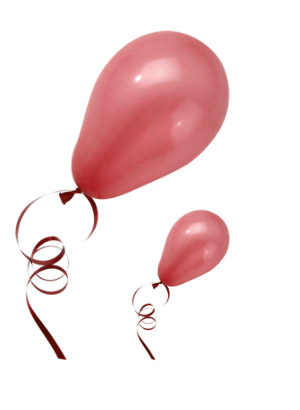
Now, let's duplicate Ctrl + J another layer, and transform it.
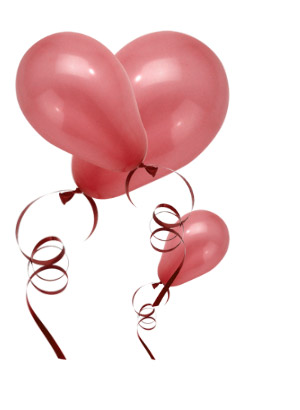
Select the Group Into New Smart Object again Layer > Smart Objects > Group Into New Smart Object. Then duplicate and transform again. You should now have a total of 4 objects.
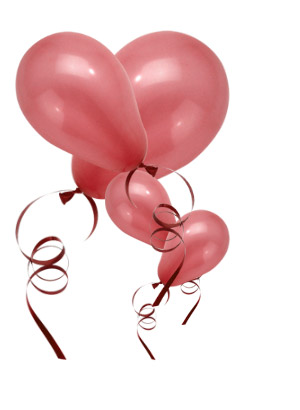
Double-click on the Layer thumbnail again, and alter your object.
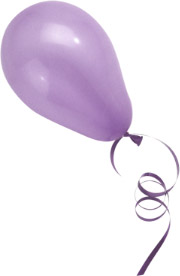
Ctrl + S to save your object, then click back on your original document.
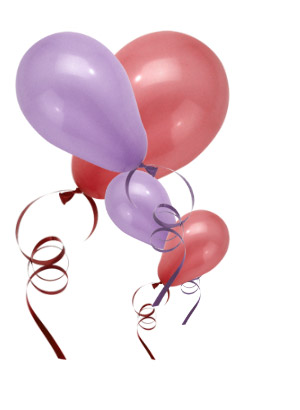
You now end up with two different pairs of objects. Pretty cool, huh? I can see this being a very powerful tool for anybody who does large image compositions.
