


This tutorial will show you an elaborate way to create a semi-realistic rainy day effect. You'll get familiar with the brush settings again but it creates a bit better looking effect than just the motion blur filter.
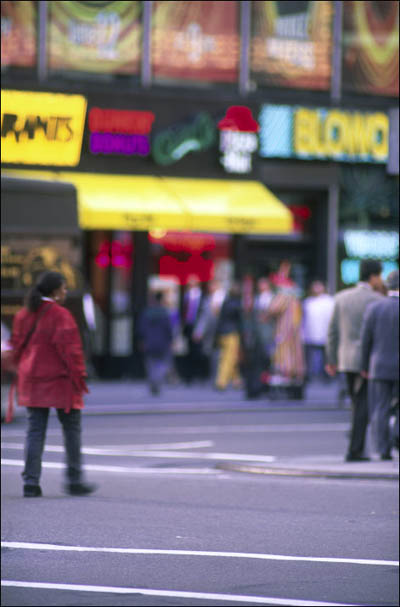
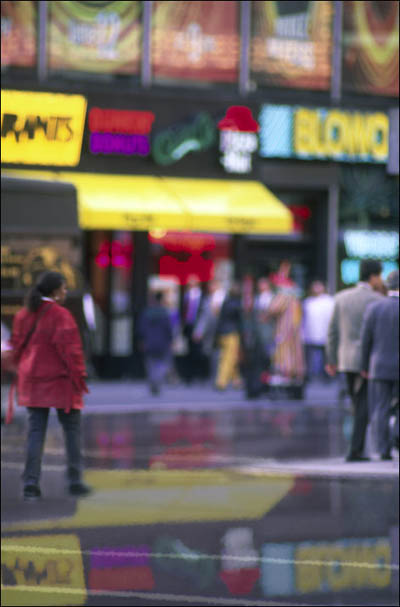
I'll show you the image I'm going to use, courtesy of PhotoSpin.com.
Creating Rain Drops
The first step is going to be creating the rain drops. Open a new image Ctrl + Shift + N and set it to the dimensions you want your biggest droplet to be. Mine is about 250-pixels, so I created a 250-pixel square.
Create a new Layer Ctrl + Alt + Shift + N and fill it with black. Press D for default colors, then Ctrl + Backspace to fill.
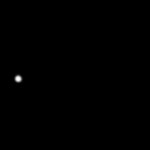
Choose a small brush and draw a single dot towards the left of the image.
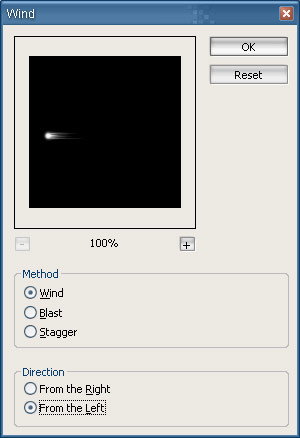
Go to Filter > Stylize > Wind. Set the Method: Wind and Direction: From the Left.
Press Ctrl + F to run the filter again. You may want to run it one more time, for a total of 3.
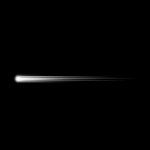
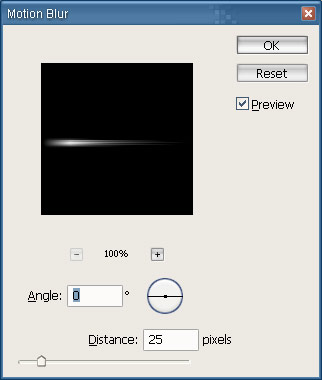
Next, go to Filter > Blur > Motion Blur. Set the Angle: 0 and Distance: 25 or so pixels.
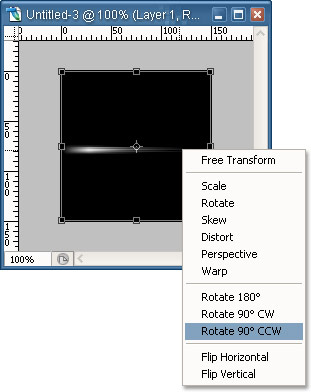
Press Ctrl + T to bring up the Free Transform. Right-click in the bounding box and choose "Rotate 90° CCW." Then press the number pad Enter key to set it.
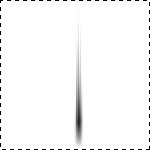
Press Ctrl + I to inverse the image. Then, press Ctrl + A to select the entire image.
Go to Edit > Define Brush Preset... and name the brush something you will remember.
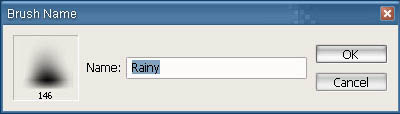
You now have a rain drop brush.
Rainy Reflections
We're going to forget about the brush for a little to create the rainy scene.
Go back to the image you want to edit. Create a new Hue/Saturation Adjustment Layer, Layer > New Adjustment Layer > Hue/Saturation or select it from the button at the bottom of the Layers palette, and change the settings to:
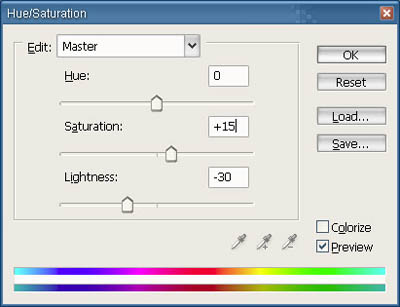
Saturation: +15
Lightness: -30
With the Hue/Saturation Layer selected, fill the Layer Mask with black (press D then Ctrl + Backspace).
Select a normal, soft-edged, round brush and set your Foreground Color to white. Start painting the street to darken it, giving the effect that it's wet. This is also where the reflection will be.
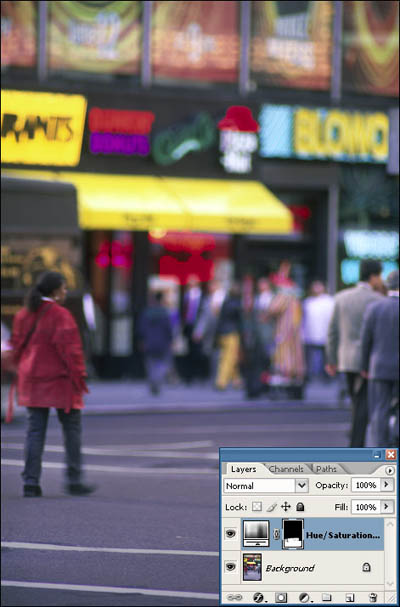
Now, duplicate the entire image by selecting the Background Layer in the layers palette and pressing Ctrl + J. Set the Layer Opacity to something around 60-70%.
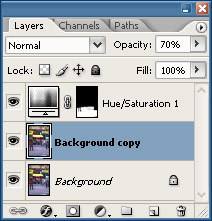
Flip the layer vertically by going to Edit > Transform > Flip Vertical.
Now, hold Ctrl and click on the Layer Mask, black and white area, of the Hue/Saturation Adjustment Layer you created earlier. This will load that layer mask as a selection on your new, flipped layer.
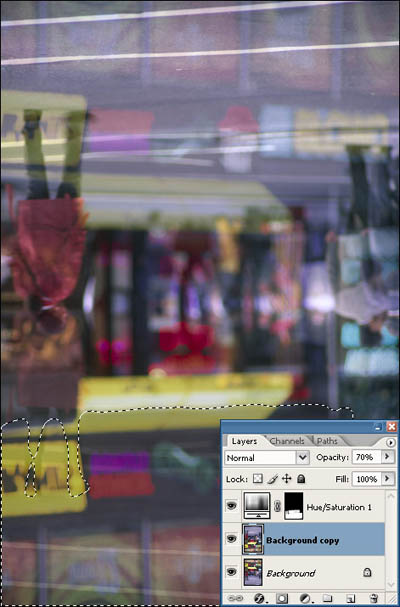
Click on the Add Layer Mask icon at the bottom of the Layers Palette, or go Layer > Layer Mask > Reveal Selection. You should now have a duplicate Layer Mask. Click on the Link icon in between the Layer preview and Layer Mask preview to unlink them.
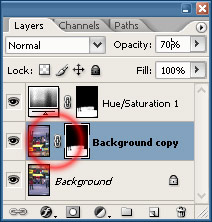
With the Layer preview selected in the Layers Palette, not the Layer Mask, drag the layer down until the reflection looks good.
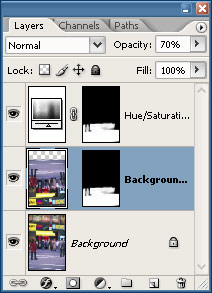
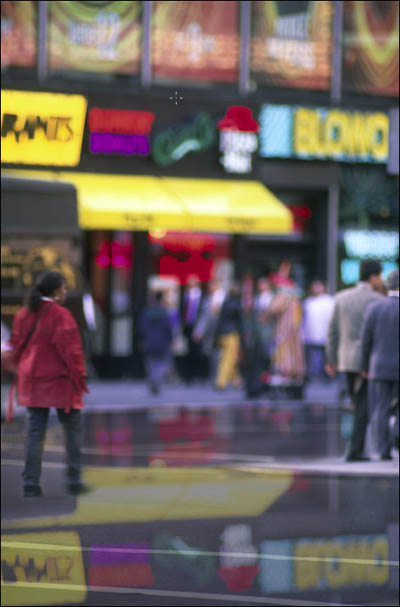
Create a whole new layer Ctrl + Alt + Shift + N. With this new layer selected in the Layers palette, press Ctrl + Alt + Shift + E to merge all the visible layers onto that layer.
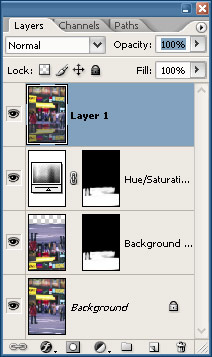
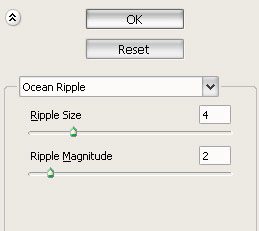
Now go to Filter > Distort > Ocean Ripple. Play with the Ripple Size and Ripple Magnitude until you get something you like. Mine were pretty small:
Add a small Gaussian Blur Filter > Blur Gaussian Blur of around .8-1.5 pixels.
Load the Layer Mask of one of your other layers by holding Ctrl and clicking on it, like we did before, and add a new Layer Mask to your rippled image. Then hide or delete your other 2 layers.
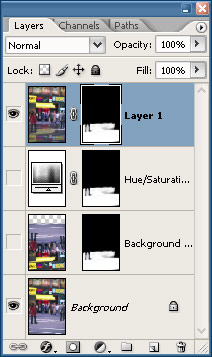
You should now have your reflected surface.
Making It Rain
Select the Brush Tool B and choose your new brush from the Brush Palette.
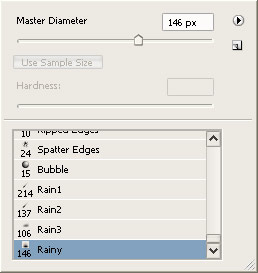
Go to the Brush Options Palette F5 and select Shape Dynamics. Change the settings to:
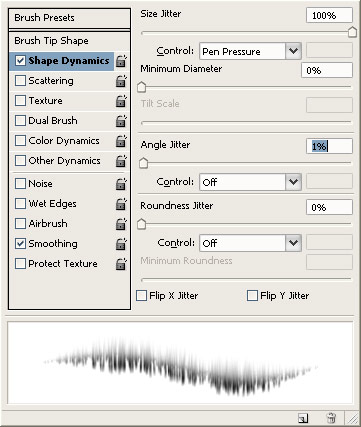
Size Jitter: 100%
Angle Jitter: 1%
Select Scattering Next. Change the settings to:
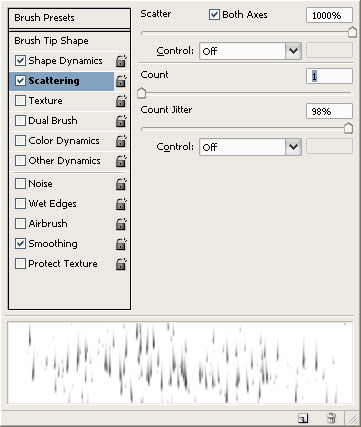
Scatter: 1000%
Both Axes: Yes
Count: 1 (or 2 if you want heavier rain)
Next, choose Other Dynamics and change the settings to:
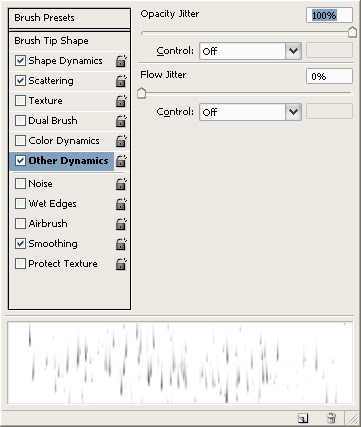
Opacity Jitter: 100%
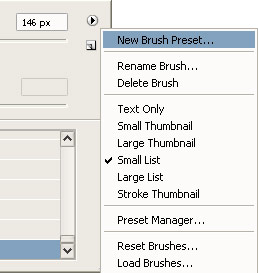
Now, save this brush as something similar to your first. Go to the Brushes Palette and choose New Brush Preset from the little-arrow menu (technical, I know).
Set your foreground color to white (press D then press X).
Create a new layer Ctrl + Alt + Shift + N and start painting with your new brush.
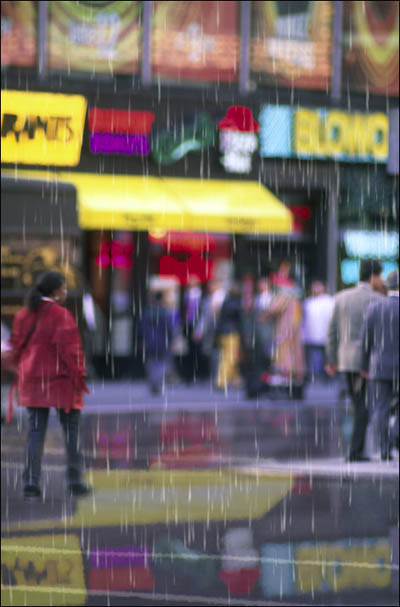
Set the Layer Mode to Soft Light.
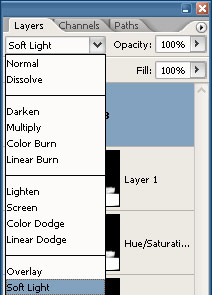
Create a new Layer below the layer you just painted.
Decrease your brush size slightly by pressing the left bracket key {.
Paint your new Layer and change the Layer Mode to Soft Light.
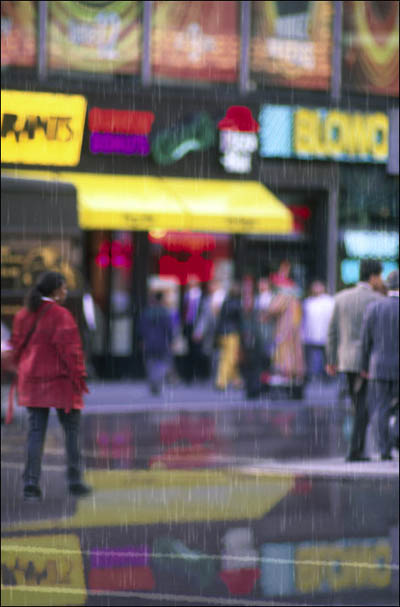
Create another new Layer below that layer.
Bring up your Brush Options again F5 and click on Brush Tip Shape.
Change the Angle: -25°. Decrease your brush size a little more again { and start painting.
This will create the angled rain.
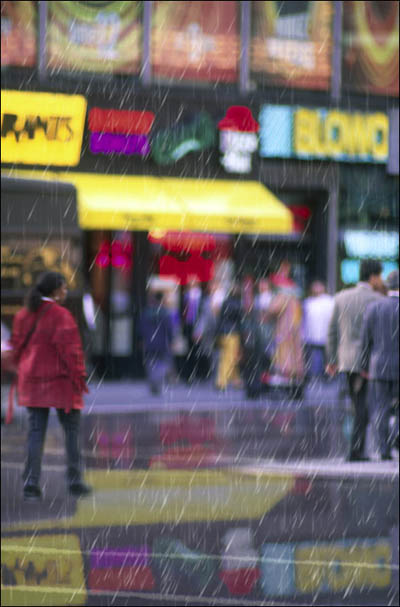
Add a slight Gaussian Blur Filter > Blur > Gaussian Blur of about 1.5 pixels. Reduce the Layer Opacity to around 65%.
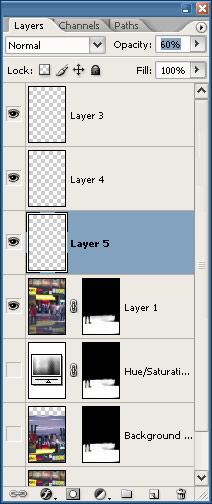
I want to add a bit more rain, so I'm going to paint again on the same layer, then press Ctrl + F to run the Gaussian Blur again.
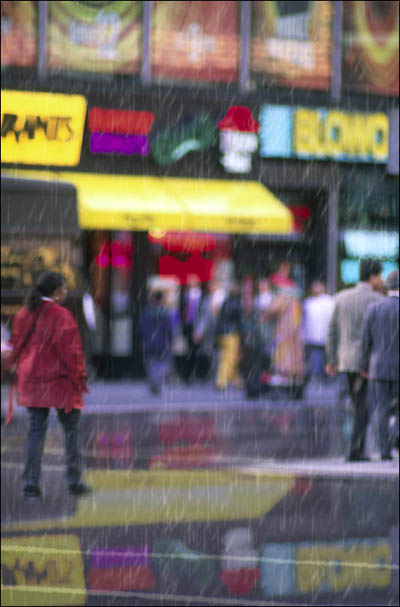
If you think the rain drops look too harsh, play with the Opacity of the layers and add a little more Gaussian Blur.
Also, you should have an idea of how to add more or less rain. Play around with it until you get something you like. None of these settings are exact.
Tiny Splashes
Go to your Brushes palette and choose the "Star 42" brush.
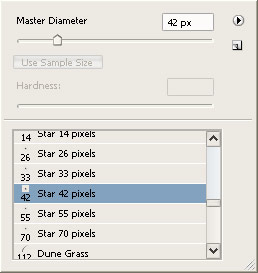
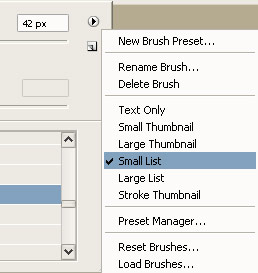
Note: If you can't find the brush, click on the small arrow to bring up the Palette options and choose "Small List."
Bring up the Brush Options palette F5 and choose Brush Tip Shape. Change the settings:
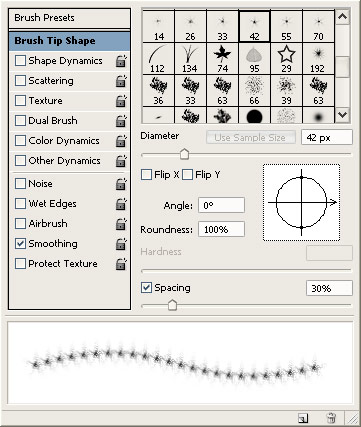
Spacing: 30% or so
Next, choose Shape Dynamics. Change the settings:
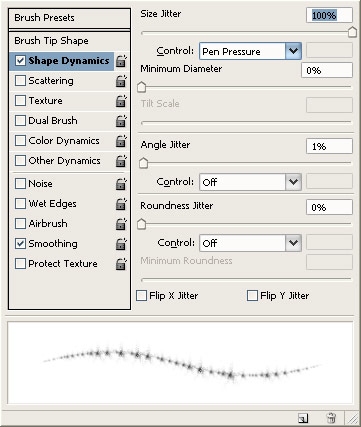
Size Jitter: 100%
Choose Scattering and change the settings:
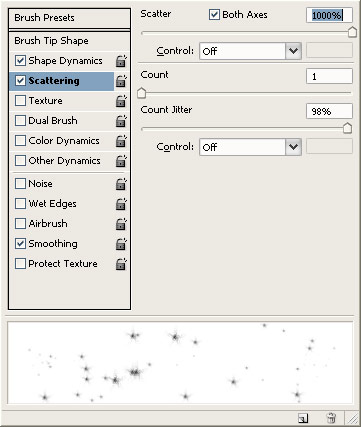
Scattering: 1000%
Create a new layer and change the Layer Opacity to around 50-60%.
With your new brush, start painting the areas on the street. This will create a slight splash effect for the rain.
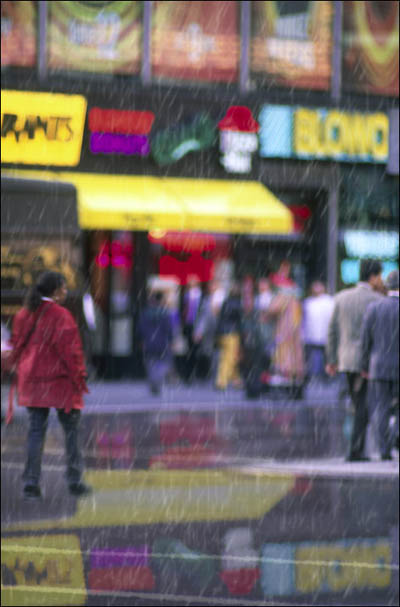
You can, again, add a slight Gaussian Blur to make it look a little softer.
It will probably overlap some areas where there shouldn't be a splash. Just use the Eraser Tool to erase the rogue drops.
Finishing Touches
Since I have some people outside in the rain, I'm going to make them look a little wet.
Create a new Hue/Saturation Adjustment Layer Layer > New Adjustment Layer > Hue/Saturation. Change the settings:
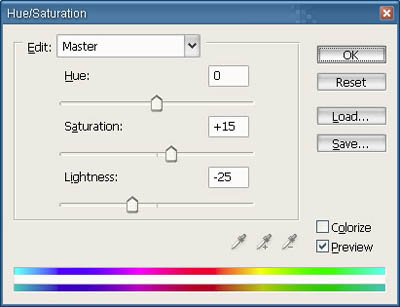
Saturation: +15
Lightness: -25
Fill the adjustment layer with black. Choose a normal, soft, round brush and set the foreground to white. Paint the people's clothes so that they appear darker... wetter.
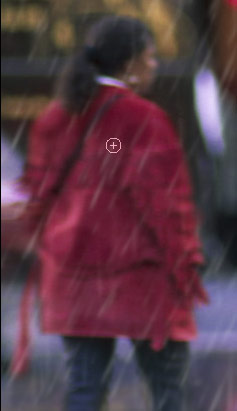
Create a new layer Ctrl + Alt + Shift + N. With your foreground color still white, and your soft edged brush, just highlight the areas where rain would be bouncing off of things. People's heads, cars, lamp posts, etc... This adds that "hazy" effect.
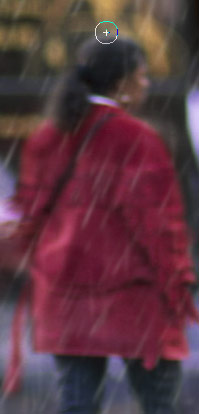
Now, just add another Hue/Saturation adjustment layer, at the top level of your Layers Palette, and adjust the settings:
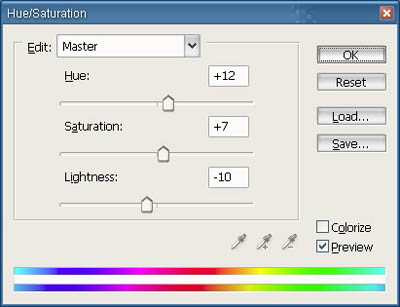
And that's about it. The final image:
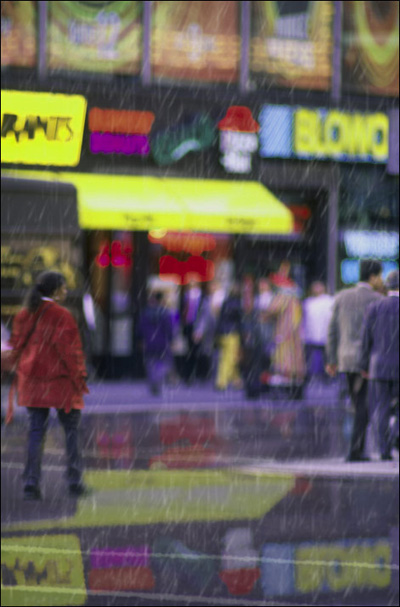
Compared to the original:
Now, I do have to confess... that when I first went through the trial and error of this, my original image looked better than the tutorial image. But that just shows how the extra tweaking to your preference makes a difference.
So, play around with it. Have fun.
