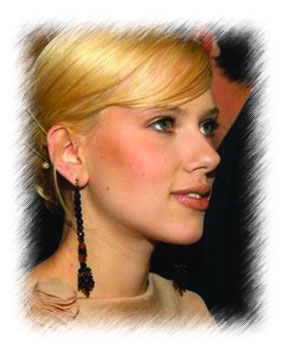
1. Open Photoshop. Open the image to apply cross border.
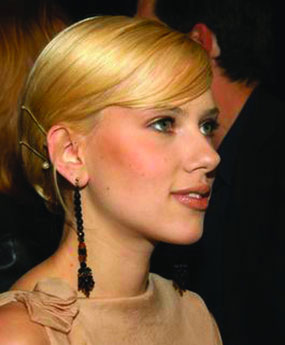
2. Select Rectangular Marquee Tool and make rectangular selection on the image.
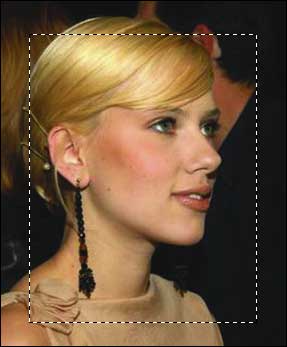
3. Go to Channels tab. Create new channel.
Select > Feather (Radius: 7)
Fill white color and deselect the selection with CTRL+ D.
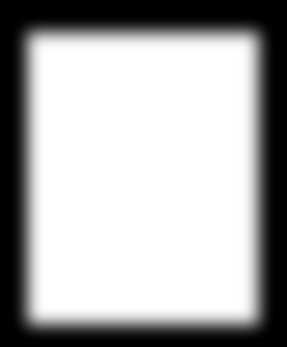
4. Filters > Brush Strokes > Sprayed Strokes
Stroke Length: 12
Spray Radius: 7
Stroke Direction: Right Diagonal
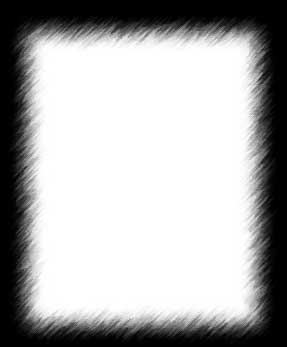
5. Go to Layers Tab and create new layer. Keep the new layer selected.
6. Select > Load Selection (Select Alpha1 from channel drop down and check Invert)
7. Fill white color using Alt + Del. and deselect with CTRL + D.