

This is what we are going to create:

Open a new file: size 300 x 300 pixels.
Make new layer and choose the tool Elliptical Marquee tool or press M.
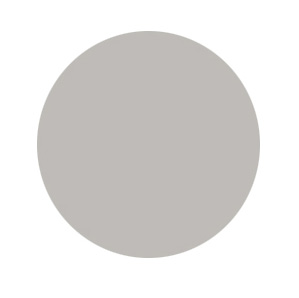
Make a circle. make it as big as you want to. And Pull out your PAint bucket tool and choose a color your prefer. Click your mouse in the selected circle and it will fill up with color you wanted. It should look like this.
Now press M again in your tool box, and select a smaller circle in the big circle.
Fill it again with the paint bucket tool with an other color of your chose. Now it should look like this:

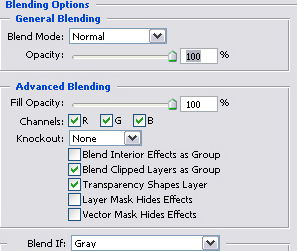
Ok! Click on the layer of the first circle and right click it and go to blending options. Now take over the settings below.
Check the box drop shadow and take over the following settings.
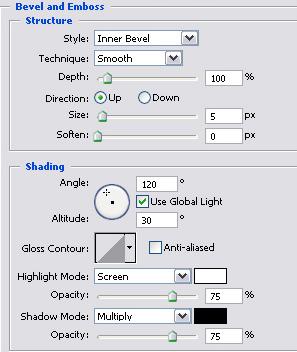
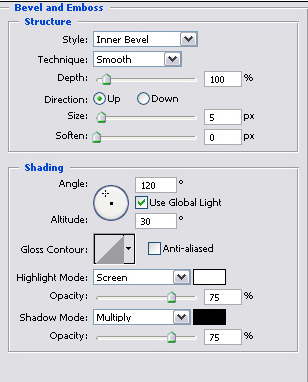
Now check the box Bevel and Emboss and take over the following settings
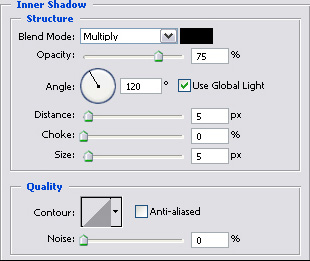
Now select the 2nd circle shape layer and right click it and go to blending options. And check the box Inner glow and take over the following settings.
It should look like this now.
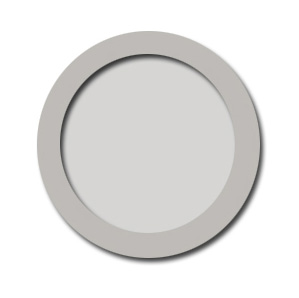
Now we are going to do the finishing touch/ Add a nice shape in the circle which your prefer.
And make a new text layer. Choose a color and type what you want.
Now right click the text layer and check the box Bevel and Emboss and take over the following settings.
Now we are done and it should look something like this:
