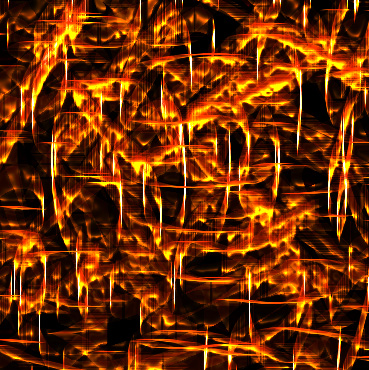
Start by drawing some rough lines using pencil tool in a new layer.
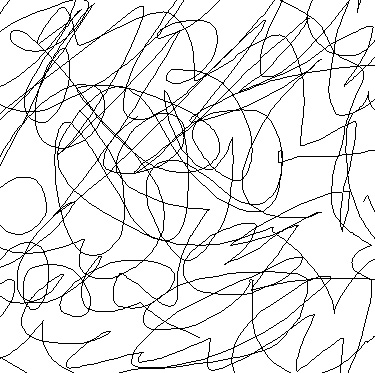
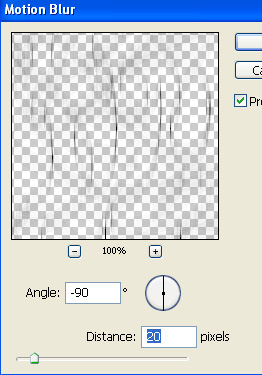
From filter menu select blur>>motion blur. Apply settings as shown.
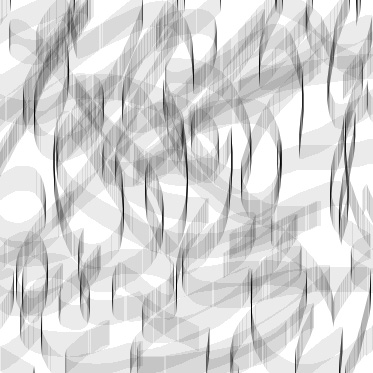
Duplicate the layer and press Ctrl+T. Right click the layer select 90° clockwise.
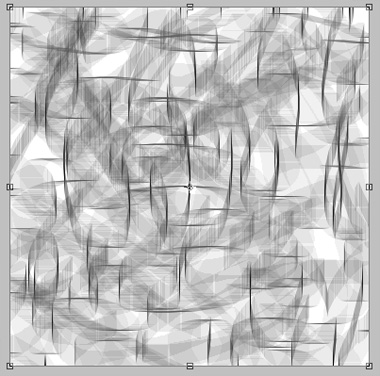
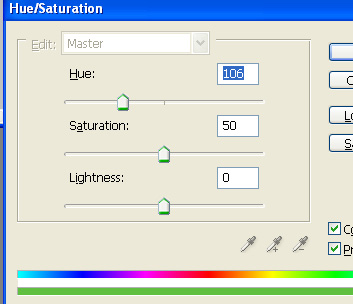
Press Ctrl+U to open hue/saturation window. Apply settings as shown.
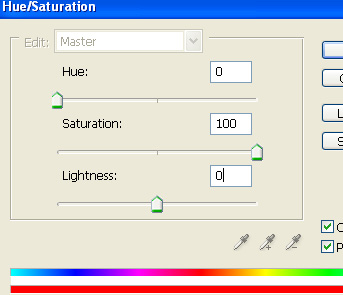
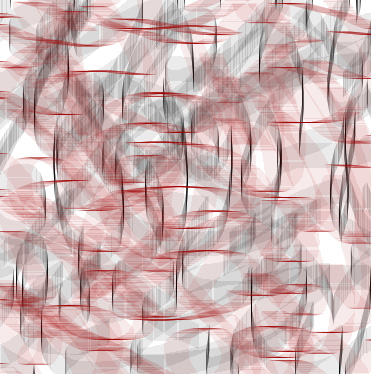
Select and merge all the layers including background layer. Press Ctrl+I to invert the color.
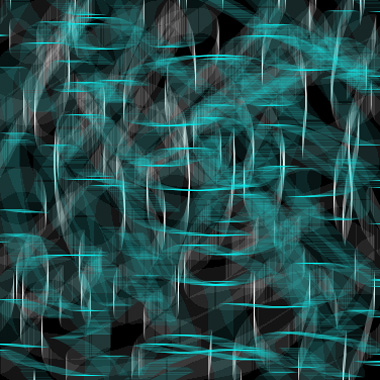
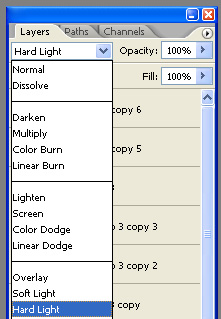
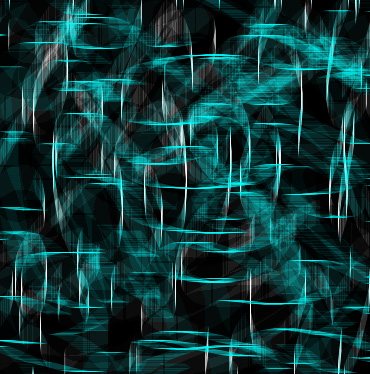
Duplicate the layer and change the layer mode to hard light.
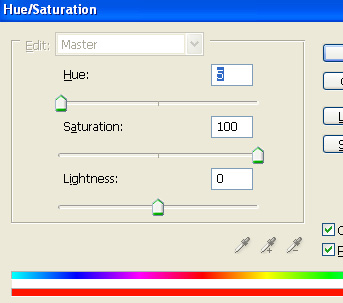
Press Ctrl+U to open hue/saturation window. Apply settings as shown.
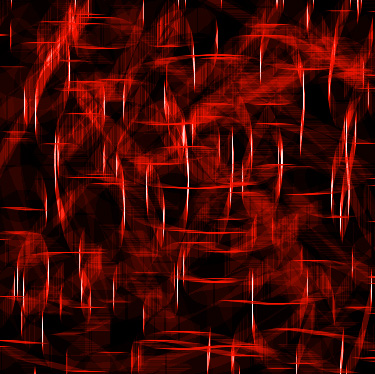
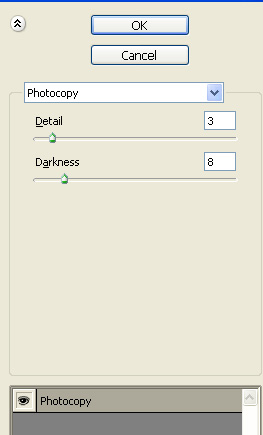
Duplicate the layer. From filter menu select sketch>>photocopy. Apply settings as shown.
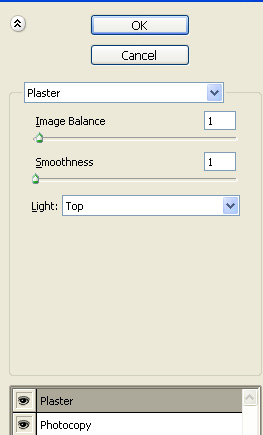
Add new effect layer from the bottom of effect window. Select sketch>>plaster. Apply settings as shown.
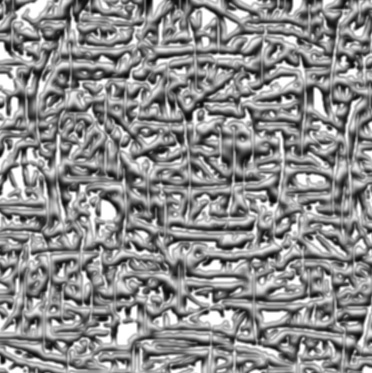
Press Ctrl+U to open hue/saturation window. Apply settings as shown.
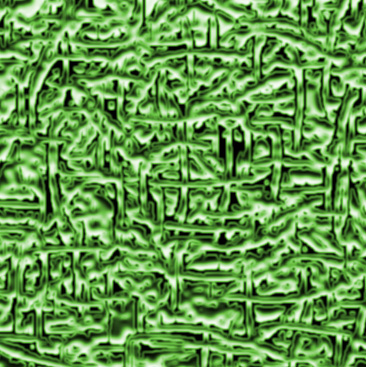
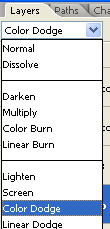
Change the layer mode to color dodge.