Start by creating a circle using elliptical shape tool.
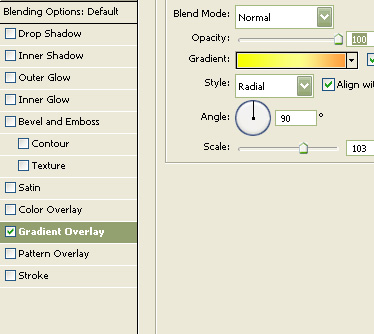
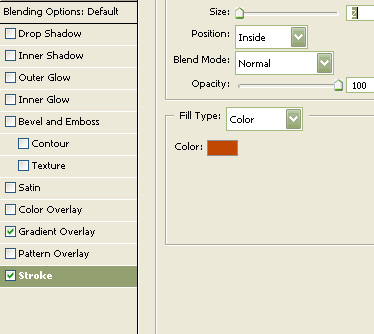
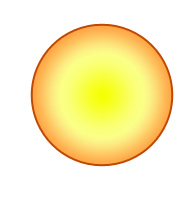
Double click the layer to open layer style window. Apply layer style with the settings shown.
Create an elliptical selection using elliptical marquee tool. Create a new layer and apply a black to white gradient in linear mode. Change the layer mode to screen.
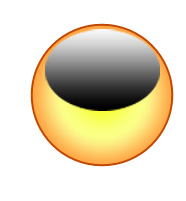
Change the layer mode to screen.
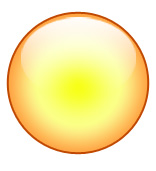
Select and merge both the layers. Press Ctrl+T. Right click the layer and select distort. Adjust nodes to get the shape as shown.
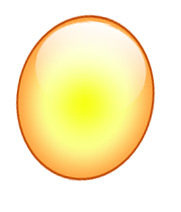
Create eye brows using pen tool.

Create an ellipse using elliptical shape tool. Press Ctrl+T. Right click the layer and select warp. Adjust nodes to get mouth shape as shown.

Double click the layer to open layer style window. Apply layer style with the settings shown.
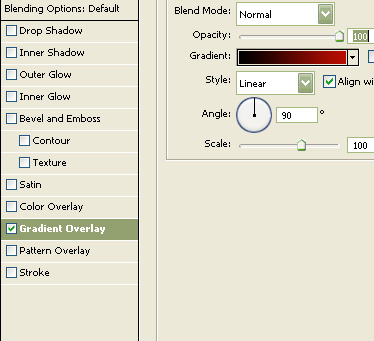

Create an ellipse using elliptical shape tool. Press Ctrl+T. Right click the layer and select warp. Adjust nodes to get the shape as shown. Apply the same layer style as we used for the face layer.
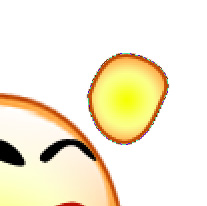
Enable add to shape area form the top bar. Create a rounded rectangle using rounded rectangle shape tool. Press Ctrl+T. Right click the layer and select warp. Adjust nodes to get the shape as shown.
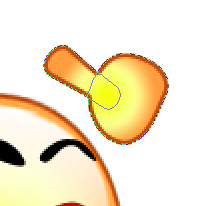
Similarly create other fingers.
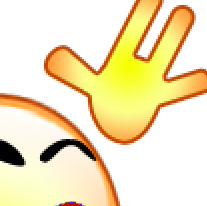

Duplicate the hand layer. Press Ctrl+T. Right click the layer and select flip horizontal. Place it for the other side.

Create a new layer. Add some details near the eyes using brush tool.

Select all the layers and scale down.