

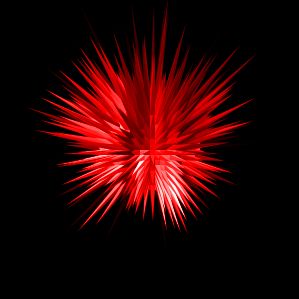
Result:
Create a new file with any size, my size is 300õ300. Fill it with black.

Choose Elliptical Marquee tool
 and set style to Fixed Aspect Ratio and put 1õ1:

Draw a circle, and go to Filter-Render-Fibers. Don't change anything.
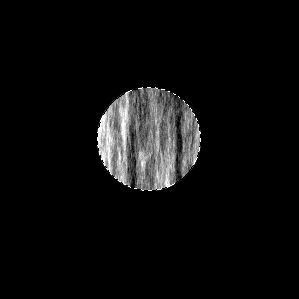
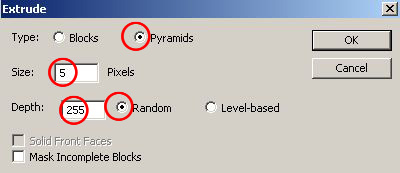
Hold Ctrl+D to deselect. Go to Filter-Stylize-Extrude with such options:
Click OK and see what we got:
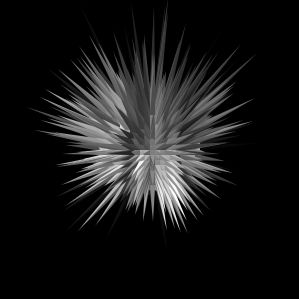
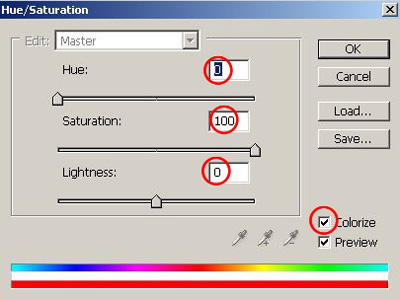
To add color do that: Image-Adjustments-Hue/Saturation.
Don't forget to click on Colorize! And choose any color.
Your star is done!
You can play around with different colors and settings.
