
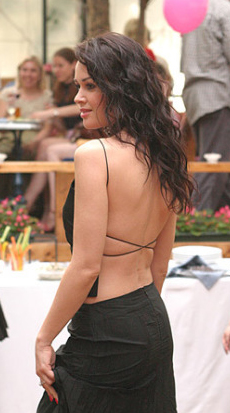
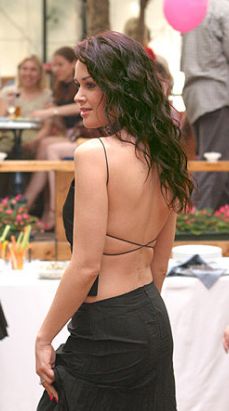
Original:
One of the possible colors:
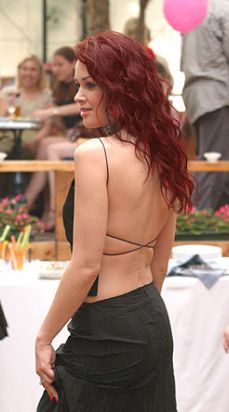
In this tutorial we'll learn how to change hair color in Adobe Photoshop. First of all we need to select hair. Photoshop offers a few methods to do that- using Channels, Extract, KnockOut and MaskPro plug-ins, Lasso, Magic Wand, Pen and other tools. This time we'll use good old Quick Mask. Open your picture in Adobe Photoshop. I took a photo of my favorite actress Anastasiya Zavorotnyuk.
Click on the indicated icon of Quick Mask or press Q on your keyboard.
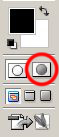
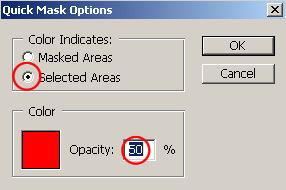
Double click on this icon to go to it's options: Activate Selected Areas.
Take soft Brush
 and start selecting hair:
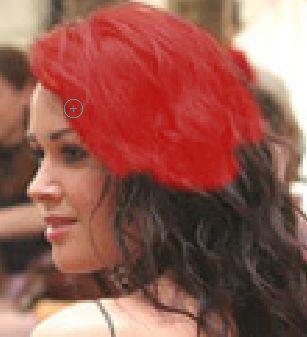
You can easily change your brush size by pressing [ (to make it smaller) and ] (to make it bigger) on your keyboard:
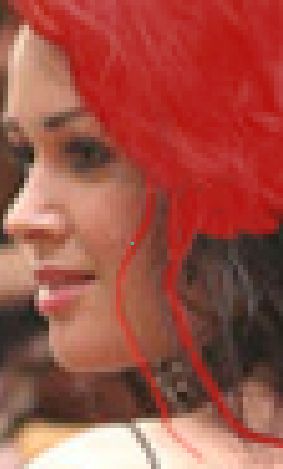
All hair is in red now:
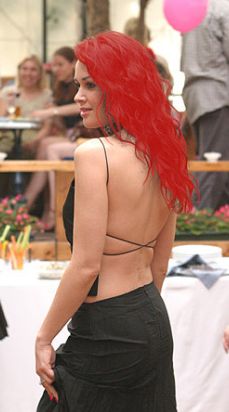
Hit Q on your keyboard and all hair is selected. If you have some unwanted areas that are selected, or you have selected too much, go back to Quick Mask by pressing Q again. Use Eraser to erase or Brush to select.
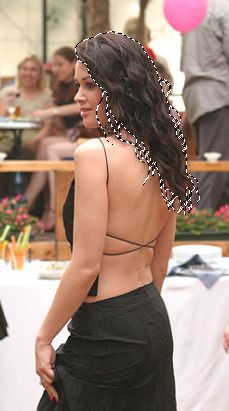
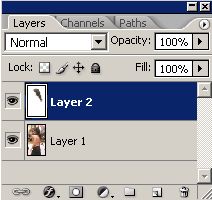
Press Ctrl+J on your keyboard to make a new layer via copy. In layers window you can see a new layer:
Go to Image-Adjustments-Color Balance or press Ctrl+B. Set the following settings:
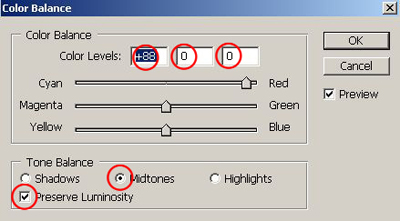
Hair color changes:
Change some settings:
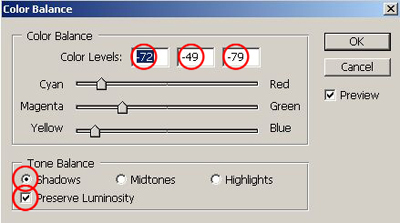
Oh, my gosh! Hair color changes again %)
Try another settings:
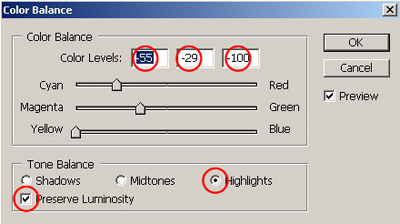
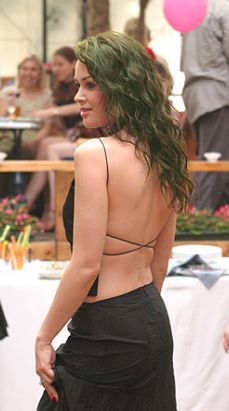
And get another color:
Have a good day! ;0)
