


In today's tutorial I will describe how to make a logotype consisting of black and white strips (it looks like a scanlines effect). You can see an example of this logotype at Sierra Entertaintment - check it's logo..
First of all you should create patterns for the background and the logo. They will be present in your finsished logotype. So let's begin with the background pattern. Create new document having size 1x6px. Use the Pen tool to fill half of the canvas with black and the other half with white.

Now make the black line 1 px longer and define this new pattern.

Now you should choose a picture that will be in the base of your future logo. This can be any picture that makes a good silhouette. It can be any photo, vector image, etc. I've used the vector image of mountains:
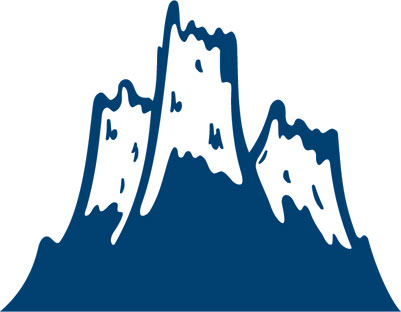
Open this image in Photoshop. Using the Magic Wand tool select and delete the white spaces. Using the Free Transform Resize the image. Set new size at about 130x100. After that select the whole contour. (Use the same method with whatever image or photo you are using).
Now set the canvas size at 200x240px and use the Move tool to move your future logotype into the upper part of the image.
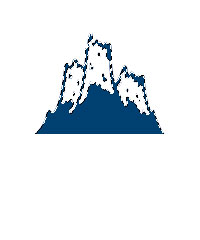
Now fill the image using the created pattern with the line frequency at 4x2 and deselect.
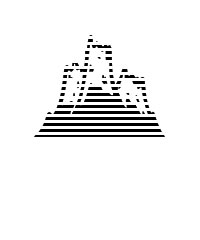
Now create a new layer and move it backward, select the Elliptical Marquee tool and make selection around logo.
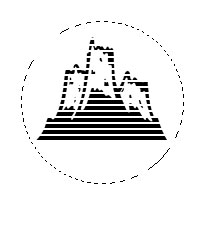
Fill it in using another pattern with the line frequency at 3x3 and deselect.

Don't worry if your white spaces don't match with mine. Using the Move tool just move them a few pixels up or down until it matches my picture.
Now select the layer with the background and fill it in with black.
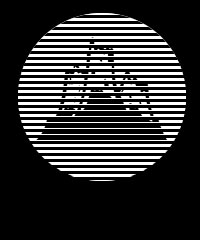
The last step - add some text to your logo. White is the best decision for the text. So set the foreground color to white, select the Type tool and type some text into the bottom of the image.
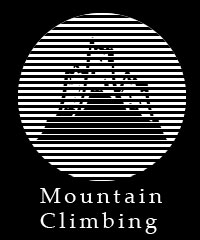
I hope this tutorial was useful and that you will find many ways to use this technique.

