

Start by creating a new file of banner size. Fill the background with blue color.

Create a rectangular selection using rectangular marquee tool.

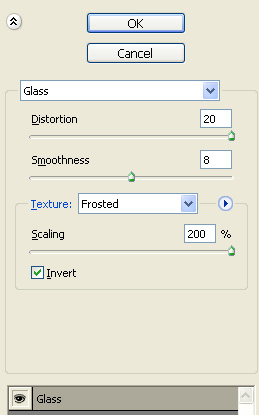
Press Q to enable quick mask. From filter menu select distort>>glass. Apply settings as shown.
Press Q to disable quick mask. Create a new layer and fill the selection with white color.

Create a rectangle using rectangular shape tool.

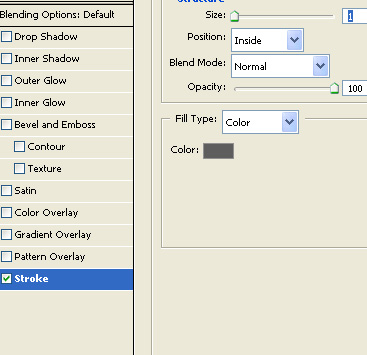
Double click the layer to open layer style window. Apply layer style with the settings shown.

Insert a product image and place over this rectangle.

Similarly create more rectangle and place images over them.

Insert company logo and place on the left.

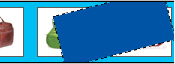
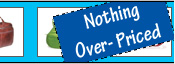
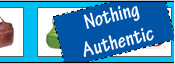
Create a rectangle using rectangular shape tool. Press Ctrl+T and rotate it.

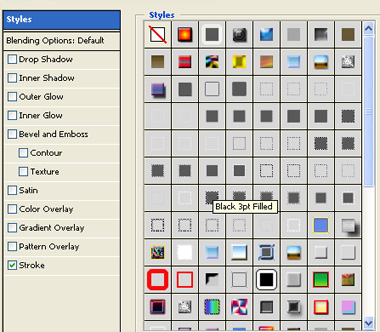
Double click the layer to open layer style window. Apply layer style with the settings shown.
Type details on the rectangle. Use different layers for different lines of text.

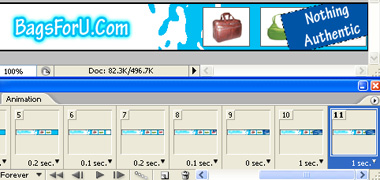
Open animation window. For the first frame hide all rectangles and images.
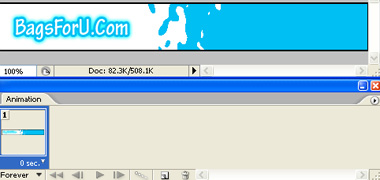
Duplicate frame. Unhide first rectangle.
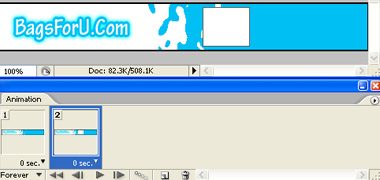
Duplicate frame. Unhide first product image.
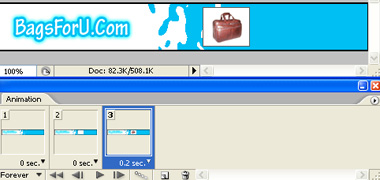
Similarly create duplicate frames and keep unhiding rectangles and images.
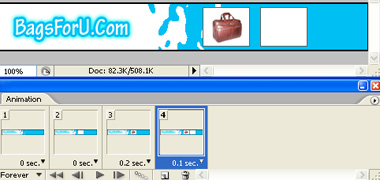
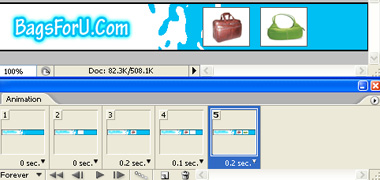
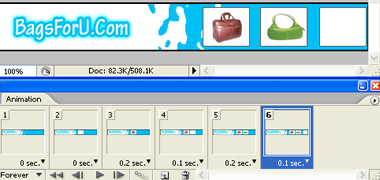
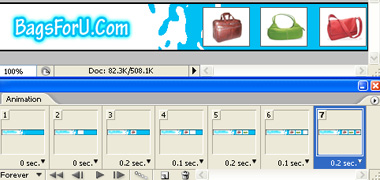
For 8th frame keep the rotated rectangle layer and the respective text layer partially visible from the right edge of the banner.
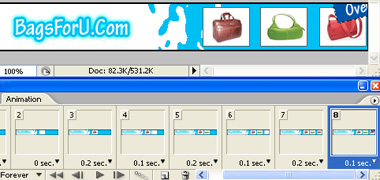
Duplicate frame. Move these layers inwards.
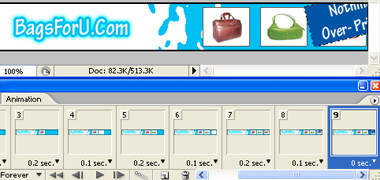
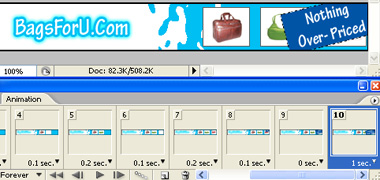
Duplicate frame. Hide the first detail layer and unhide the second one.
Press Ctrl+Alt+Shift+S to save an optimized animated GIF.

