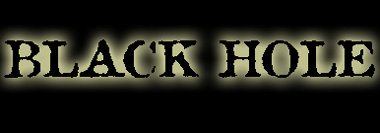
Start by typing the text on a black background. Duplicate the layer and hide it.
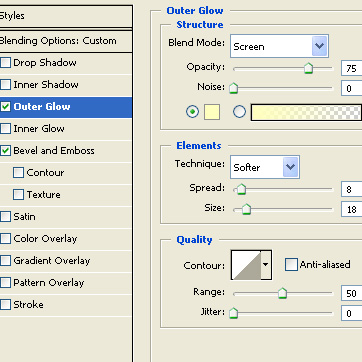
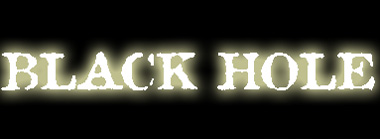
Double click the layer to open layer style window. Apply layer style with the settings shown.
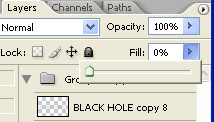
From layer palette reduce the fill value for the text layer to 0.
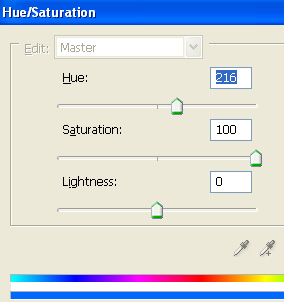
From layer menu select layer style>>create layers. Select and merge resulting layers. Press Ctrl+U to open hue/saturation window. Apply settings as shown.

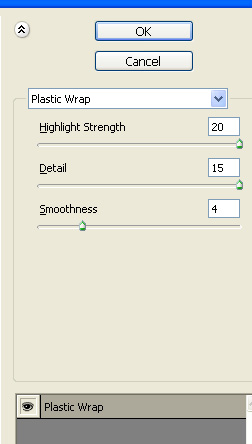
From filter menu select artistic>>plastic wrap. Apply settings as shown.

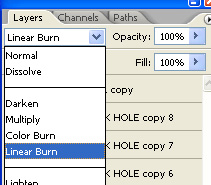
Duplicate the layer and change the layer mode to linear burn.

Duplicate the layer twice and move one instance upwards by few pixels and other downwards by few pixels.


Unhide the original text layer that we kept hidden in the first step.