Start by creating a rectangle using rectangular shape tool. Fill with light gray color.
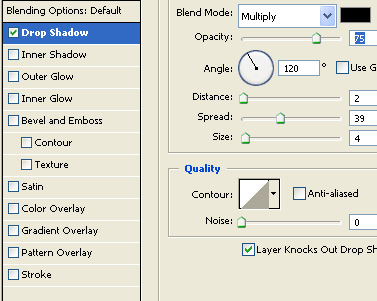
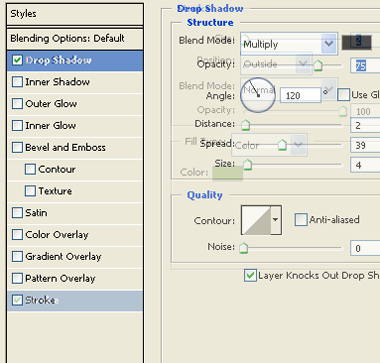
Double click the layer to open layer style window. Apply layer style with the settings shown.
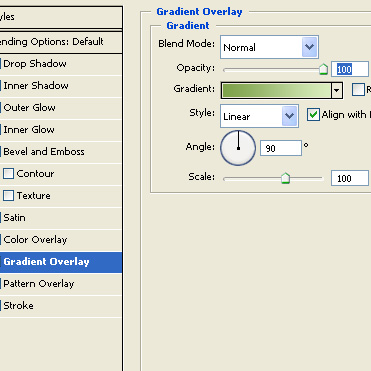

Create a new layer fill it with any color. Double click the layer to open layer style window. Apply layer style with the settings shown.
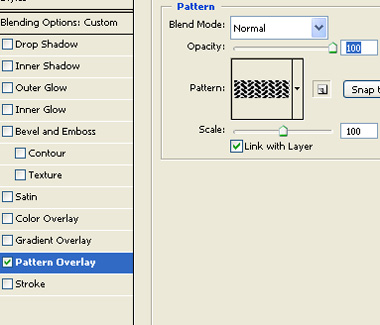
From layer menu select layer style>>create layers. Select and merge both the resulting layers. Reduce the opacity to 20%.
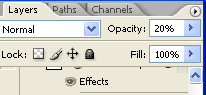
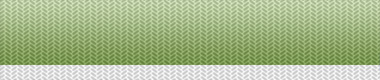
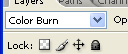
Change the layer mode to color burn.
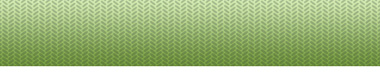
Create a thin rectangle strip using rectangular shape tool.
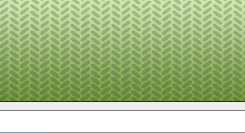
Duplicate layer and move to bottom.
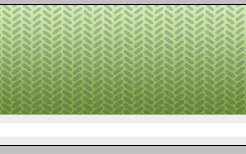
Create a rectangle using rectangular shape tool.
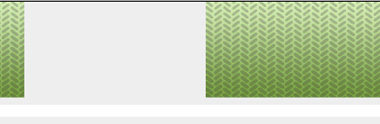
Double click the layer to open layer style window. Apply layer style with the settings shown.
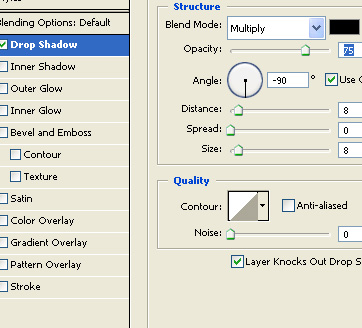
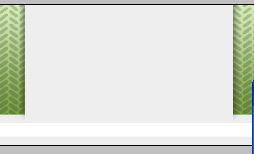
Create a rectangle, a little smaller than the previous one using rectangular shape tool. Apply same layer style as we use for the first rectangle.
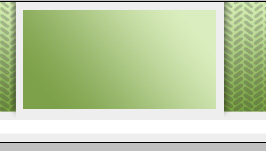
Ctrl+Click the layer thumbnail to get the selection. Select the patterned layer. Press Ctrl+J to copy paste the selection in a new layer. Move this layer above all the layers in layer order in layer palette.
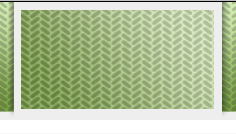
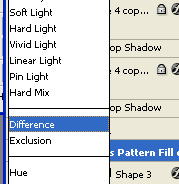
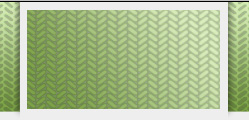
Change the layer mode to difference.
Create a ornament shape using custom shape tool.
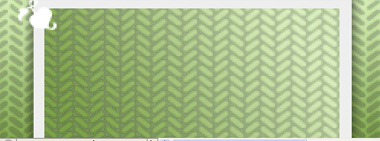
Duplicate, rotate and place as shown in the image below.
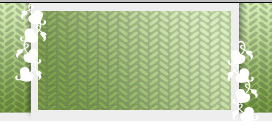
Select and merge all the ornament shape layers. Double click the layer to open layer style window. Apply layer style with the settings shown.
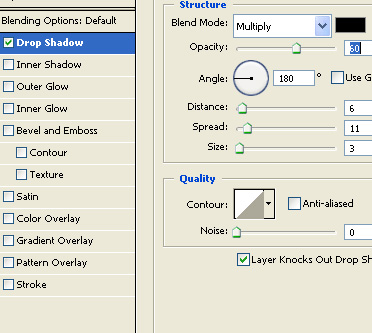
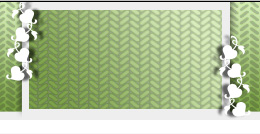
Type link names using a nice font.

Double click the layer to open layer style window. Apply layer style with the settings shown.
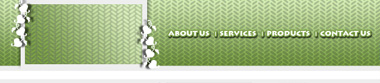
Place a few ornament shapes above and below the link names.


Insert company logo and place it appropriately.