


Start by creating a file of banner size. Fill with a solid color. Create a rectangle using rectangular shape tool. Place it at the bottom of banner.

Create an ellipse using elliptical shape tool. Place it on the left of the banner.

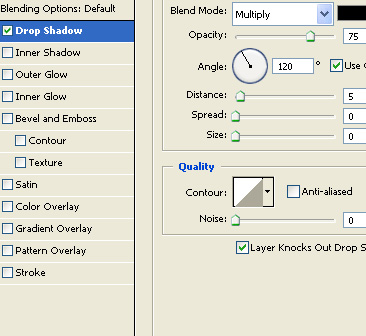
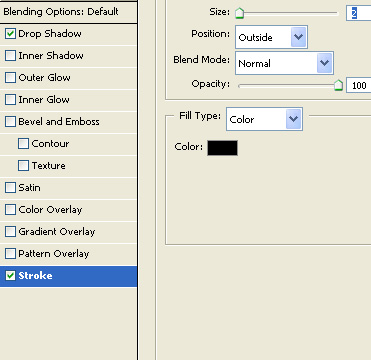
Double click the layer to open layer style window. Apply layer style with the settings shown.
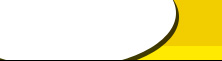
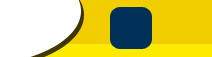
Create a rounded rectangle using rounded rectangle shape tool.
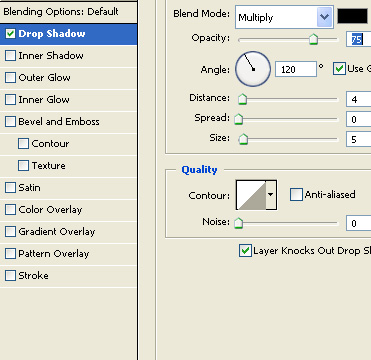
Double click the layer to open layer style window. Apply layer style with the settings shown.

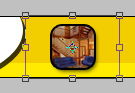
Insert an image you want to place on the banner. Move the layer just above the rounded rectangle layer. Press Ctrl+Alt+G to create clipping mask.

Duplicate the layer. Press Ctrl+T. Right click the layer and select flip horizontal.
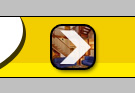
Create an arrow shape using custom shape tool. Fill it with white color.
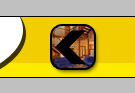
Duplicate the layer. Press Ctrl+T. Right click the layer and select flip horizontal. Fill it with black color.
Similar create some more rounded rectangles with pictures. Also add arrows in both directions for all these images.

Insert company name and other details over the ellipse layer.

Open animation window. For the first frame hide all the images. Keep only first arrow visible.
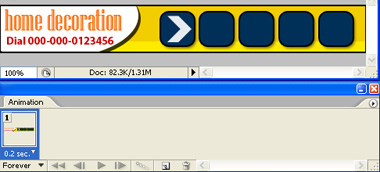
Duplicate frame. Unhide first image and second arrow. Hide the first arrow.
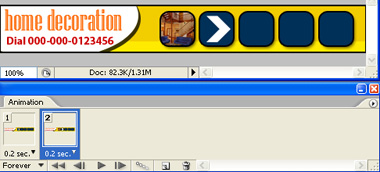
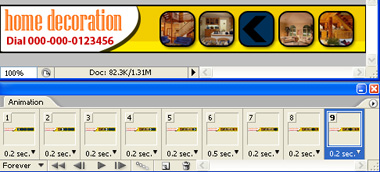
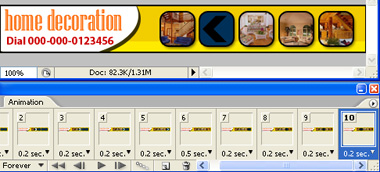
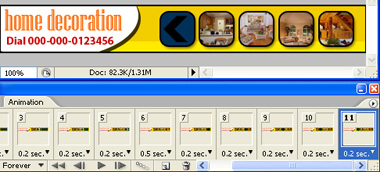
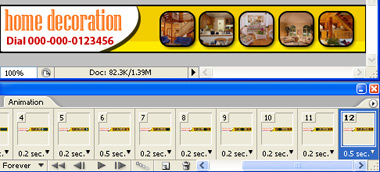
Similarly keep duplicating frames and keep hiding/unhiding layers according to the images below.
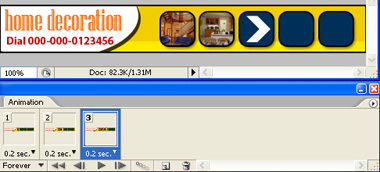
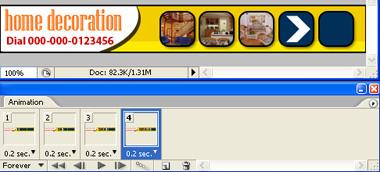
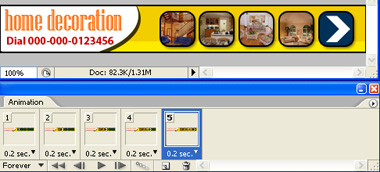
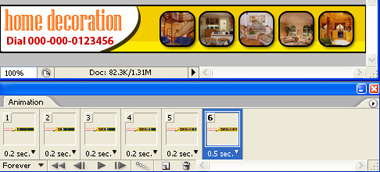
For the seventh frame start making black arrow visible to create a backward motion.
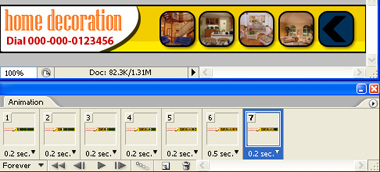
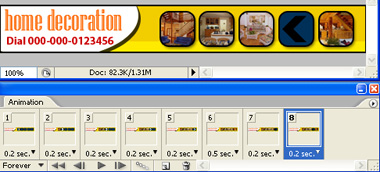
Press Ctrl+Alt+Shift+S to save an optimized animated GIF.

