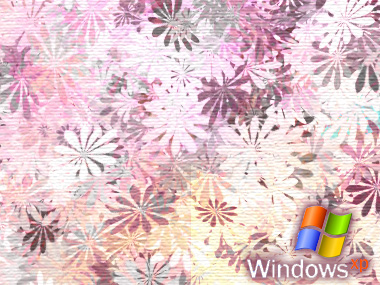
Start by applying a gradient in angular mode to the background layer.

Press F5 to open brush settings. Select flower brush from the brush presets.
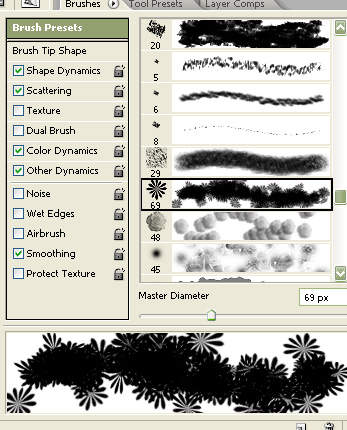
Select red as foreground and white as a background color.

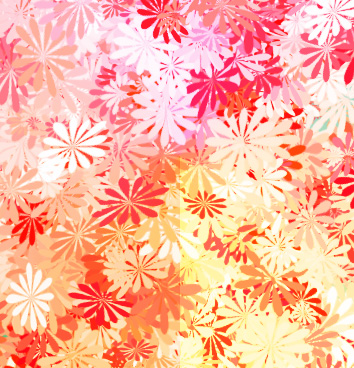
Create a new layer and apply the brush.
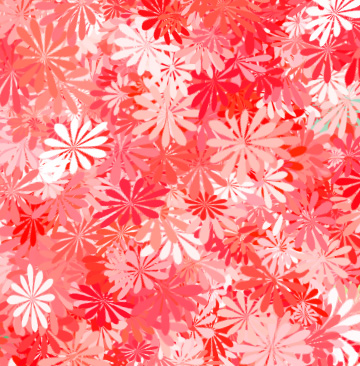
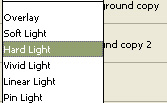
Change the layer mode to hard light.
Create a new layer. Change the foreground color to blue. Apply the brush.
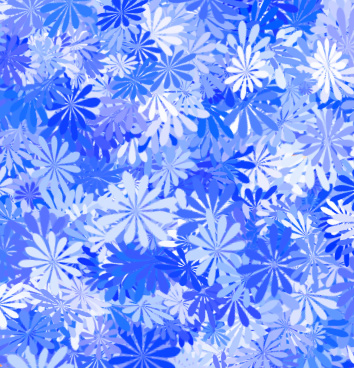
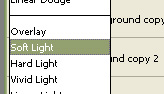
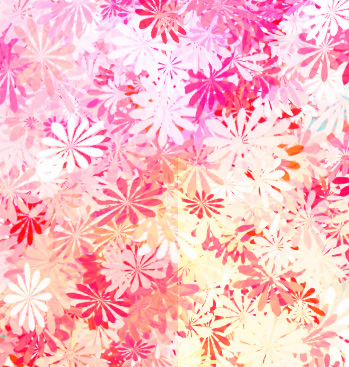
Change the layer mode to soft light.
Similarly create a new layer. Change the foreground color to green. Apply the brush.
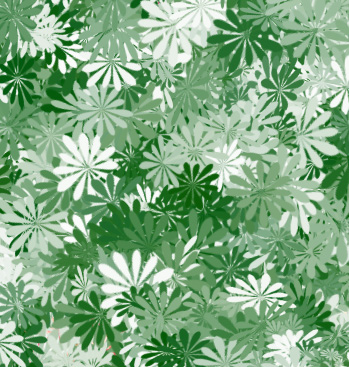
Change the layer mode to saturation.
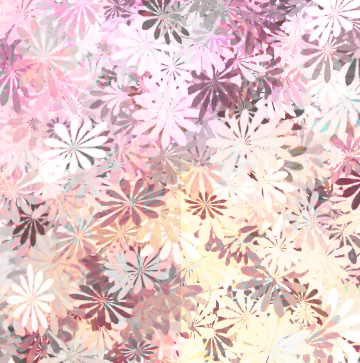
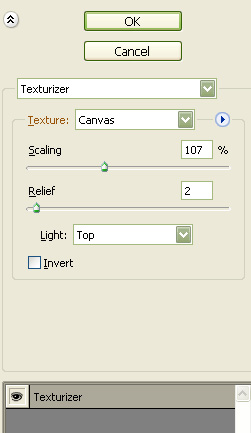
Select and merge all the layers. From filter menu select texture>>texturizer. Apply settings as shown.
Insert windows logo or any favorite picture.