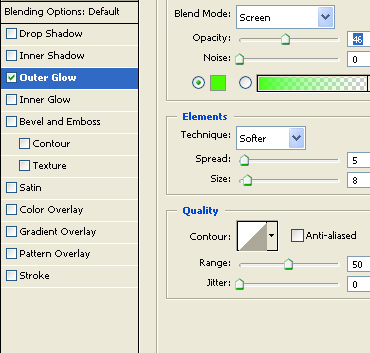
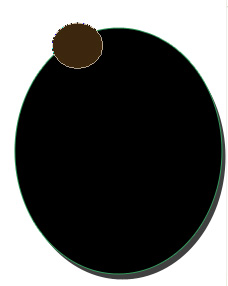
Start by creating an ellipse using elliptical shape tool.

Double click the layer to open layer style window. Apply layer style with the settings shown.
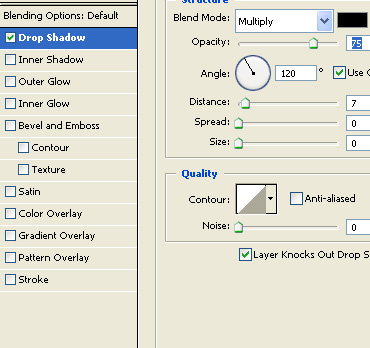
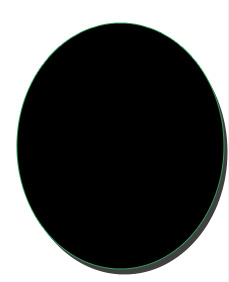
Create an ellipse using elliptical shape tool.
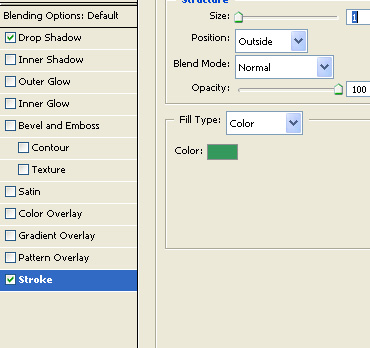
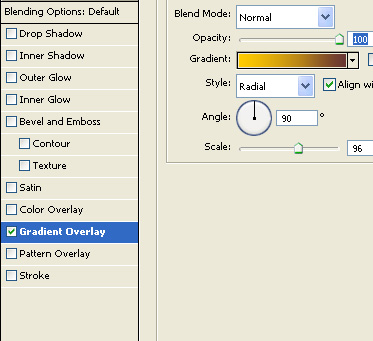
Double click the layer to open layer style window. Apply layer style with the settings shown.
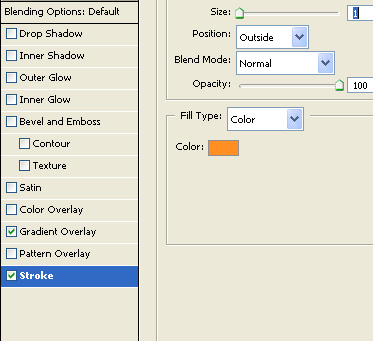
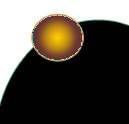
Create a petal shape using pen tool. Apply the same stroke layer style.
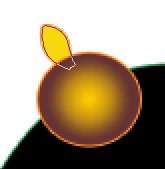
Duplicate the layer several times. Rotate and place it as shown in the images below.
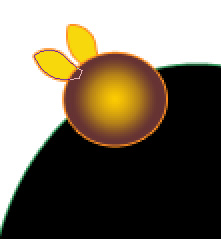
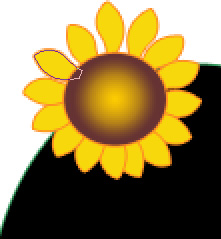
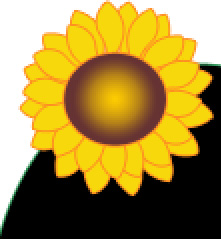
Select and merge all the flower layers. Duplicate layer. Press Ctrl+T. Right click the layer and select warp. Adjust nodes to get the shape as shown.
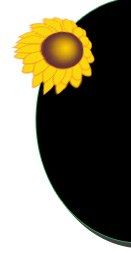
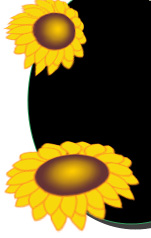
Similarly create more duplicates. Press Ctrl+T to warp and place as shown.
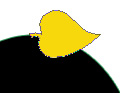
Create a leaf shape using pen tool.
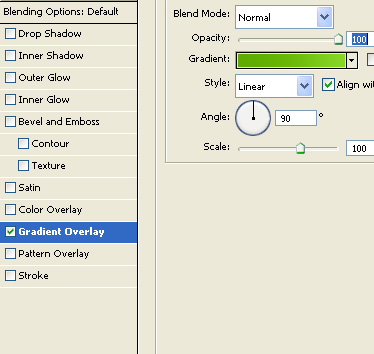
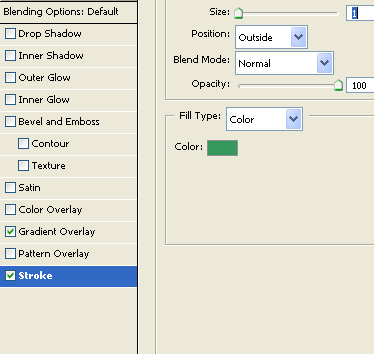
Double click the layer to open layer style window. Apply layer style with the settings shown.

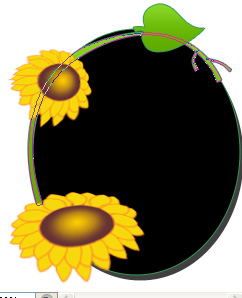
Create a green color stem using pen tool.
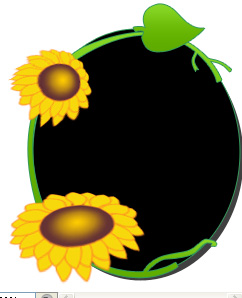
Decorate it with some branches and leaves.
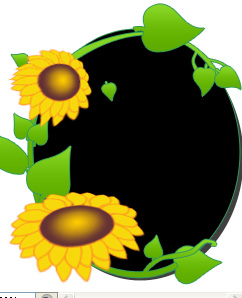
Apply a gradient to the background layer.
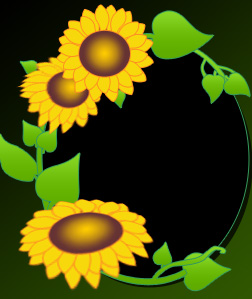
Type the message over the black ellipse.

Double click the layer to open layer style window. Apply layer style with the settings shown.