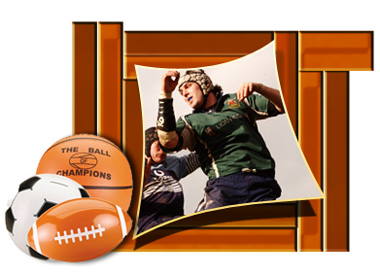
Start by creating a rectangle using rectangular shape tool.
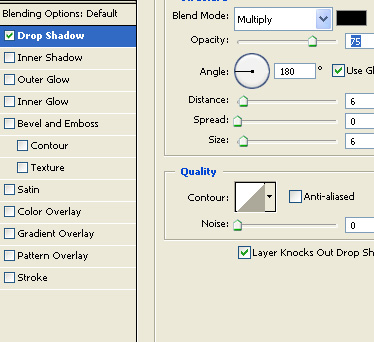
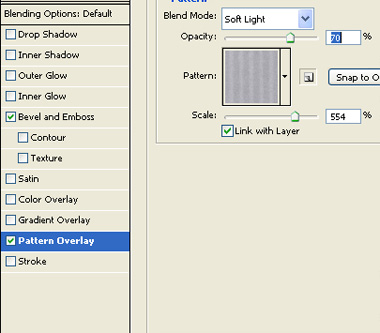
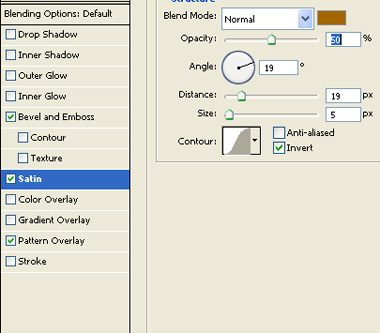
Double click the layer to open layer style window. Apply layer style with the settings shown.
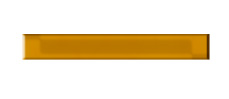
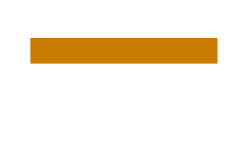
Create another rectangle using rectangular shape tool. Fill it with the darker shade of brown.
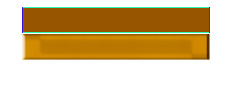
Apply the same layer style.
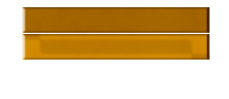
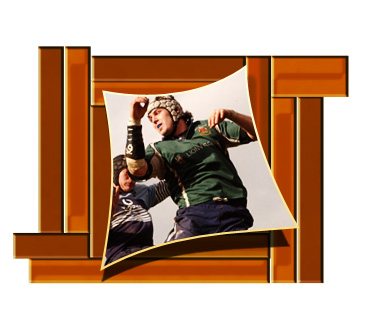
Create several duplicate of both the layers. Scale down and place as to create a frame.
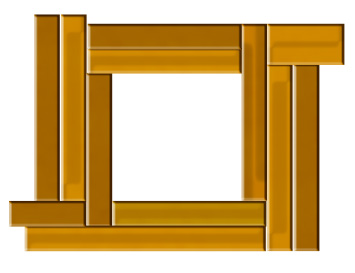
Select and merge all the layers. Duplicate the layer and change the layer mode to color burn.
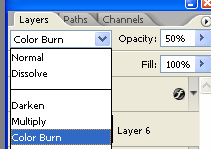
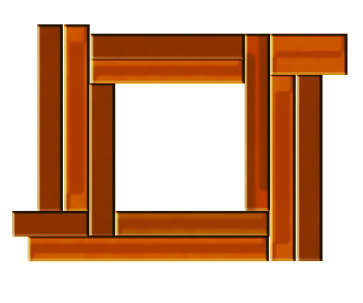
Create a rectangle using rectangular shape tool.
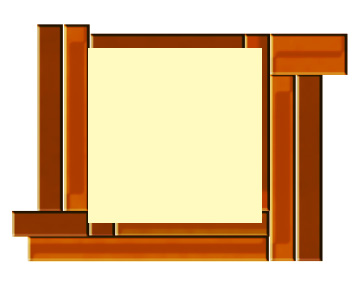
Press Ctrl+T. Right click the layer and select warp. Adjust nodes to get the shape as shown.
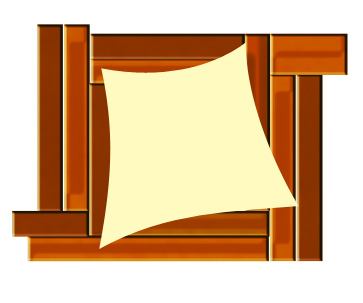
Duplicate the layer. Select the bottom layer. Move this layer a few pixels. Enable lock transparent pixels from layer palette. Fill it with black color.
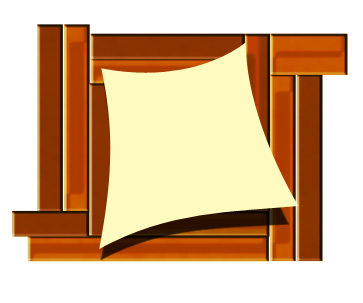
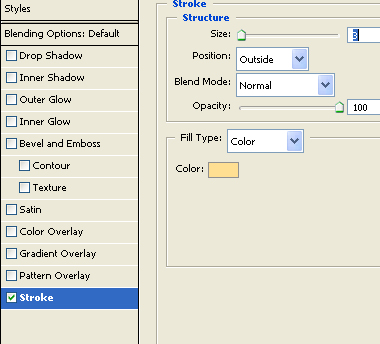
Select the upper layer. Double click the layer to open layer style window. Apply layer style with the settings shown.
Insert any image. Press Ctrl+Alt+G to create a clipping mask.
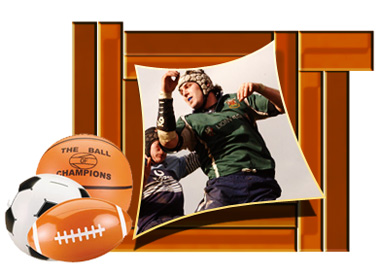
Insert a cutout of sports goods and place as shown.
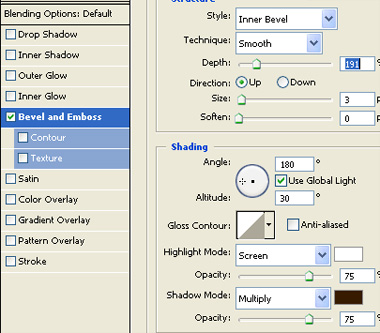
Double click the layer to open layer style window. Apply layer style with the settings shown.