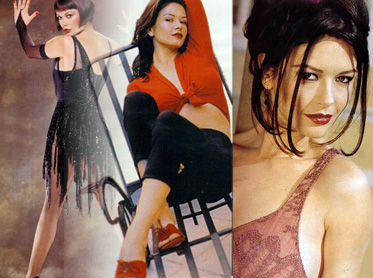
Start by opening an image of your favorite star. Create a new file . Fill the background layer with a solid color. Place image as shown.
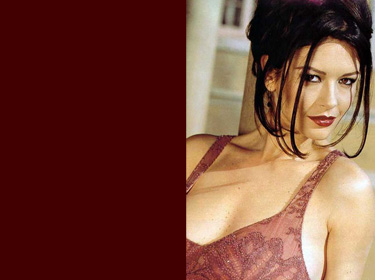
Click add vector mask button from the bottom of the layer palette.
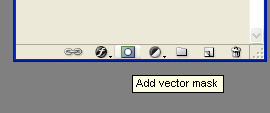
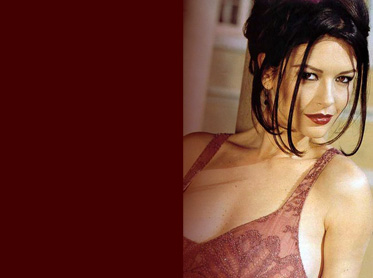
Select the vector mask thumbnail and apply a black to white gradient in linear mode.
Insert another image and similarly create vector mask and apply B&W gradient in opposite direction.
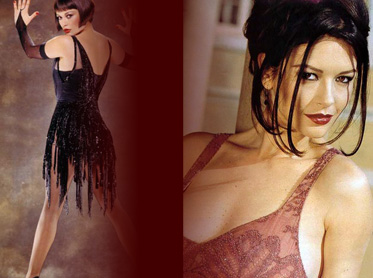
Insert another image of the star. Move this layer below the top layer in layer order in layer palette.
Create a gradient as shown.
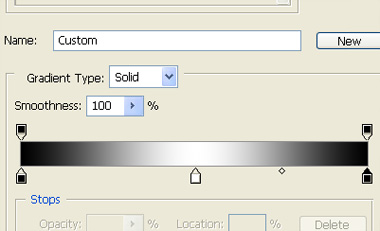
Click add vector mask button from the bottom of the layer palette. Apply the gradient. It'll smooth out the edges from both the sides.

Select and merge all the layers. Press Ctrl+Shift+U to desaturate the layer.
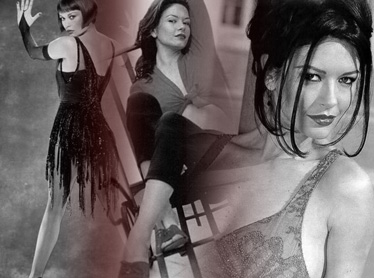
Duplicate the layer and change the layer mode to screen.
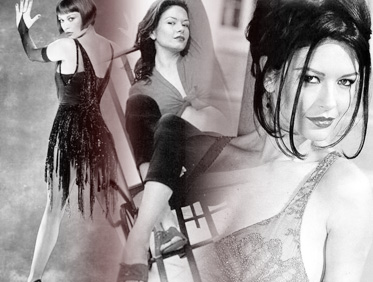
Fill the background layer with purple color. Change layer mode of the image layer to linear dodge.
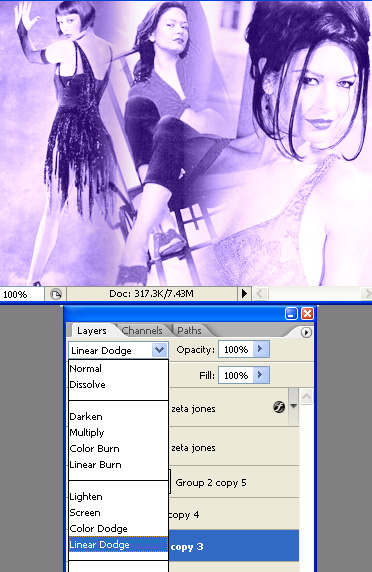
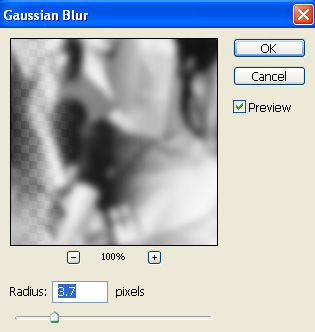
Duplicate layer. From filter menu select blur>>gaussian blur. Apply settings as shown.
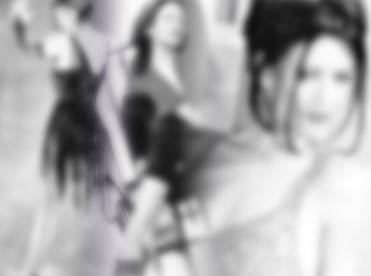
Change the layer mode to linear burn.
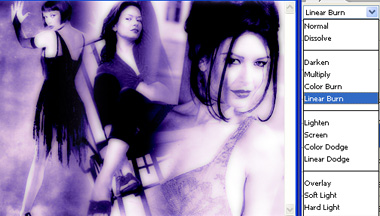
Duplicate layer. Click add vector mask button from the bottom of the layer palette. Apply B&W gradient in radial mode.
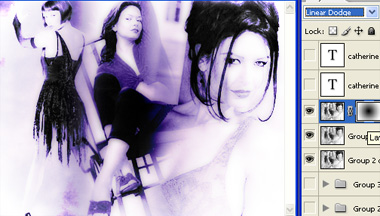
Type the name of the star using a nice font. Scale it up significantly.
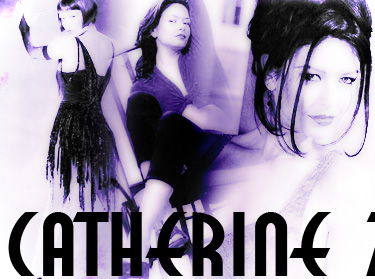
Change the layer mode to soft light.
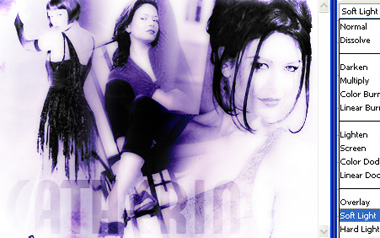
Retype the name of the star and apply some outer glow.