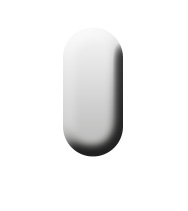
Start by creating a rounded rectangle using rounded rectangle shape tool.
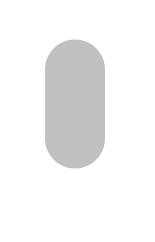
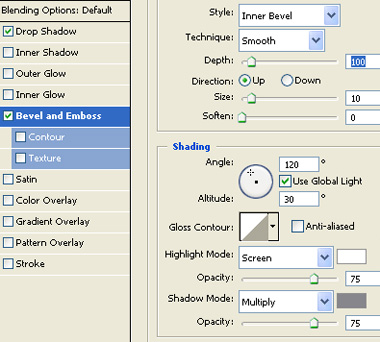
Double click the layer to open layer style window. Apply layer style with the settings shown.
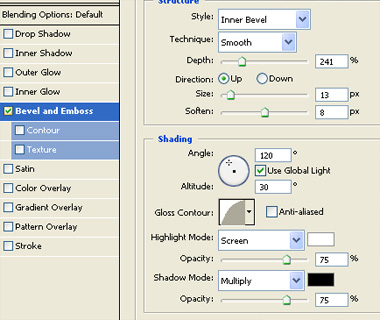
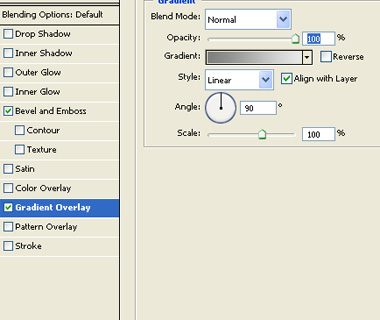
Duplicate layer. Remove layer style. Enable subtract form shape area form the top bar. Create an ellipse using elliptical shape tool.
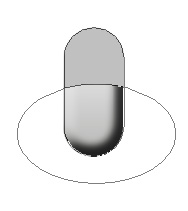
Double click the layer to open layer style window. Apply layer style with the settings shown.
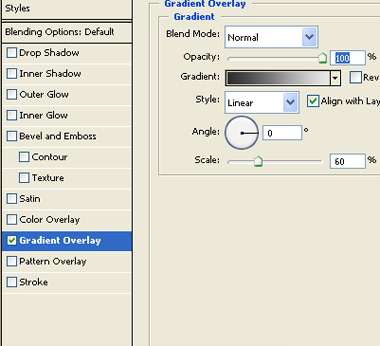
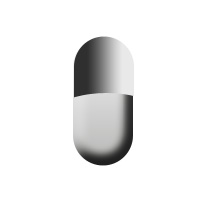
Select the first rounded rectangle layer. Ctrl+Click the layer thumbnail to get the selection. From select menu apply modify>>contract. Contract the selection by 2 pixels. Create a new layer and apply a black to white gradient in linear mode.
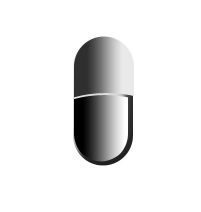
Change the layer mode to multiply.
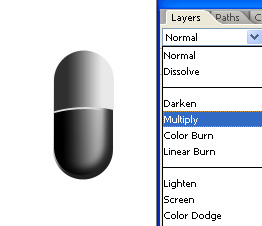
Create a pattern of tiny circles. Rasterize the layer.
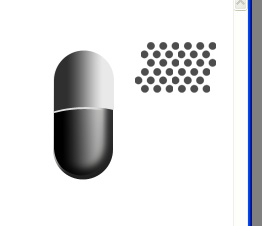
Move this layer above the mic shape. Select the half ellipse layer. Ctrl+Click the layer thumbnail to get the selection. From select menu apply modify>>contract. Contract the selection by 2 pixels. Press Ctrl+Shift+I to inverse the selection. Select circle pattern layer and press delete.
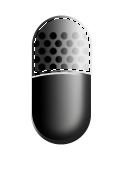
Create an ellipse using elliptical shape tool. Enable subtract form shape area form the top bar. Create another ellipse using elliptical shape tool.
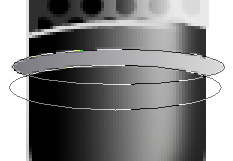
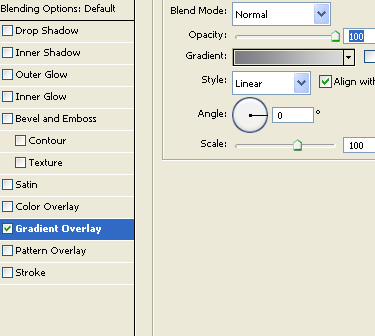
Double click the layer to open layer style window. Apply layer style with the settings shown.
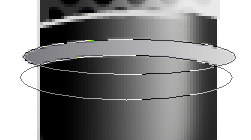
Press and hold Alt key and keep hitting the up arrow key to create 3d extrusion.
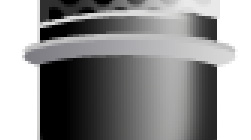
Select and merge all duplicate layers. Double click the layer to open layer style window. Apply layer style with the settings shown.
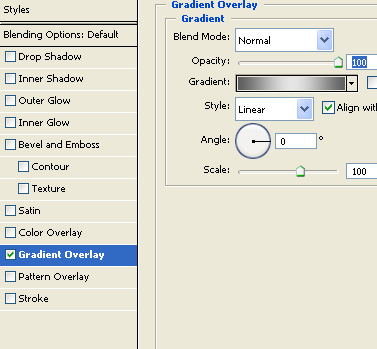
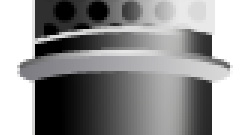
Similarly create more such shapes and place on top of each other.
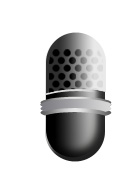
Select and merge all mic layers. Create an ellipse using elliptical shape tool.
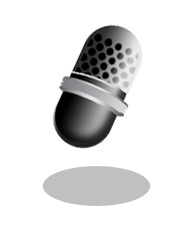
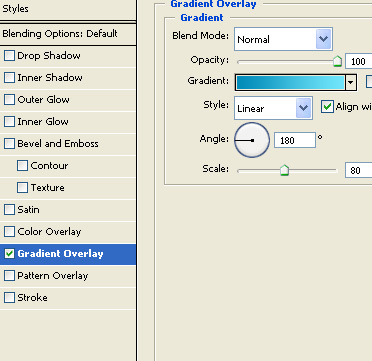
Double click the layer to open layer style window. Apply layer style with the settings shown.
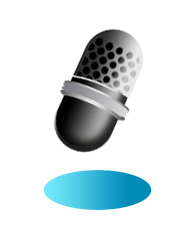
Press and hold Alt key and keep hitting the down arrow key to create 3d extrusion.
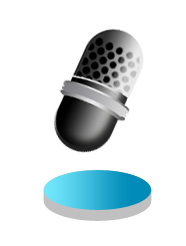
Select and merge all the duplicate layers. Apply same layer style that we used for the ellipse. Just reverse the gradient colors.
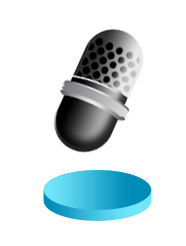
Similarly create more 3D extruded shapes and place as shown.
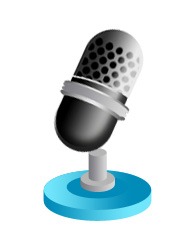
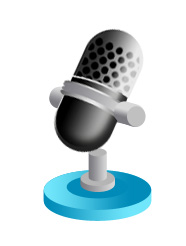
Using pen tool create a curve shape as shown.
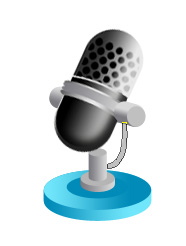
Double click the layer to open layer style window. Apply layer style with the settings shown.
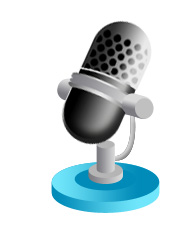
Similarly create a cable and apply same layer style.
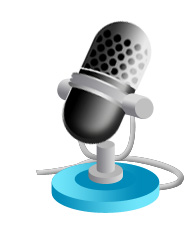
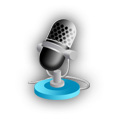
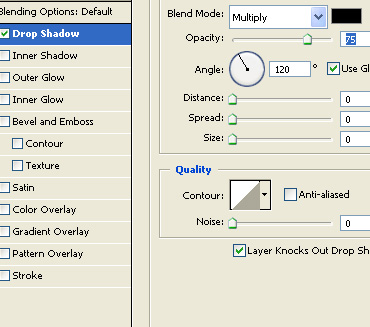
Select and merge all the layers. Apply some drop shadow.