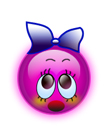
Start by creating a circle using elliptical shape tool.
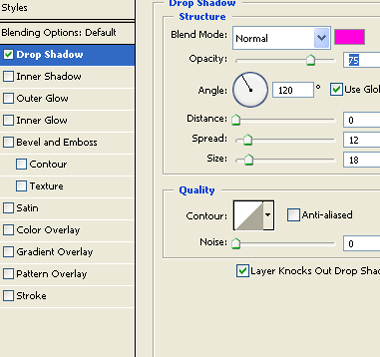
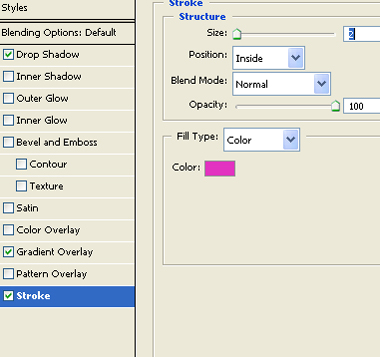
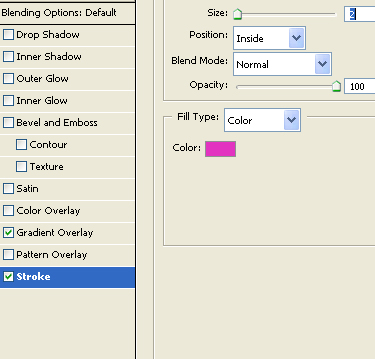
Double click the layer to open layer style window. Apply layer style with the settings shown.
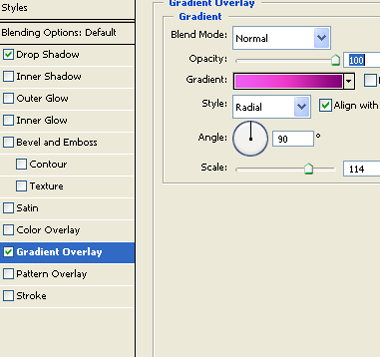
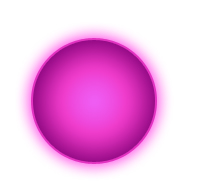
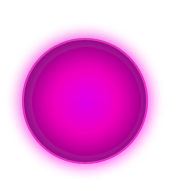
Ctrl+Click the layer thumbnail to get the selection. From select menu apply modify>>contract. Contract the selection by 5 pixels. Create a new layer and a apply gradient in radial mode.
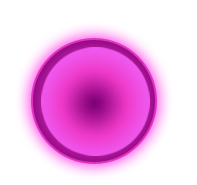
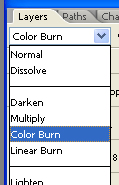
Change the layer mode to color burn.
Create a elliptical selection using elliptical marquee tool. Create a new layer and apply a black to white gradient in linear mode.
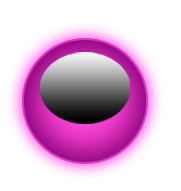
Change the layer mode to screen.
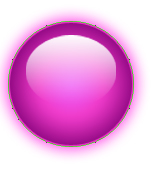
Create a elliptical selection using elliptical marquee tool. Press delete.
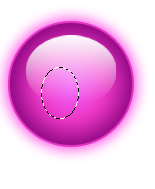
Similarly do it with the other side.

Select eraser tool with soft brush settings and remove hard edges at the bottom.

Select brush tool with feathered settings and apply it on a new layer.
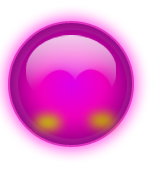
Create an ellipse using elliptical shape tool.
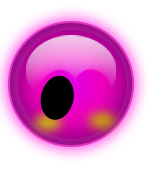
Double click the layer to open layer style window. Apply layer style with the settings shown.
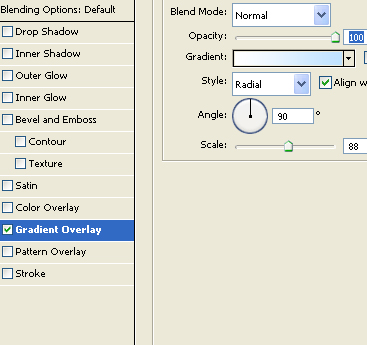
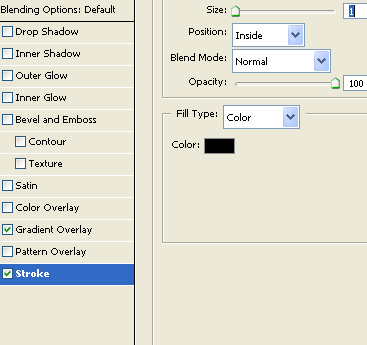
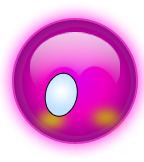
Create an ellipse using elliptical shape tool.
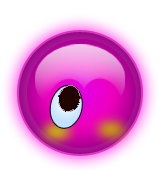
Double click the layer to open layer style window. Apply layer style with the settings shown.
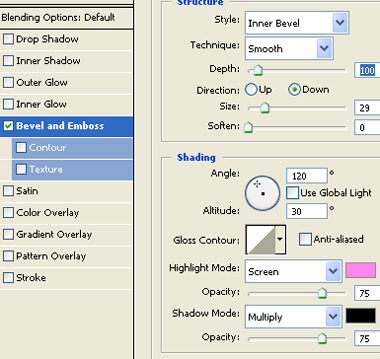
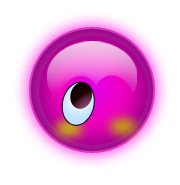
Ctrl+Click the layer thumbnail to get the selection. From select menu apply modify>>contract. Contract the selection by 2 pixels. Create a new layer and apply a black to white gradient in linear mode. Change the layer mode to screen.
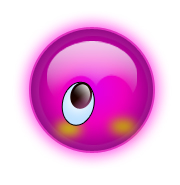
Duplicate the eye layers and place. Press Ctrl+T. Right click the layer and select flip horizontal. Place it for the other side.
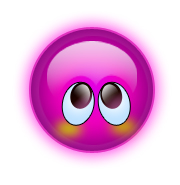
Create an ellipse for the mouth using elliptical shape tool.
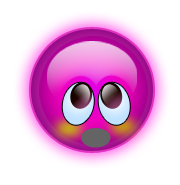
Double click the layer to open layer style window. Apply layer style with the settings shown.
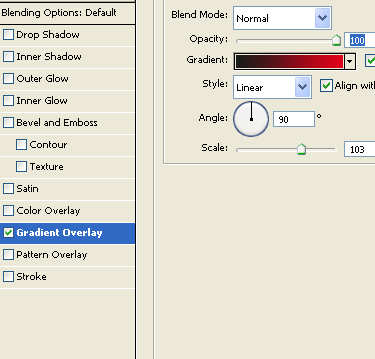
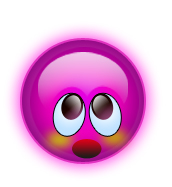
Create a rectangle using rectangular shape tool. Press Ctrl+T. Right click the layer and select warp. Adjust nodes to get the shape as shown.
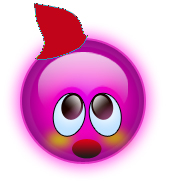
Double click the layer to open layer style window. Apply layer style with the settings shown.
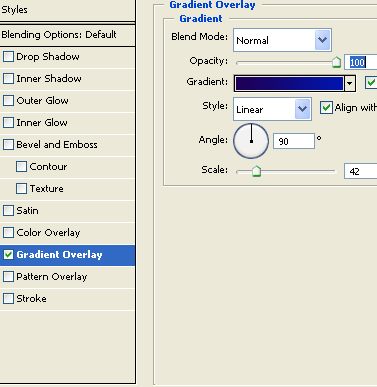
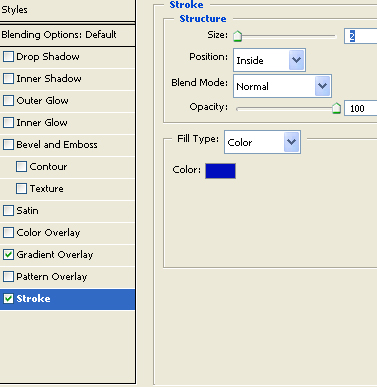
Ctrl+Click the layer thumbnail to get the selection. From select menu apply modify>>contract. Contract the selection by 2 pixels. Create a new layer and apply a black to white gradient in linear mode. Change the layer mode to screen.
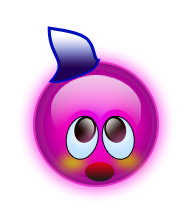
Duplicate, flip horizontal to create other side of the hair band. Create an ellipse. Apply same layer style. Use it as a knot in the hair band.
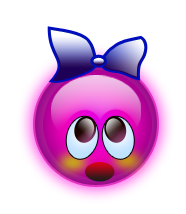
Create eye brows and eye lashes using a thin brush tool.