Start by opening an image of a calendar.

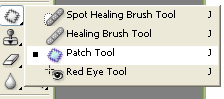
Select patch tool from the main toolbar.
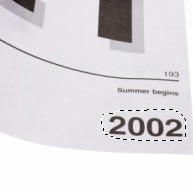
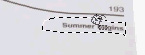
Create selection of the area you want to clone.
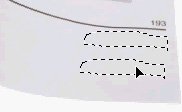
Drag this target selection to the source area. (which is the blank area of the page)
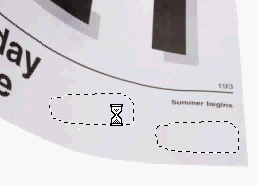
Similarly clone the rest of the areas you want to remove from calendar.


Type the required date.

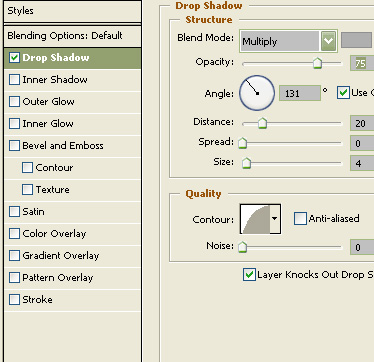
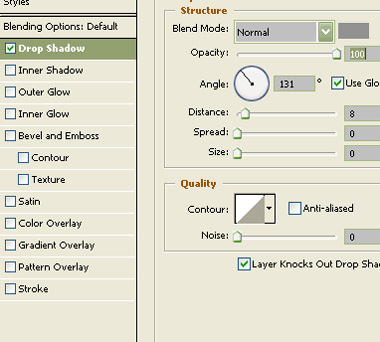
Double click the layer to open layer style window. Apply layer style with the settings shown.

Press Ctrl+T. Right click the layer and select warp. Adjust nodes to get the shape as shown.

Type year "2006".

Press Ctrl+T. Right click the layer and select warp. Adjust nodes to get the shape as shown.

Select and merge all the calendar layers. Double click the layer to open layer style window. Apply layer style with the settings shown.