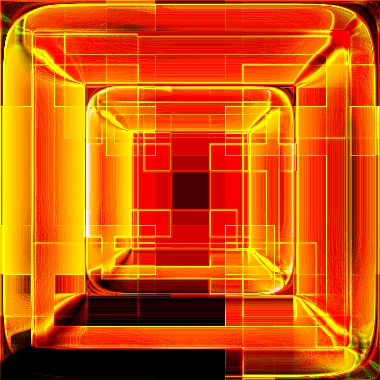
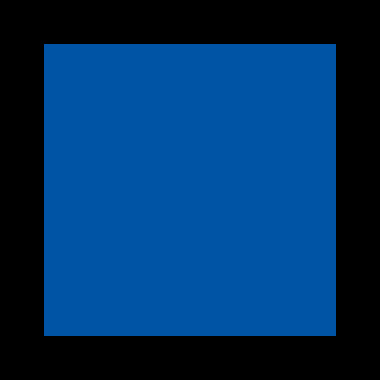
Start by creating a rectangle using rectangular shape tool.
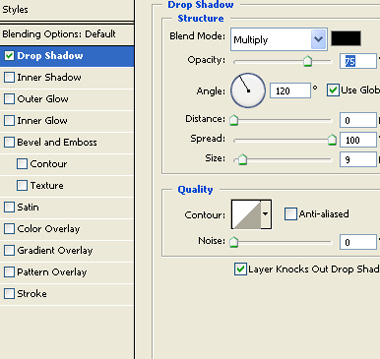
Double click the layer to open layer style window. Apply layer style with the settings shown.
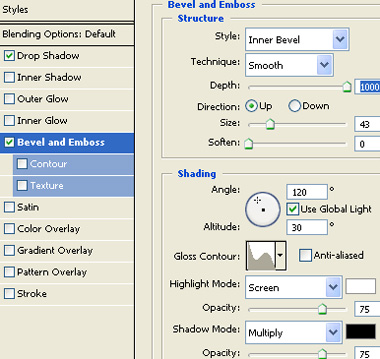
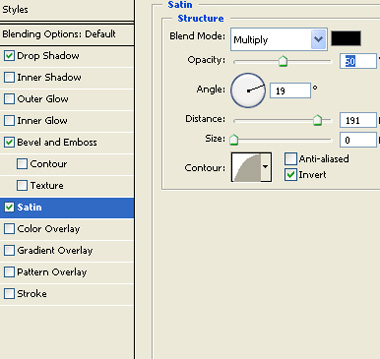
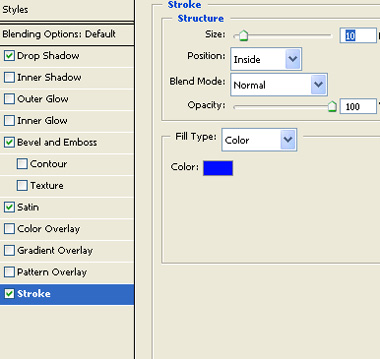
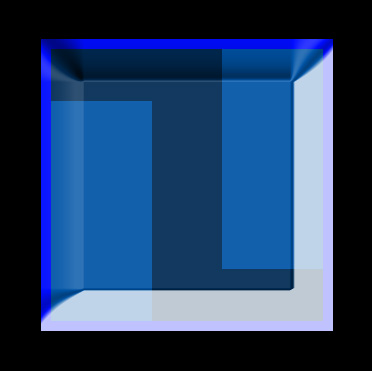
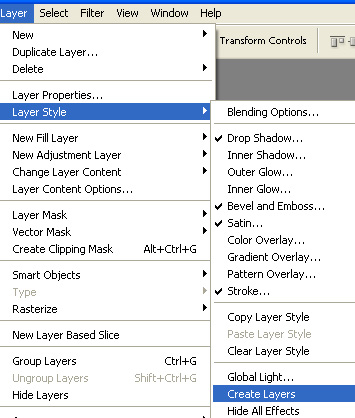
From layer menu select layer style>>create layers.
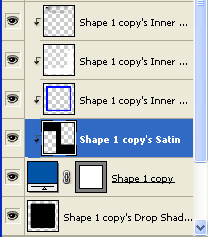
Select the layer just above the rectangular shape layer. Press Ctrl+Alt+G to remove clipping mask from the all the layers.
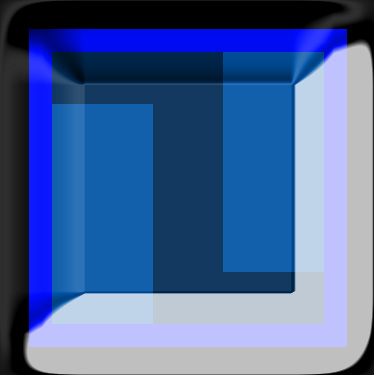
Select all the layers and merge.
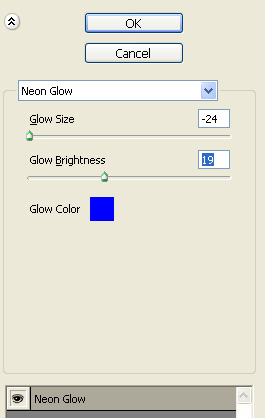
From filter menu select artistic>>neon glow.
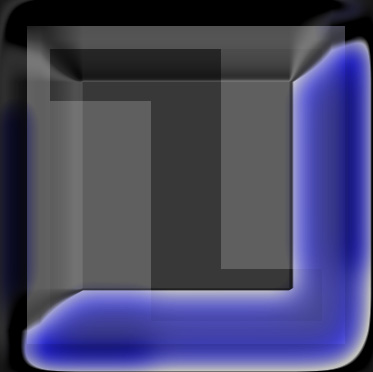
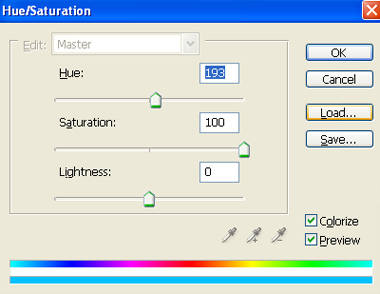
Press Ctrl+U to open hue/saturation window. Apply settings as shown.
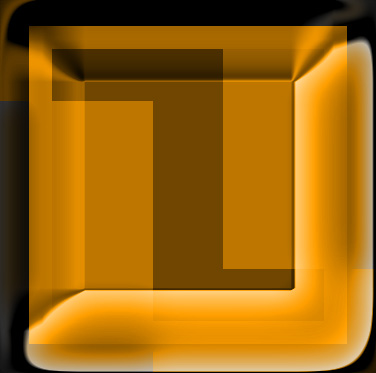
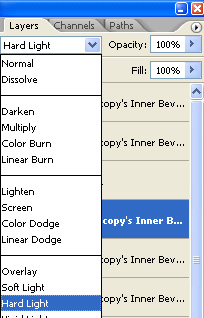
Duplicate the layer. Press Ctrl+T. Right click the layer and select flip horizontal. Change the layer mode to hard light.
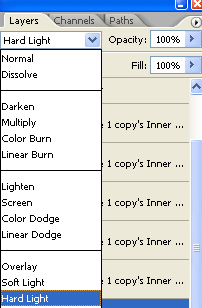
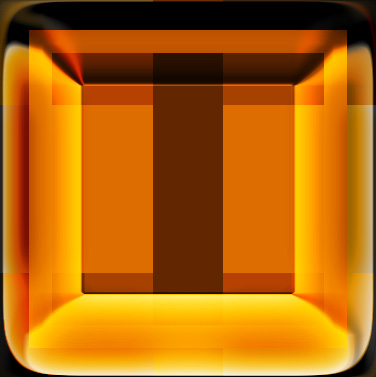
Duplicate the layer again. Press Ctrl+T. Right click the layer and select rotate 90°. Change the layer mode to screen.
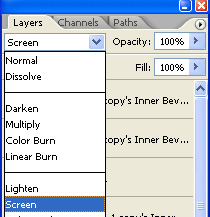
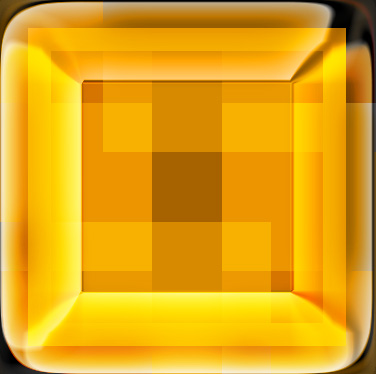
Duplicate the layer again. Press Ctrl+T. Right click the layer and select flip vertical. Change the layer mode to pin light.
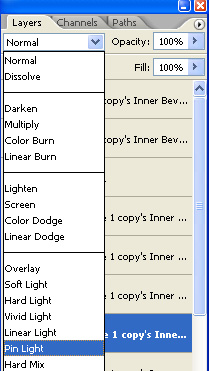
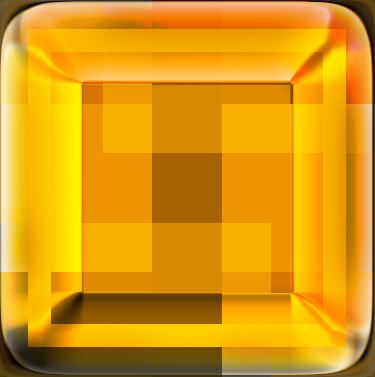
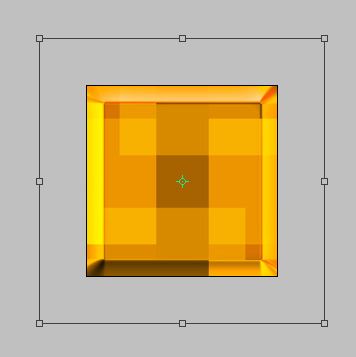
Select and merge all the layers. Duplicate the layer. Press Ctrl+T and scale up the layer.
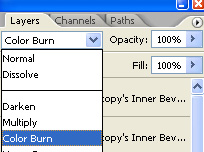
Change the layer mode to color burn.
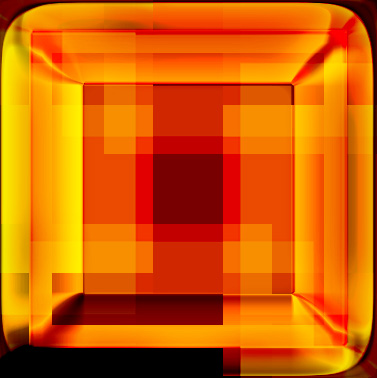
Create a duplicate of original layer and scale down the layer. Change the layer mode to hard light.
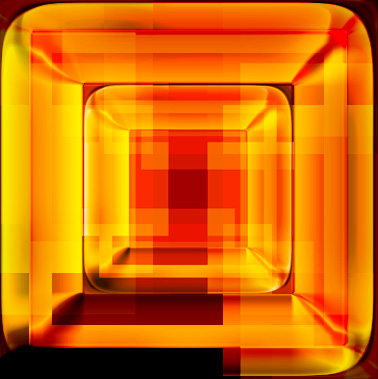
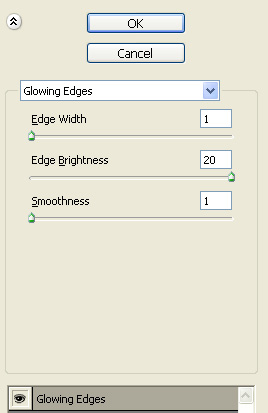
Select and merge all the layers. Duplicate the layer. From filter menu select stylize>>glowing edges. Apply settings as shown.
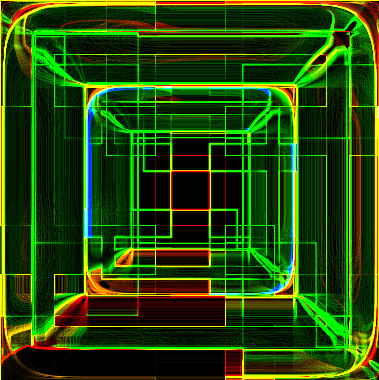
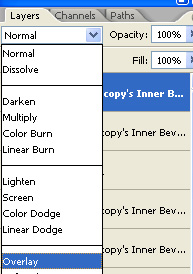
Change the layer mode to overlay.