Start by creating a rounded rectangle using rounded rectangle shape tool.
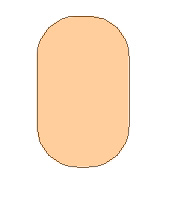
Press Ctrl+T. Right click the layer and select warp. Adjust nodes to get the shape as shown.
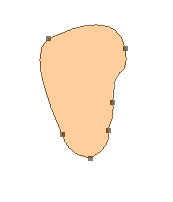
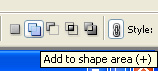
Enable add to shape area form the top bar.
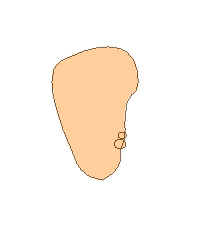
Create two ellipses for the lips using elliptical shape tool.
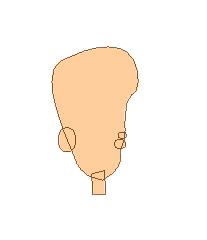
Create an ellipse for the ear using elliptical shape tool. Create a rectangle for the neck using rectangular shape tool. Press Ctrl+T. Right click the layer and select warp. Adjust nodes to get the shape as shown.
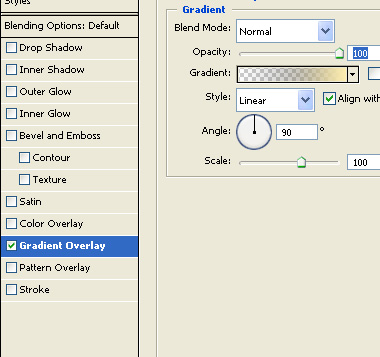
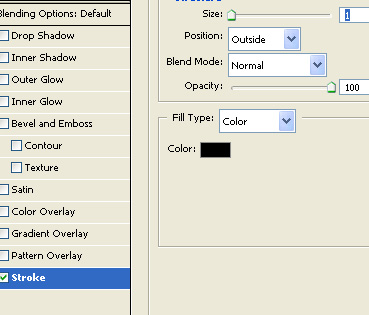
Double click the layer to open layer style window. Apply layer style with the settings shown.
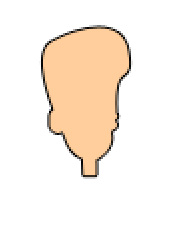
Create a rounded rectangle using rounded rectangle shape tool. Press Ctrl+T. Right click the layer and select warp. Adjust nodes to get the shape as shown.
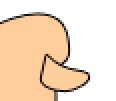
From layer menu select layer style>>create layers. Select and merge both the resulting layers. Remove the left area of the nose using eraser tool.
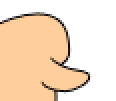
Create hair of the geek using pen tool.

Create another hair layer to create hair on forehead. Move this layer above all the layers in layer order in layer palette.

From layer menu select layer style>>create layers. Select and merge both the resulting layers. Remove the left and top area of the hair using eraser tool.

Create glasses of the man using basic shape tool.
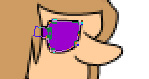
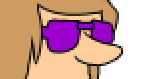
Create two rectangles for shirt and collars using rectangular shape tool. Warp to get a shape as shown.
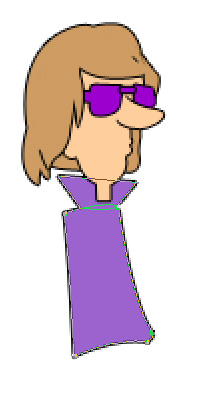
Create a rectangle for the jacket using rectangular shape tool. Press Ctrl+T. Right click the layer and select warp. Adjust nodes to get the shape as shown.
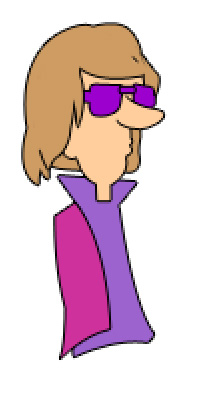
Create an ellipse using elliptical shape tool. Press Ctrl+T. Right click the layer and select warp. Adjust nodes to get the shape as shown.
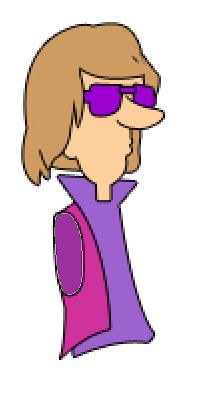
Similarly create arm of the geek.
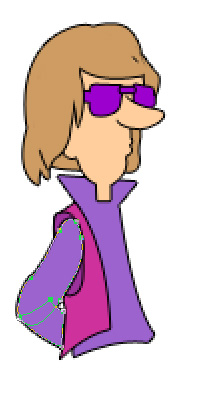
Create other side of the jacket by drawing basic shapes and then applying warp on them.
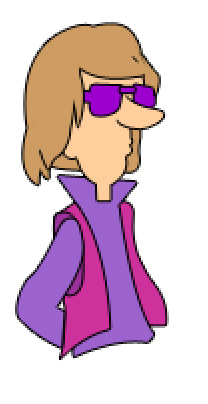
Create front collars using pen tool. Apply stroke. From layer menu select layer style>>create layers. Select and merge both the resulting layers. Remove the bottom area using eraser tool.
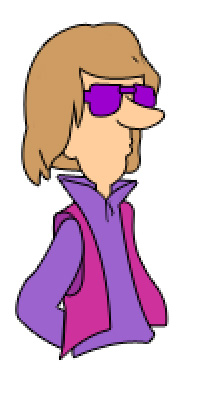
Again for creating legs create a few rectangular shapes using add to shape area from the top bar. Warp each rectangle using techniques mentioned above.
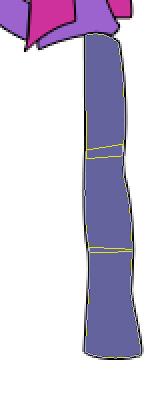
Duplicate and place for the other leg.
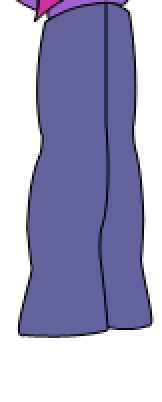
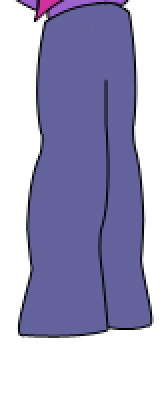
From layer menu select layer style>>create layers. Select and merge both the resulting layers. Remove the top right portion using eraser tool.
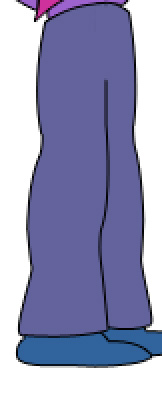
Create boots of the geek using pen tool.
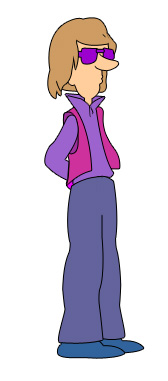
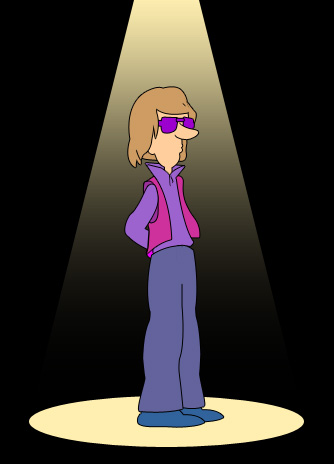
Fill background with black color. Create an ellipse using elliptical shape tool. Move this layer below all the layers in layer order in layer palette.
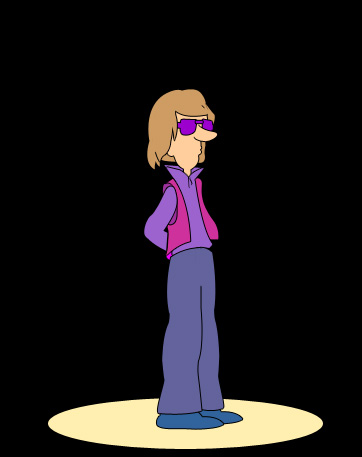
Create a rectangle using rectangular shape tool. Press Ctrl+T. Right click the layer and select perspective. Adjust nodes to get the shape as shown.
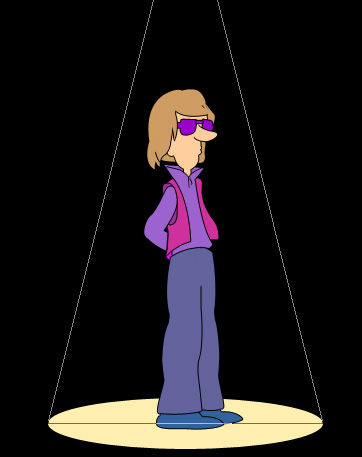
Double click the layer to open layer style window. Apply layer style with the settings shown.