Start by creating a new file of the header size. Create a rectangle using rectangular shape tool.

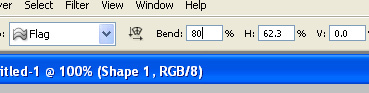
Press Ctrl+T. Right click the layer and select warp. Select flag style from the custom warp preset. Apply settings as shown.
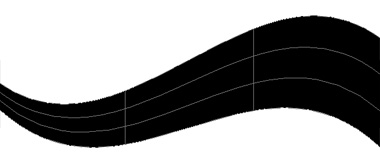
Fill the shape with a yellow color.
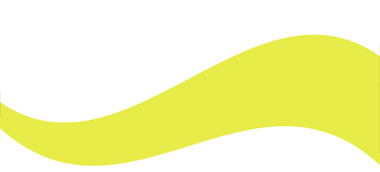
Duplicate the layer. Press Ctrl+T. Right click the layer and select flip vertical.
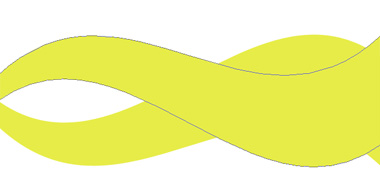
Press Ctrl+T. Rotate and scale as shown in the image.
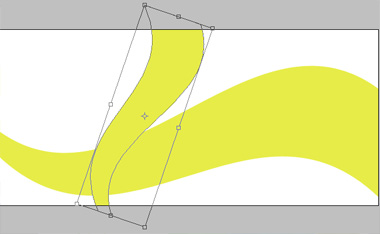
Fill it with a different color.
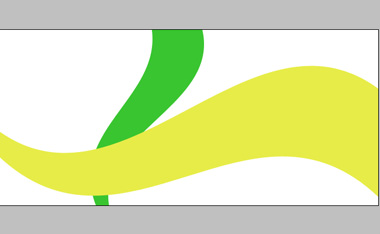
Similarly create more duplicates. Rotate & scale. Apply different colors and place as shown.


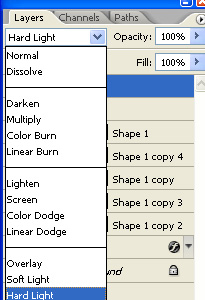
Select the main shape layer. Change the layer mode to hard light.
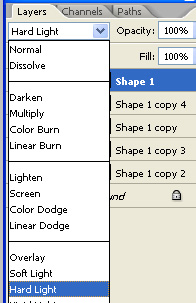

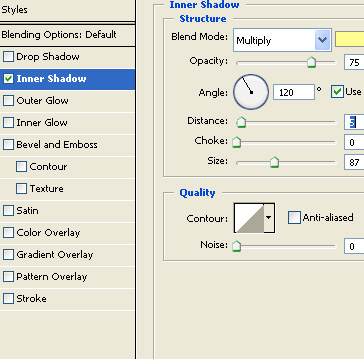
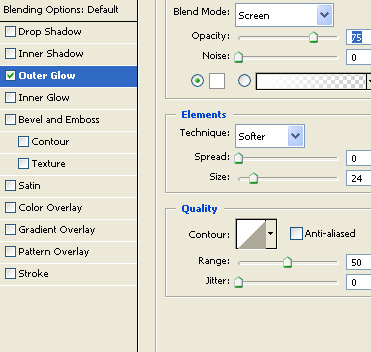
Create a new layer below all the layers . Fill the layer with a white color. Double click the layer to open layer style window. Apply layer style with the settings shown.

Insert a relevant image.

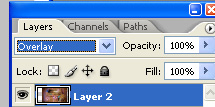
Change the layer mode to overlay.

Insert an image of flowers.

Change the layer mode to hardlight.
Select eraser tool. Select a soft feathered brush and remove the hard edges of the image.

Create a circle using elliptical shape tool. This circle will serve as link button.

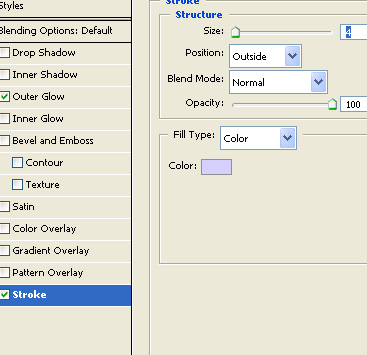
Double click the layer to open layer style window. Apply layer style with the settings shown.

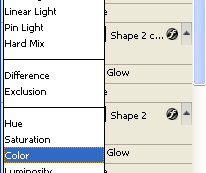
Change the layer mode to color.

Similarly create more circles for the button links. Apply same layer style with different colors. Play around with layers modes to achieve a nice result.

Type button links over the circles.

Insert company logo at top right of the header.