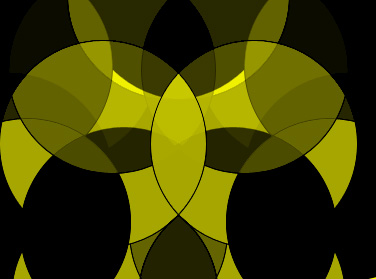
Start by creating a circle using elliptical shape tool.
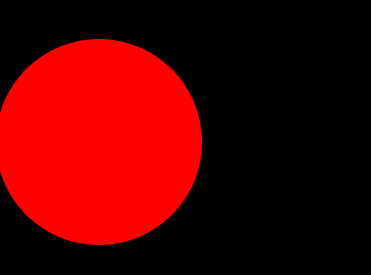
Change the layer mode to luminosity. It won't show any effect as of now but later when we add more elements, the effect will be evident.
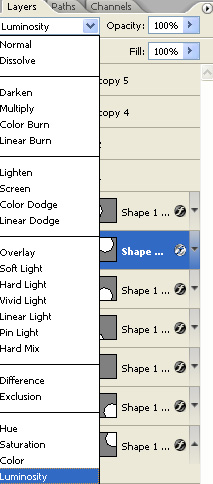
Similarly create more circles and play around with layer modes.
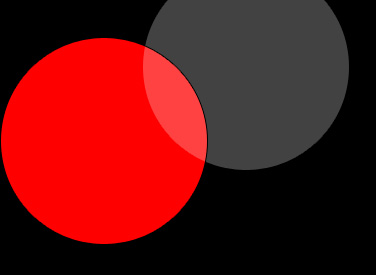
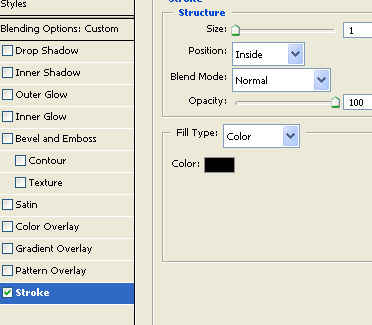
Apply 1 pixel stroke to circles.
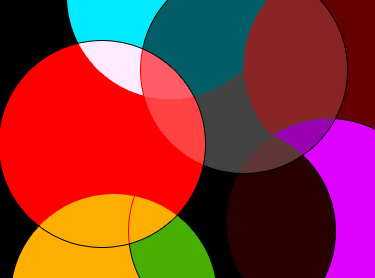
Select all the circle layers and press Ctrl+E to merge.
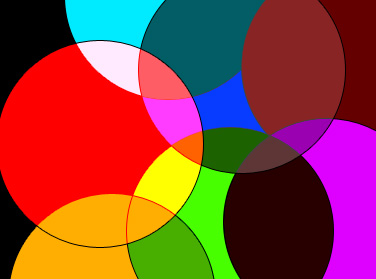
Press Ctrl+Shift+U to desaturate.
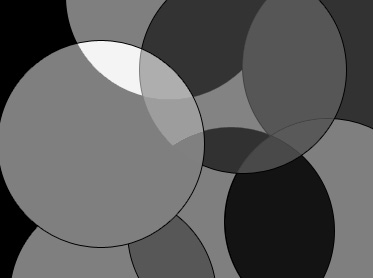
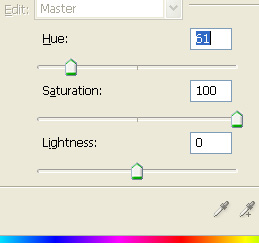
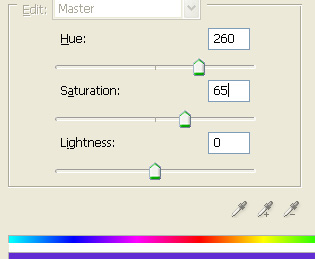
Press Ctrl+U and apply hue/saturation settings as shown.
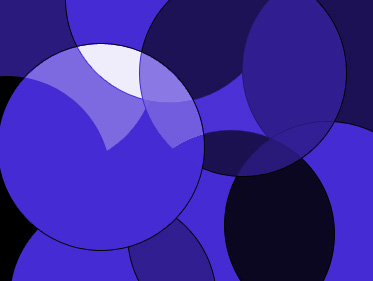
Duplicate the layer and flip it horizontally.
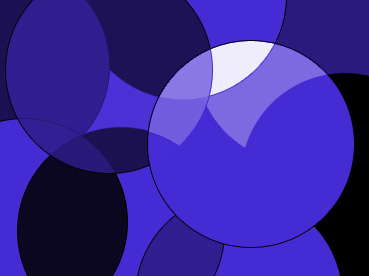
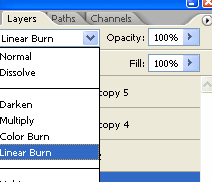
Change the layer mode to linear burn for the duplicate layer.
Merge both layers.
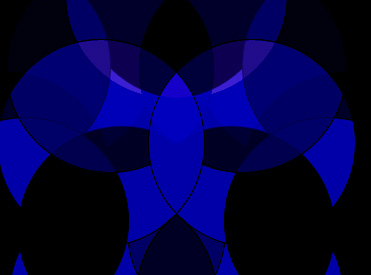
Press Ctrl+U to and apply hue/saturation settings as shown.