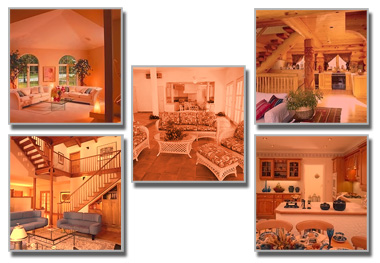
At times one experience different color tones in images. While using these pictures together for a collage of a photo gallery we wish to create a uniform color tone among all images.
Start by opening few images. Create a new file. Drag all images as separate layers of a single photoshop file.
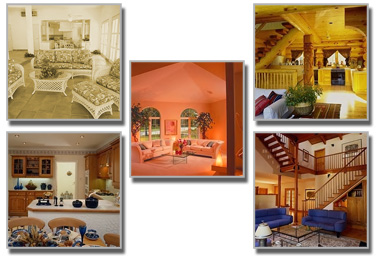
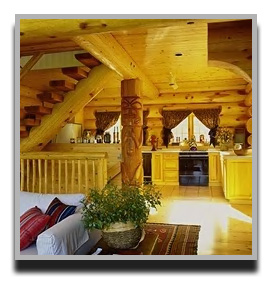
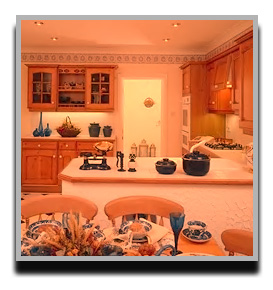
We'd like to have all images a color tone similar to the image below.
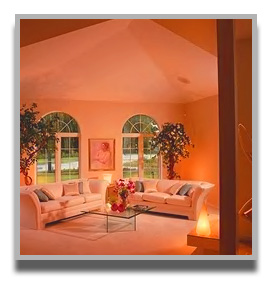
We named this layer as "source" in layer window.
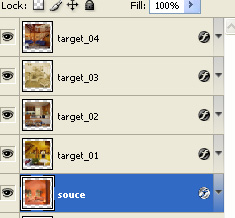
Select one of the images that will we undergoing for a change in color tone.
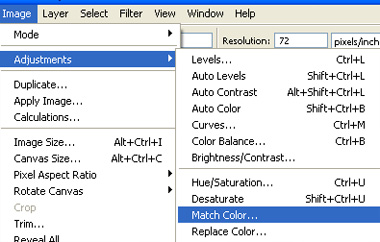
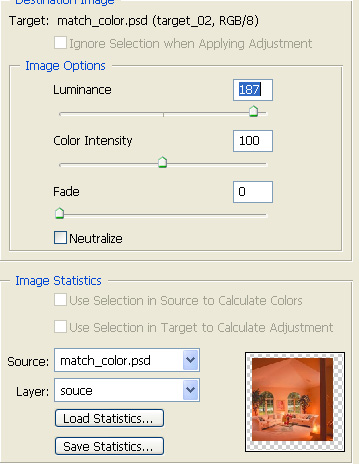
From image menu select adjustments>>match color.
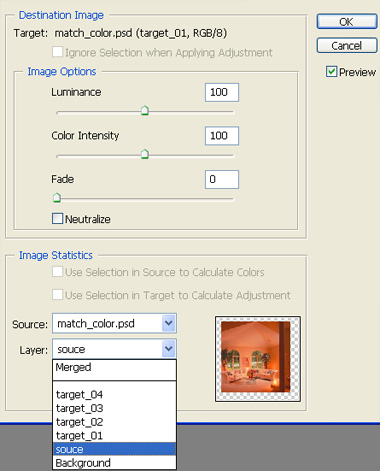
Select the "source" layer from the layer fly out and name of the .psd file form the source fly out.
This will match color of this layer to the source layer.
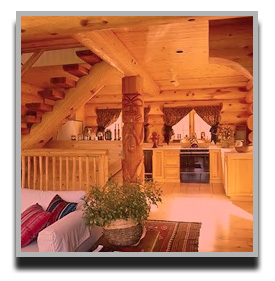
Create another image. Again apply match color . You can optionally adjust the luminance etc. for the layer while applying match color.
Repeat the steps to create a uniform color tone among all images.