Start by typing the text in a new file.

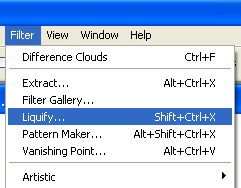
Right click the layer rand select rasterize. From filter menu select liquify.
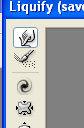
Select forward warp tool.
Drag the corners of the text to create roots and branches.



Create a leaf using custom shape tool.
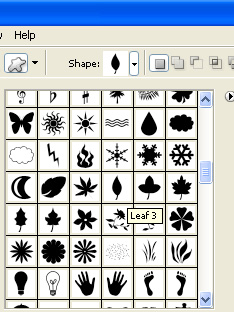

Add more leafs to the text.



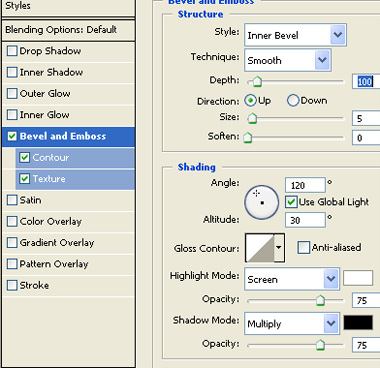
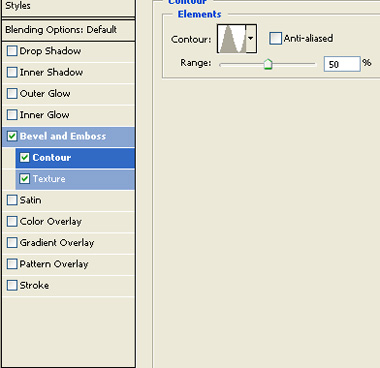
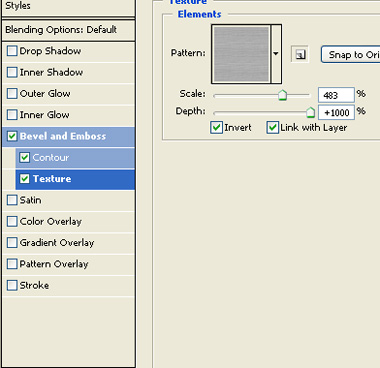
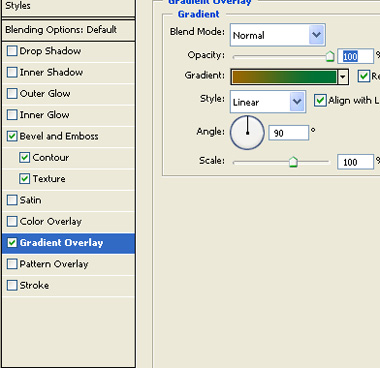
Apply the following layer style to the text.

Fill the background with a nice color.