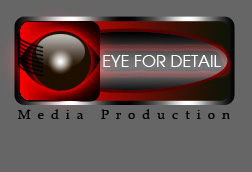
Start by creating a rounded rectangle using rounded rectangle shape tool.
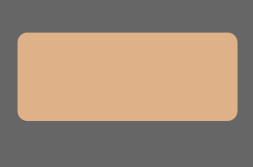
Double click the layer to open layer style window. Apply layer style with the settings shown.
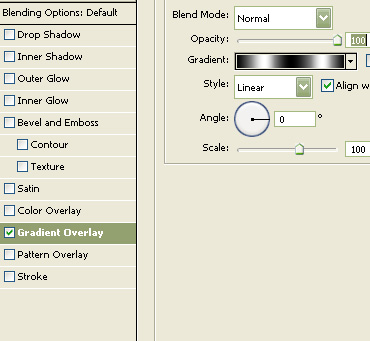
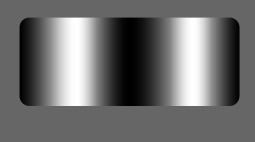
Create a rounded rectangle using rounded rectangle shape tool.
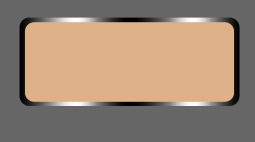
Double click the layer to open layer style window. Apply layer style with the settings shown.
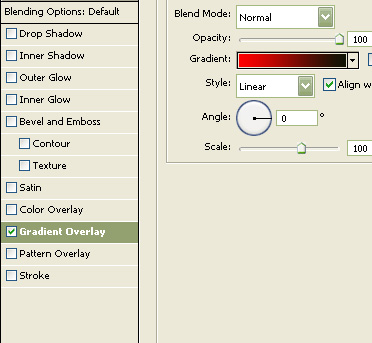
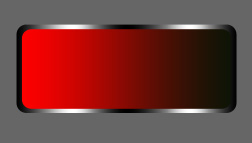
Create an ellipse using elliptical shape tool.
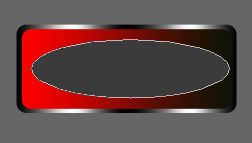
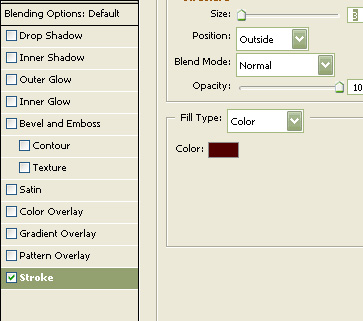
Double click the layer to open layer style window. Apply layer style with the settings shown.
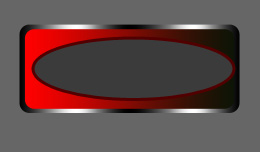
Ctrl+Click the layer thumbnail to get the selection. Create a new layer and apply a black to white to black gradient in linear mode.
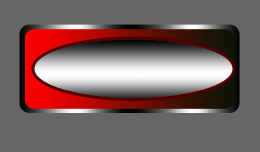
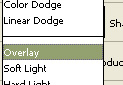
Change the layer mode to overlay.
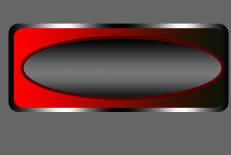
Create a rounded rectangle using rounded rectangle shape tool.
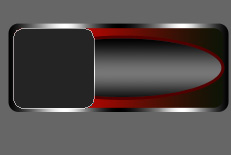
Change the layer mode to color burn.
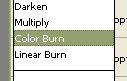
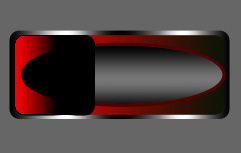
Create an eye shape using pen tool.
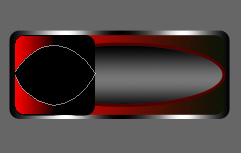
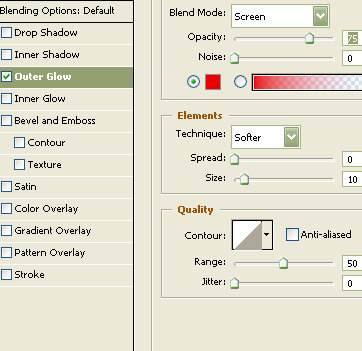
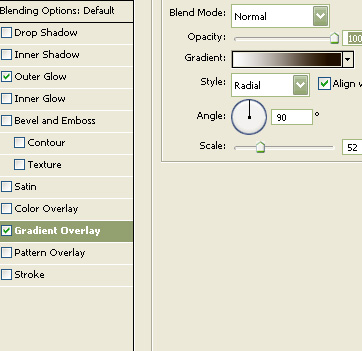
Double click the layer to open layer style window. Apply layer style with the settings shown.
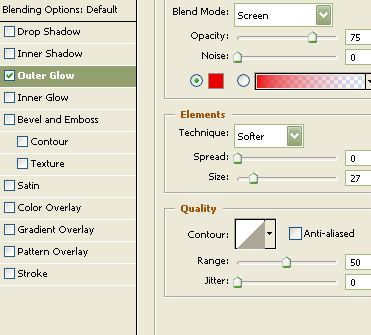
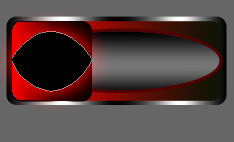
Create a circle using elliptical shape tool. Place it for the eye ball.
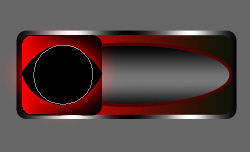
Double click the layer to open layer style window. Apply layer style with the settings shown.
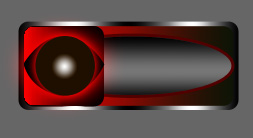
Create an elliptical selection using elliptical marquee tool. Create a new layer and apply a black to white gradient in linear mode. Change the layer mode to screen.
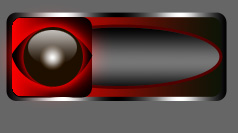
Create some wires using brush tool.
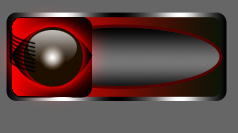
Type company name right above the big ellipse.
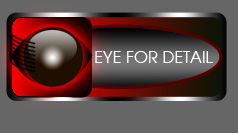
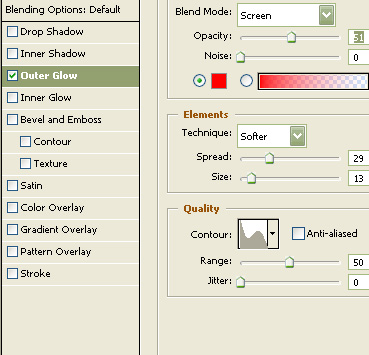
Double click the layer to open layer style window. Apply layer style with the settings shown.
Type the byline below the logo.