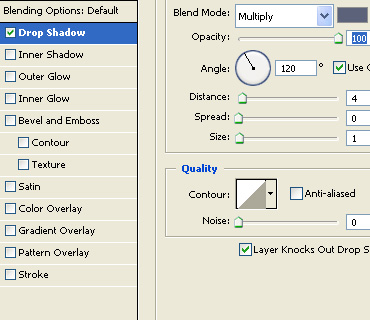
Create a rounded rectangle using rounded rectangle shape tool.

Press Ctrl+T. Right click the layer and select distort. Adjust nodes to get the shape as shown.
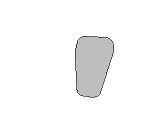
Duplicate the layer. Scale down and change the color to lighter shade.
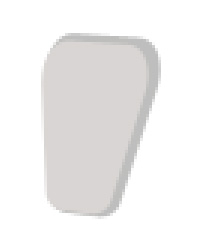
Duplicate the layer again . Scale down and change the color to white.
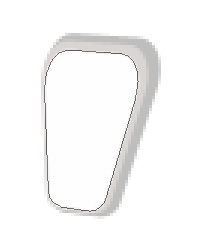
Create a rectangle using rectangular shape tool. Enable add to shape area form the top bar. Create an ellipse using elliptical shape tool.
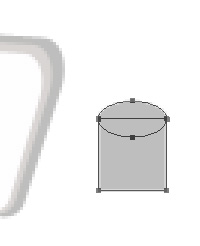
Press Ctrl+T. Right Click and select distort. Adjust the settings as shown.
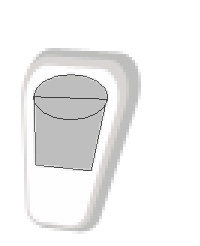
Double click the layer to open layer style window. Apply layer style with the settings shown.
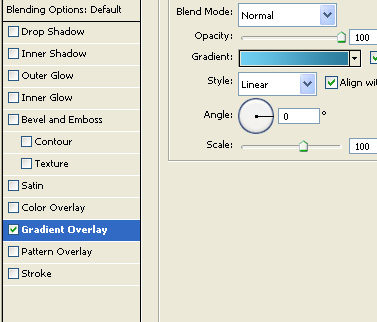
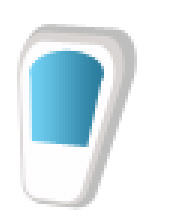
Create a rectangle using rectangular shape tool. Press Ctrl+T. Right Click and select distort. Adjust the settings as shown.
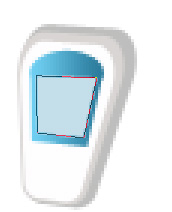
Create an ellipse using elliptical shape tool. Enable subtract form shape area form the top bar. Create a rectangle using rectangular shape tool.
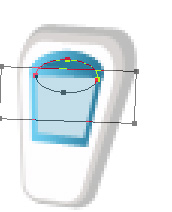
Create an ellipse using elliptical shape tool. Rotate and place as shown.
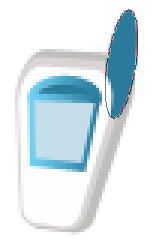
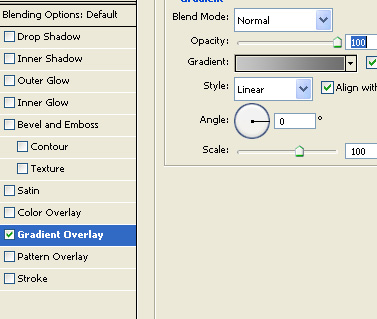
Double click the layer to open layer style window. Apply layer style with the settings shown.
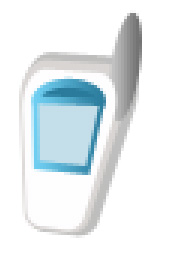
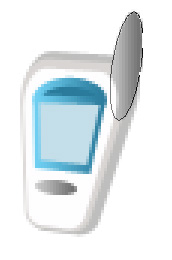
Similarly create buttons of the mobile.
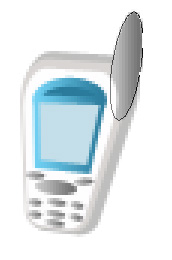
Insert an image or a company logo and place over the mobile screen.
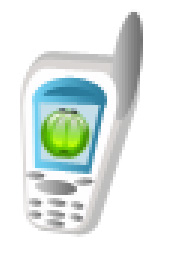
Select and merge all the layers. Double click the layer to open layer style window. Apply layer style with the settings shown.