Start by creating a circle using elliptical shape tool.

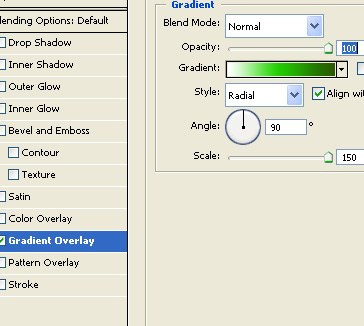
Double click the layer to open layer style window. Apply layer style with the settings shown.

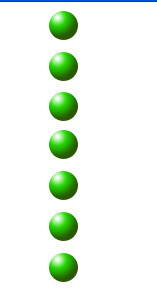
Duplicate the layer several times and place below each other as shown.
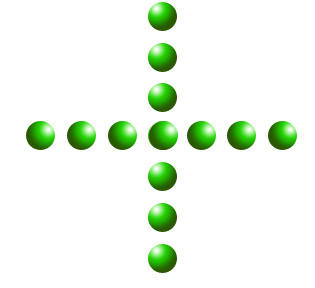
Select all the circle layers. Duplicate them and press Ctrl+T. Rotate it 90°.
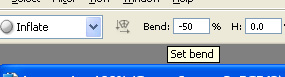
Select and merge all the circle layers. Press Ctrl+T. Right click the layer and select warp. Select inflate from the custom warp shapes. Apply settings as shown.
Create lady selection using polygon lasso tool. Press Ctrl+J to copy paste the selection in a new layer.
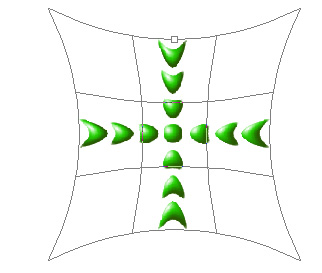
Press Ctrl+T. Right click the layer and select warp. Select twist from the custom warp shapes. Apply settings as shown.

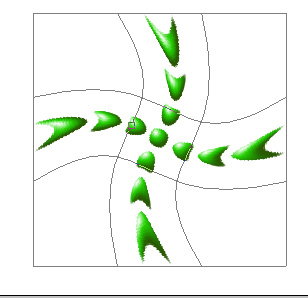
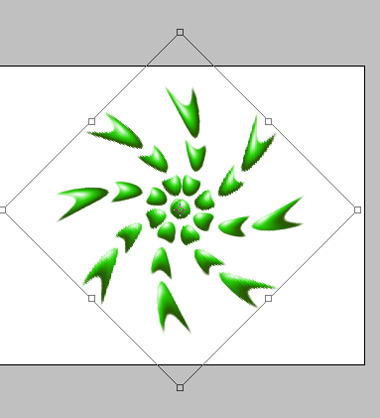
Duplicate the layer. Press Ctrl+T and rotate the layer 45°.
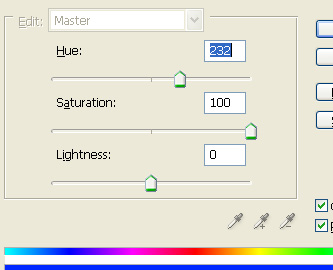
Press Ctrl+U to open hue/saturation window. Apply settings as shown.

Press Ctrl+T. Right click the layer and select distort. Adjust nodes to get the shape as shown.

Type company name with a nice font.