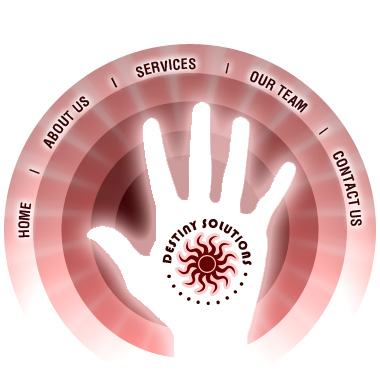
Start by opening an image of hand. You can even take a digital photo of your hand too. Create a cutout using any of your favourite cutout methods.
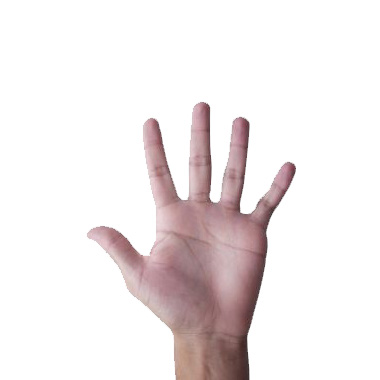
Create a new layer below hand layer. Create a circle using elliptical shape tool.
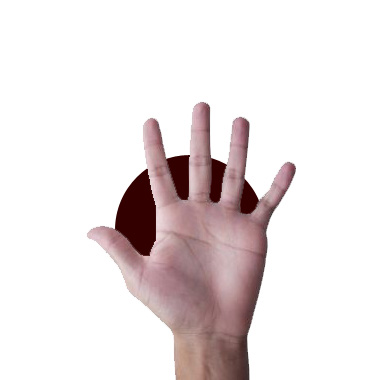
Duplicate the circle layer and scale up the layer below. Fill with a different color.
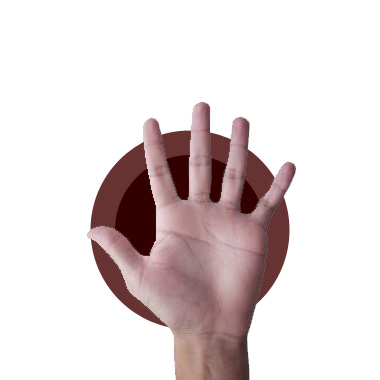
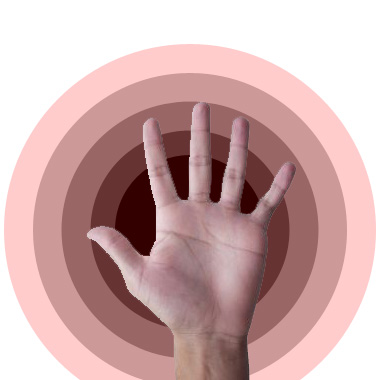
Repeat the steps and fill the circles with different shades of almost same color.
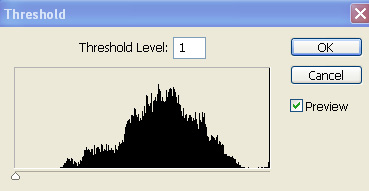
Select hand layer. From image menu select adjustment>> threshold. Enter settings as shown.
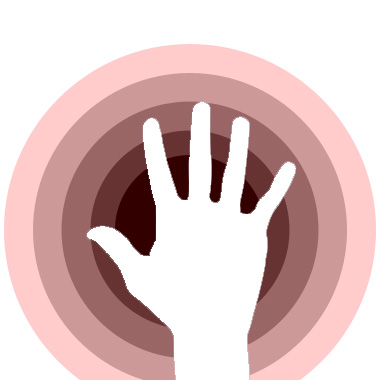
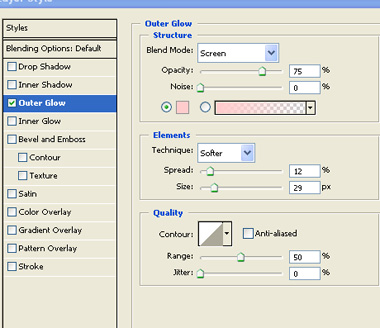
Double click the layer to open layer style window. Apply settings as shown.
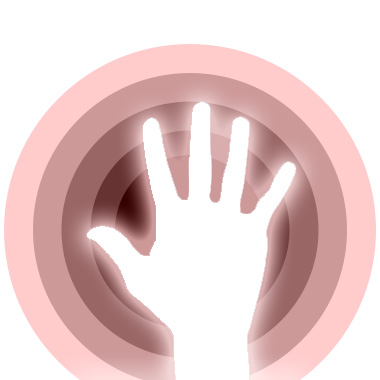
Select text tool and click on the second most outer circle. Type the button links on this circular path.
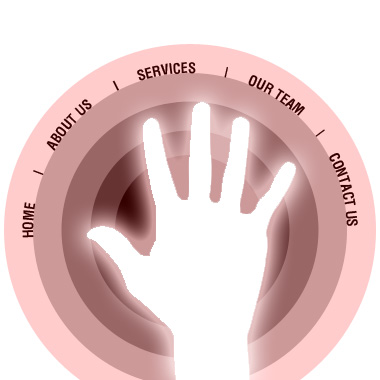
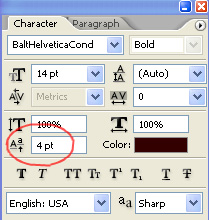
In character window increase baseline shift so that text moves a bit up from the circle edges.
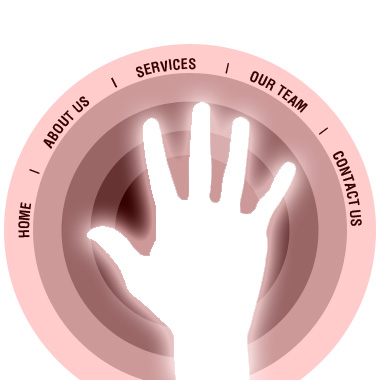
Using custom shape tool (U), create a shape Tile 3 in a new layer.
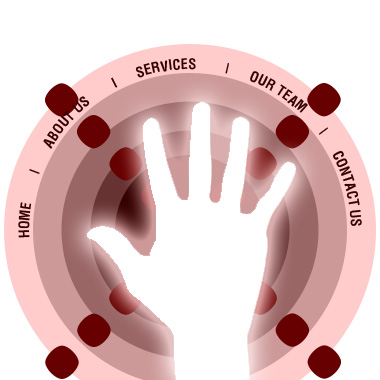
Duplicate and rotate 45°.
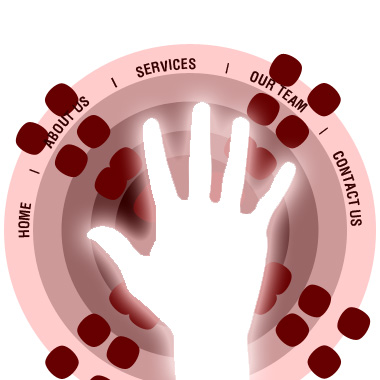
Repeat the steps to complete the shape below.
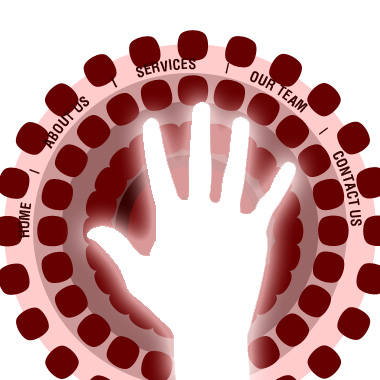
Merge all layers and change layer mode of merged layer to overlay.
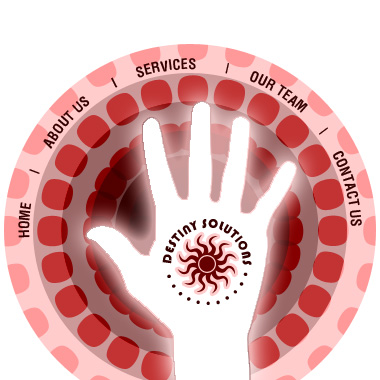
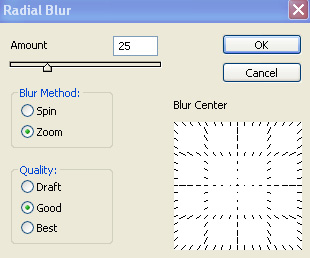
From filter menu apply blur>>radial blur and adjust settings as shown.
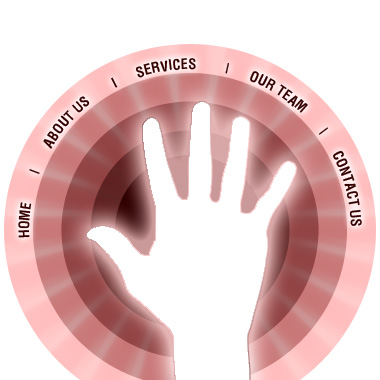
Insert company logo and place on the palm area.
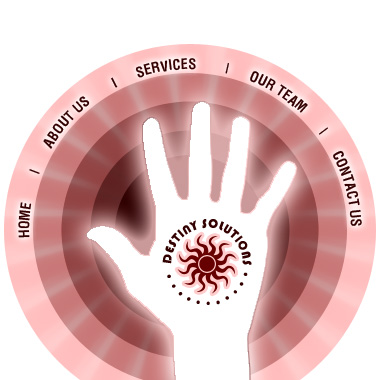
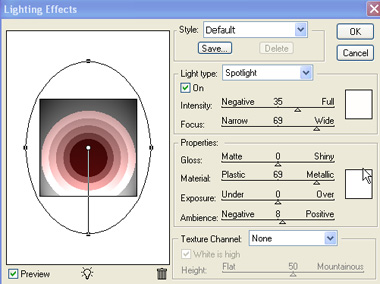
From filter menu apply render>>lighting effects and adjust settings as shown.