Step One
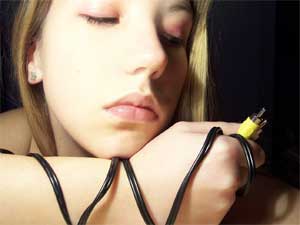
Open up the image that you want to work on in Photoshop. Take the Rectangular Marquee Tool and make a selection inside the image where you would like to apply the ripped border effect. Here I will use the below image. Feel free to use it if you want.
Step Two
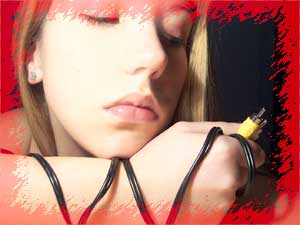
Press the Q key on your keyboard to enter the Quick Mask Mode. Thereafter, navigate your mouse to Filter>Brush Strokes>Sprayed Strokes. Apply the settings Stroke Length: 2; Spray Radius: 16. Press OK and by now you should have something like below:
Step Three
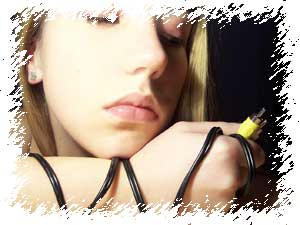
Press Q of your keyboard once again to leave the Quick Mask Mode. Now press Ctrl+Shift+I to invert the selection and hit Delete. That should do your ripped border!