Step One
Create a new file in Photoshop using any size. Press T on your keyboard ,and whatever you would like. In this tutorial, we will use the word got using font size 200px.
Step Two
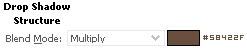
Then, go to Layer > Layer Style > Drop Shadow, and use the settings below and leave the other settings as they are.
Step Two
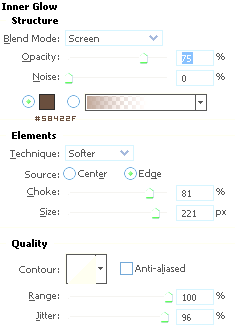
Navigate your mouse to Inner Glow and use the following settings
Step Three
Thereafter, click Bevel and Emboss and leave the settings as they are. Now, click Texture and use the below settings.
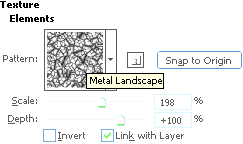
After you are done with all the settings mentioned above, click OK. Below is the final image.