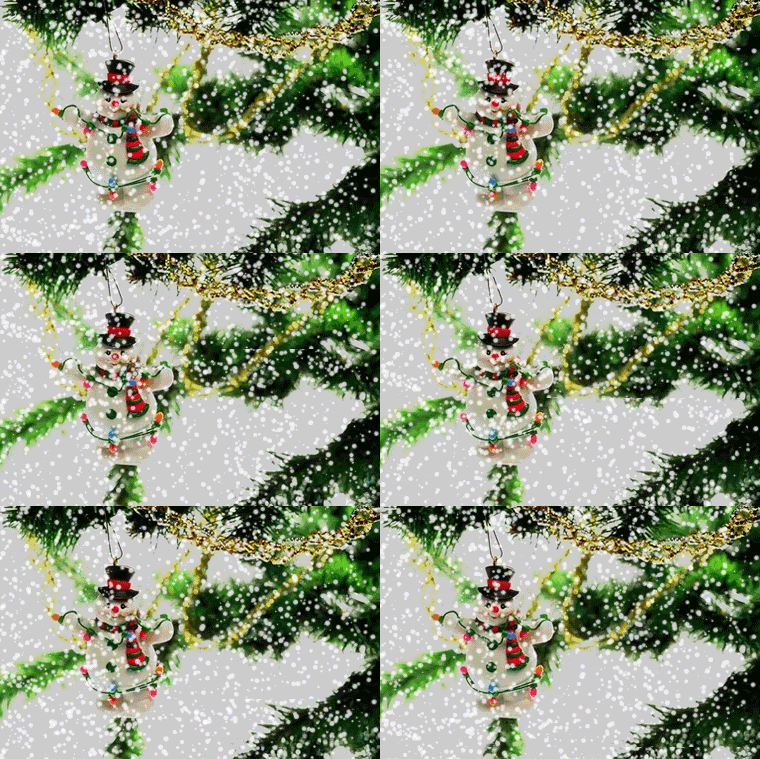
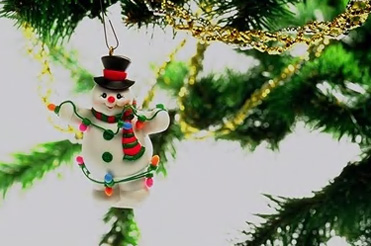
We start by opening an image of a snowman.
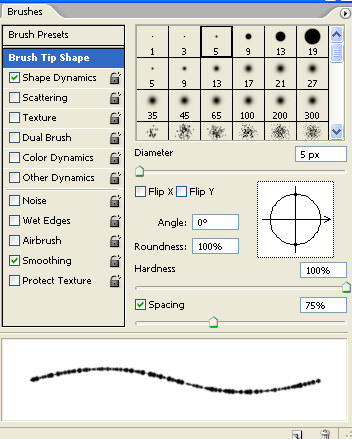
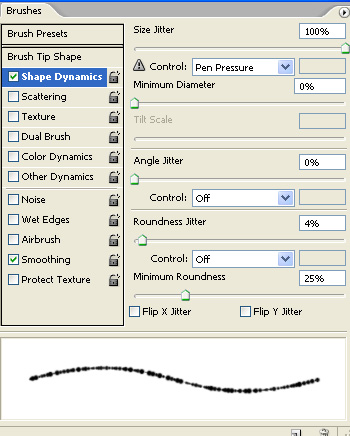
Select brush tool and press shift F5 to open brush settings. Adjust brush settings as shown.
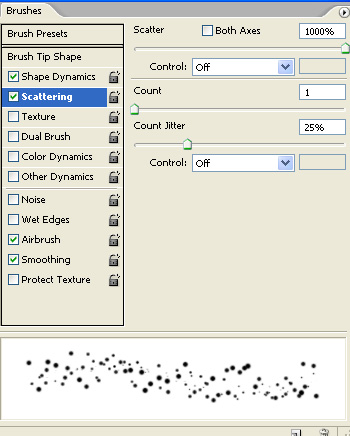
Using white as a foreground color apply the brush over the image in a new layer.

Duplicate the layer and move it up so that bottom of this image touch the top of the original snow layer. Merge both snow layers.
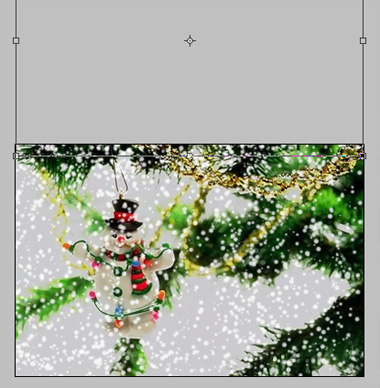
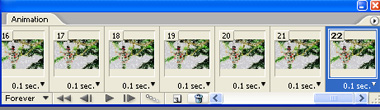
Open animation window. For the first frame leave the snow frame as it is.
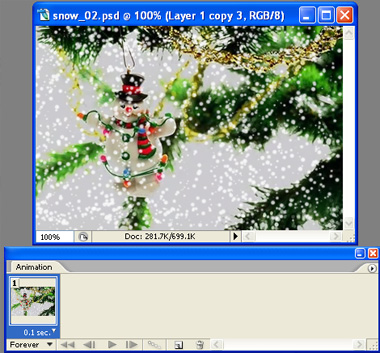
Duplicate the frame and move the snow layer downwards so that the top of snow layer touches the top of the image.
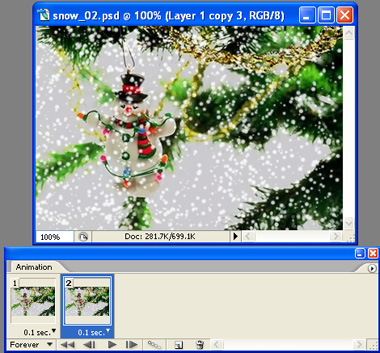
Select both frames and press tweens animation frames in animation window.
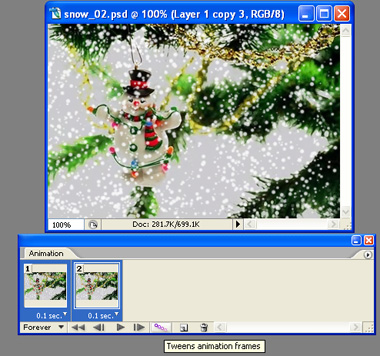
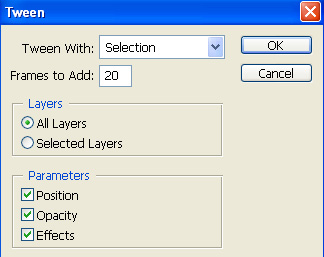
Adjust the settings in tween window as shown.
Tweening will create in between frames automatically.
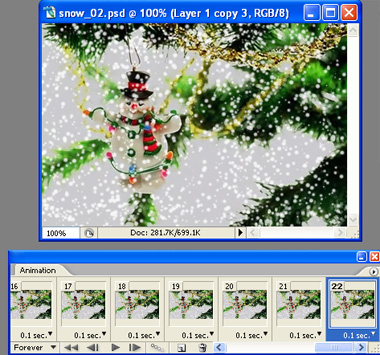
Delete the last frame to create a seamless loop of snowfall animation. Adjust delay durations as shown in the shot below.