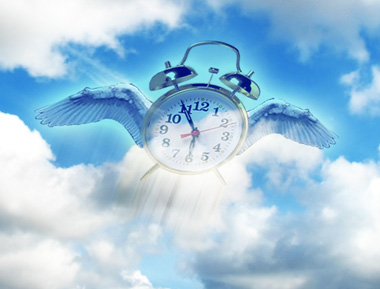
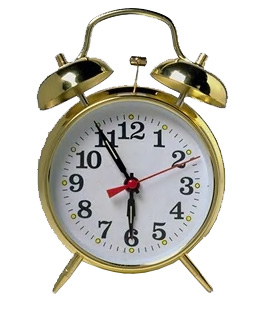
Start by opening an image of a alarm clock.
Open another image of a bird with it's wings spread.
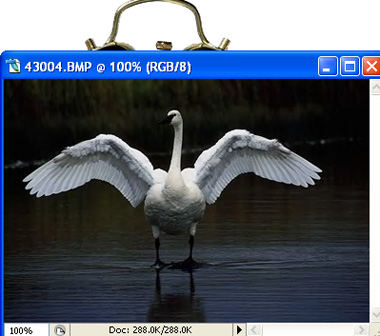
Create selection of the bird's wing and drag into the main file.
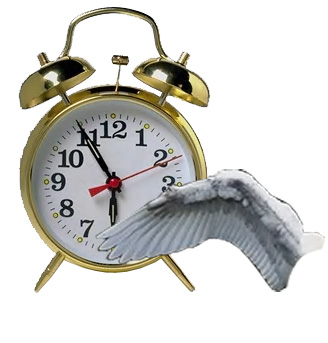
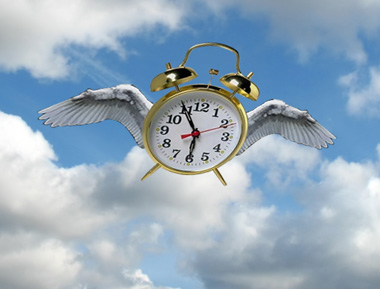
Move the wing layer below all the layers in layer order in layer palette. Place it as shown in the mage below.
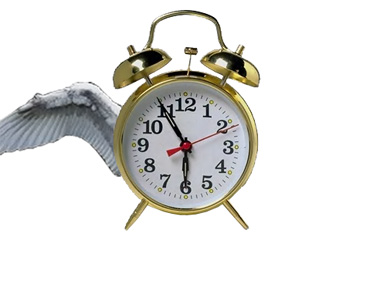
Duplicate the wing layer. Press Ctrl+T. Right click the layer and select flip horizontal. Place it for the other side.
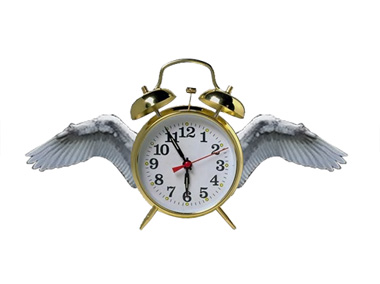
Insert an image of clouds.
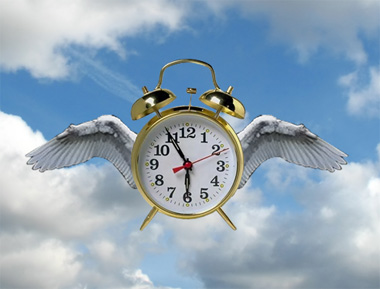
Select and merge clock and the wing layers. Press Ctrl+T. Right click the layer and select distort. Adjust nodes to get the shape as shown.
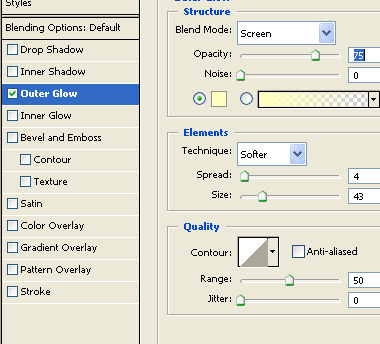
Double click the layer to open layer style window. Apply layer style with the settings shown.
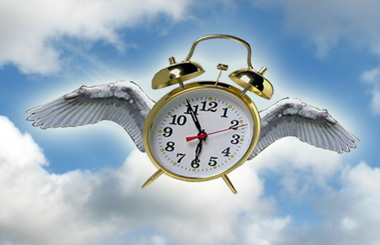
Duplicate the layer. From filter menu select blur>>motion blur. Apply settings as shown.
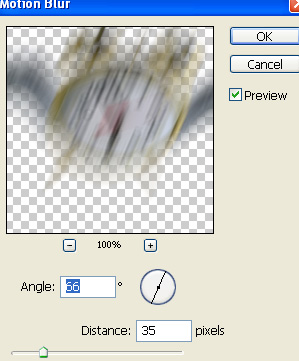
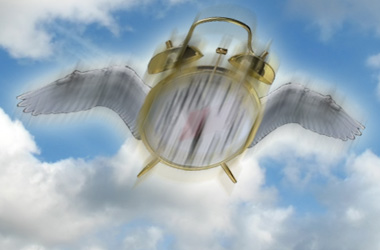
Press Ctrl+F several times to reapply the filter.
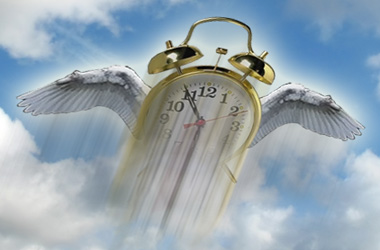
Move this blurred layer below the clock layer in layer order in layer palette.
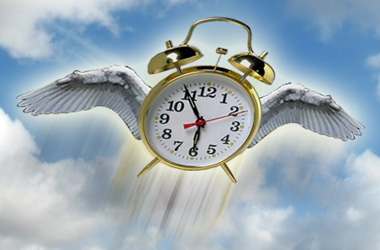
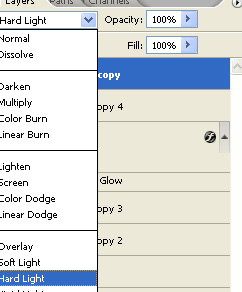
Duplicate the clouds layer. Move this layer above all the layers in layer order in layer palette. Change the layer mode to hard light.