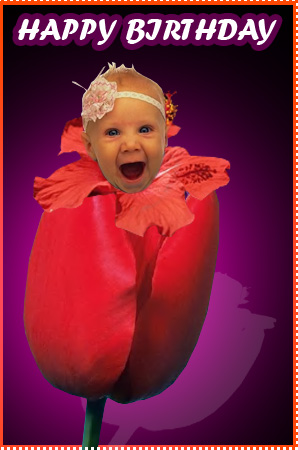
Start by applying a solid color to background.

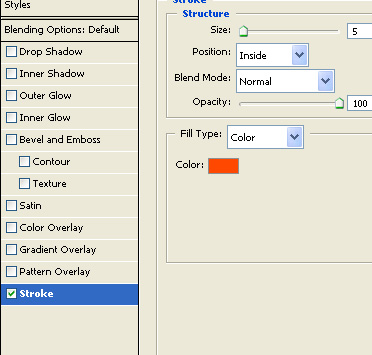
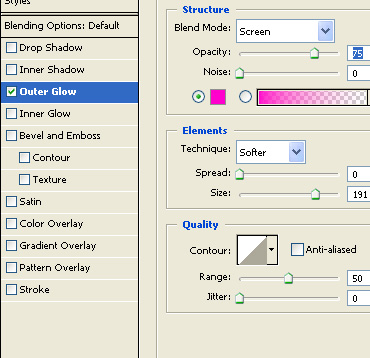
Double click the background layer to un flatten it. Double click the layer again to open layer style window. Apply layer style with the settings shown.

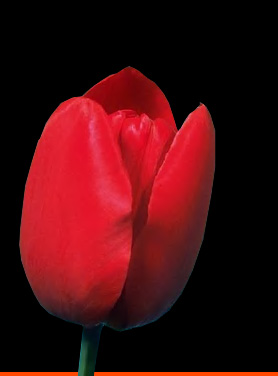
Insert an cutout of a flower.
Double click the layer to open layer style window. Apply layer style with the settings shown.
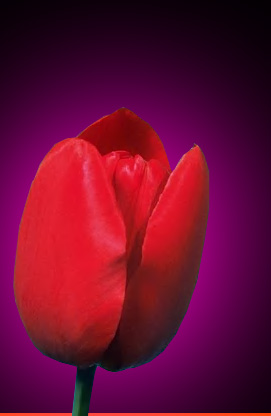
Insert an image of a baby.
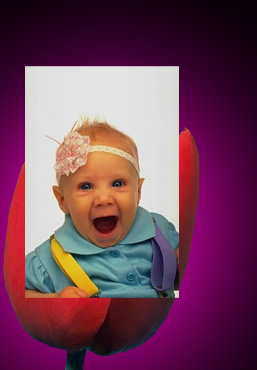
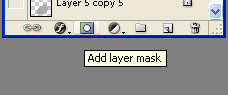
Click add layer mask button at the bottom of layer palette.
Select brush tool. With black as foreground color paint on the areas that you want to mask out.

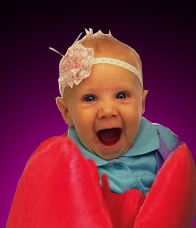
Insert another cutout of a flower.
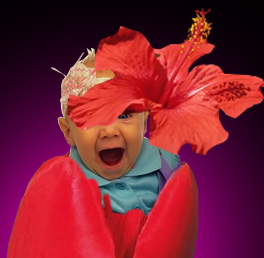
Place it on top of the previous flower.
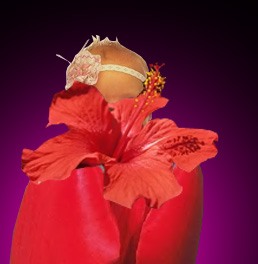
Arrange their layer order so that the baby looks like as if coming out of the flower.
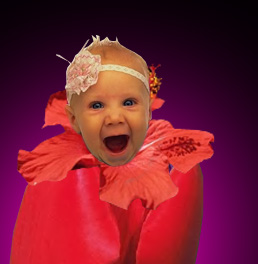
Create a new layer and fill it with any color.

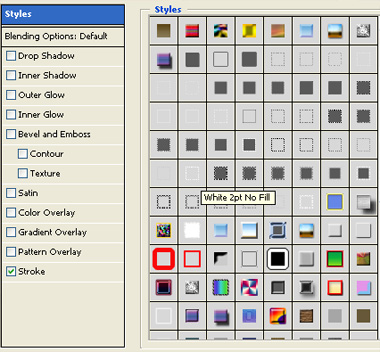
Double click the layer to open layer style window. Apply layer style with the settings shown.
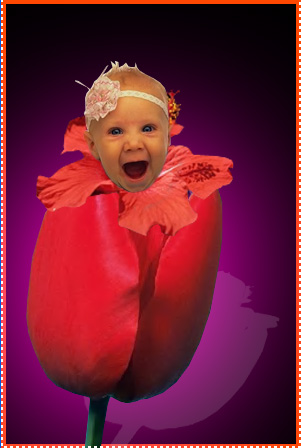
Duplicate the first flower layer. Press Ctrl+T. Right click the layer and select distort. Adjust nodes to get the shape as shown. Enable lock transparency pixels form the layer palette. Apply a light gray color.
Type "Happy Birthday" on top of the card.
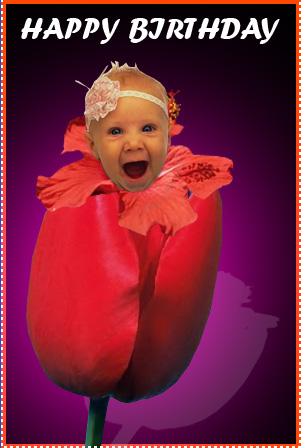
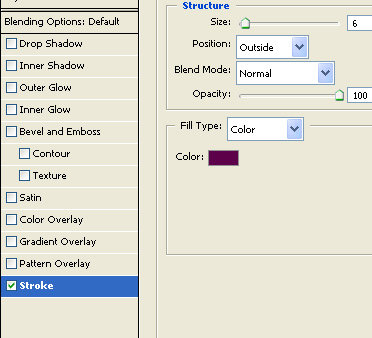
Double click the layer to open layer style window. Apply layer style with the settings shown.