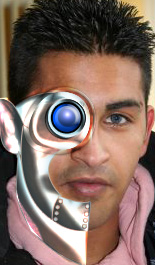
Start by opening an image of a face of a man.
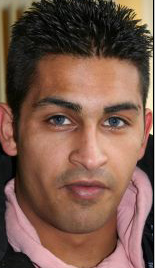
Create a circle using elliptical shape tool. Press Ctrl+T. Right click the layer and select warp. Adjust nodes to get the shape as shown.
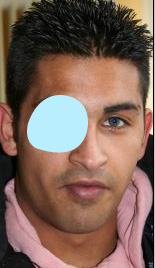
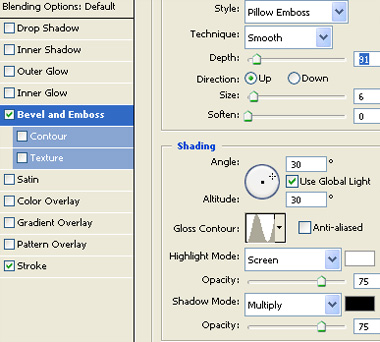
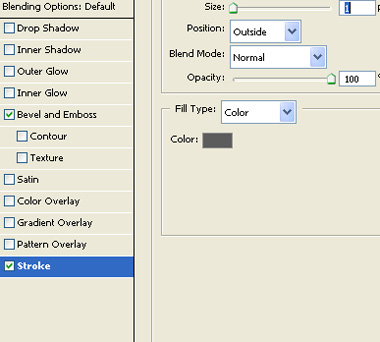
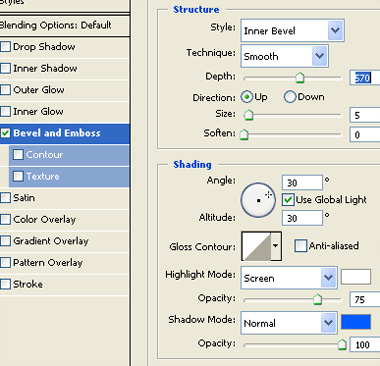
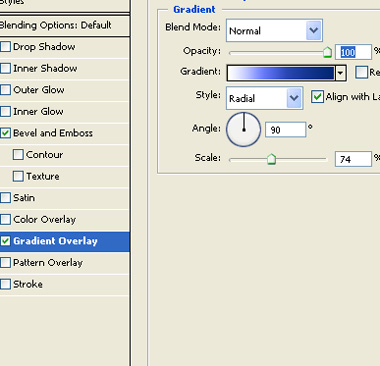
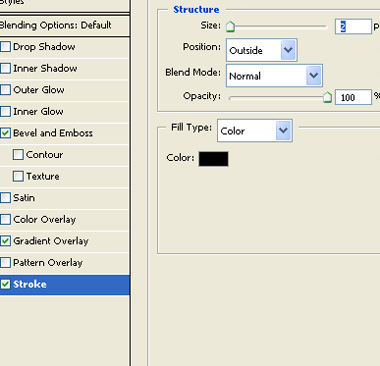
Double click the layer to open layer style window. Apply layer style with the settings shown.
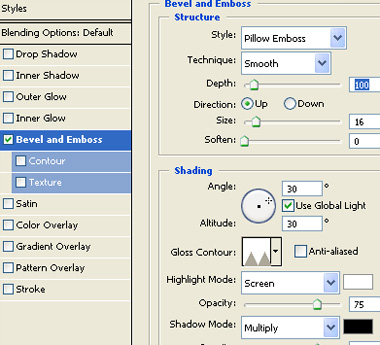
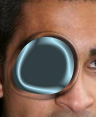
Using pen tool create a shape as shown below.
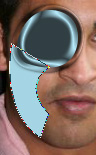
Double click the layer to open layer style window. Apply layer style with the settings shown.
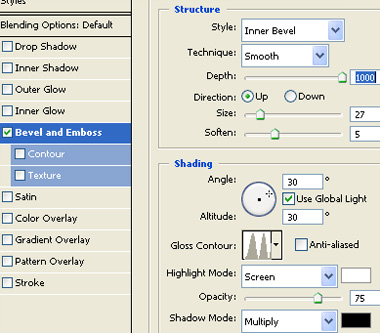
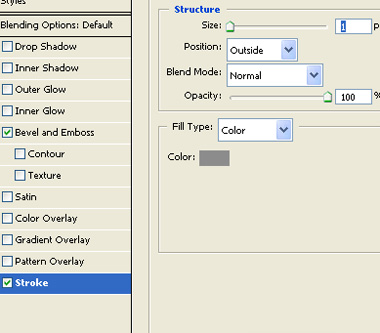
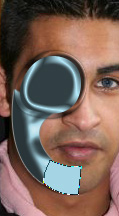
Create another small shape below the previous shape and apply same layer style to it.
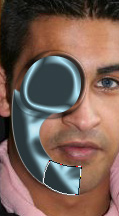
Create a shape above the ear using pen tool.
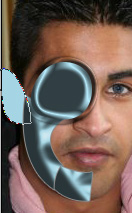
Apply same layer style.
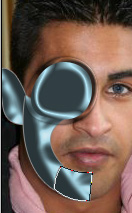
Create a shape above the neck using pen tool.
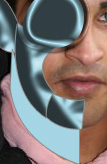
Double click the layer to open layer style window. Apply layer style with the settings shown.
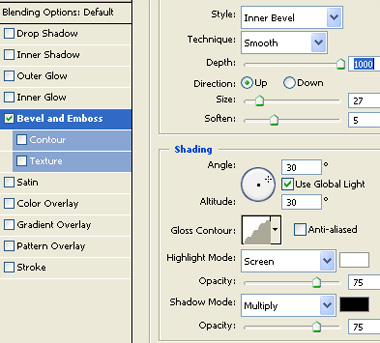
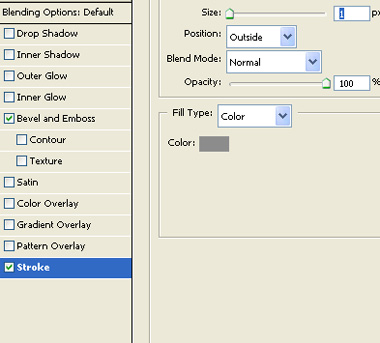
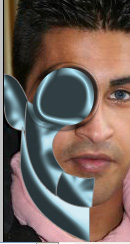
Create a triangular shape connecting the eye piece with the neck one and apply same layer style.
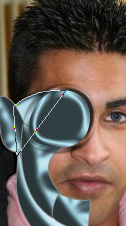
Create a small circle for connecting bolts using elliptical shape tool. Apply the same layer style as we applied in the previous step.
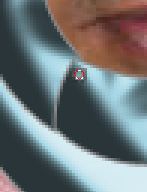
Duplicate the layer several times and place as shown in the image below.
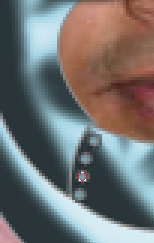
Create a series of bolt on the other end also.
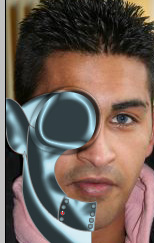
Create a circle using elliptical shape tool.
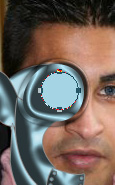
Double click the layer to open layer style window. Apply layer style with the settings shown.
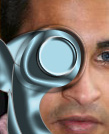
Create another circle using elliptical shape tool.
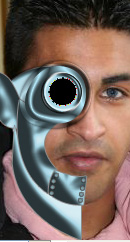
Double click the layer to open layer style window. Apply layer style with the settings shown.
Create selection of half of the face using polygon lasso tool. Select the image layer and press Ctrl+J to copy paste the selection in a new layer. Move this layer above all the layers in layer order in layer palette.
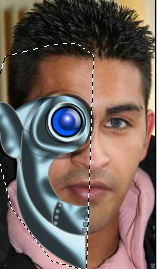
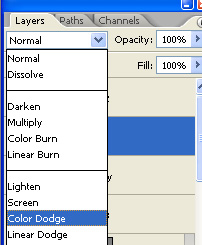
Change the layer mode to color dodge.
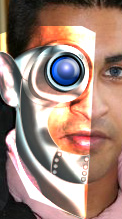
Select eraser tool. Erase the area outside the metallic mask.