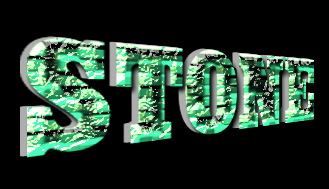
Start by typing the text using bold font.
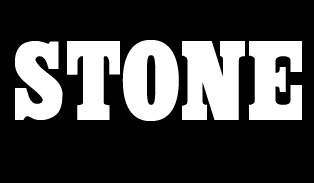
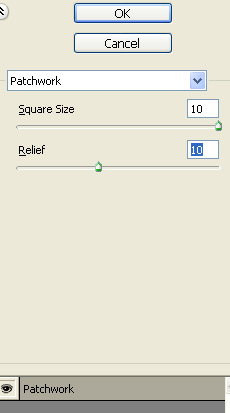
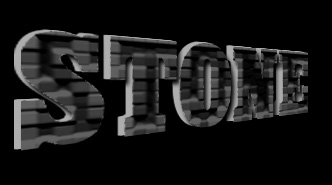
From filter menu select texture>>patchwork. Apply settings as shown.
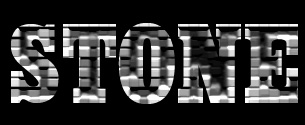
Double click the layer to open layer style window. Apply layer style with the settings shown.
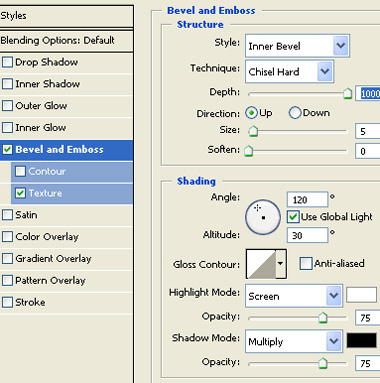
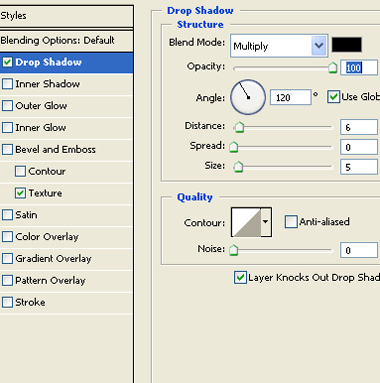
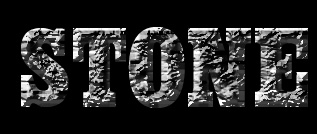
Press Ctrl+T. Right click the layer and select perspective. Adjust nodes to get the shape as shown.
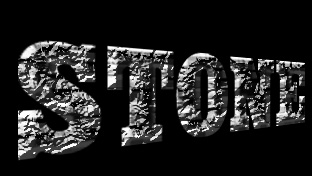
Press Alt key and keep hitting the left arrow key to create 3d extrusion.
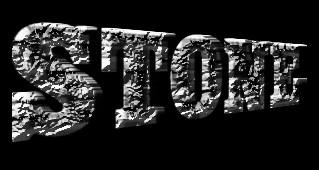
Select and merge the duplicate layers. Double click the layer to open layer style window. Apply layer style with the settings shown.
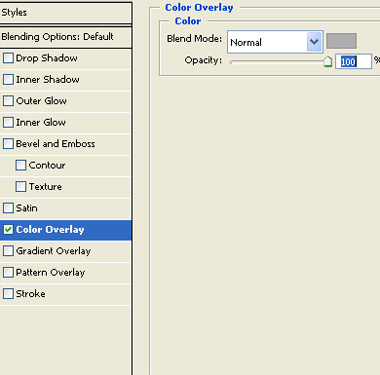
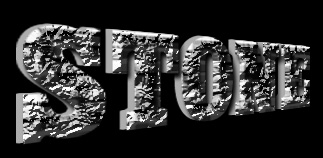
Duplicate the layer and remove the layer style.
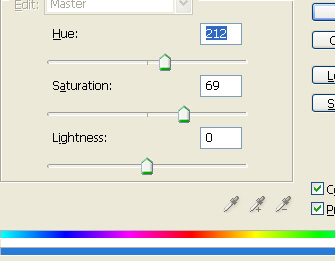
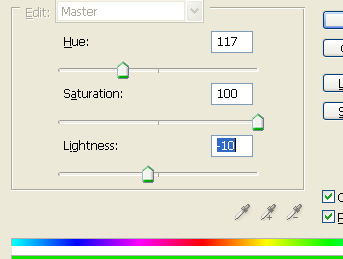
Press Ctrl+U to open hue/saturation window. Apply settings as shown.
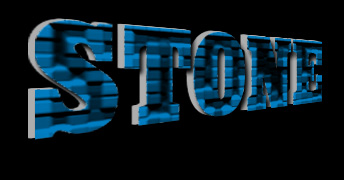
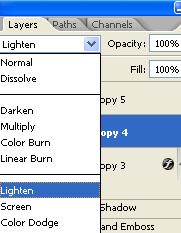
Change the layer mode to lighten.
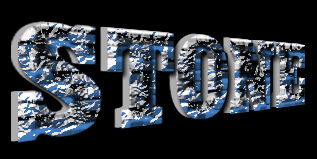
Duplicate the layer. Press Ctrl+U to open hue/saturation window. Apply settings as shown.
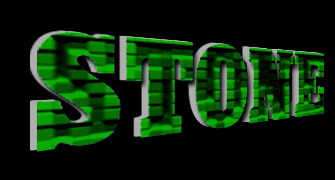
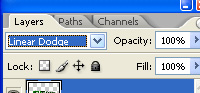
Change the layer mode to linear dodge.