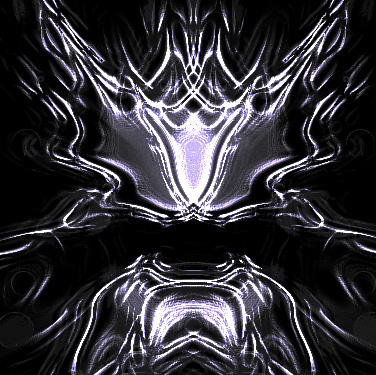
Start by creating a few random shapes and size ellipses using elliptical shape tool.
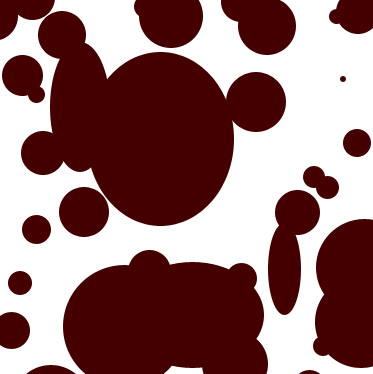
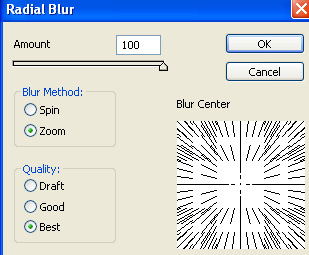
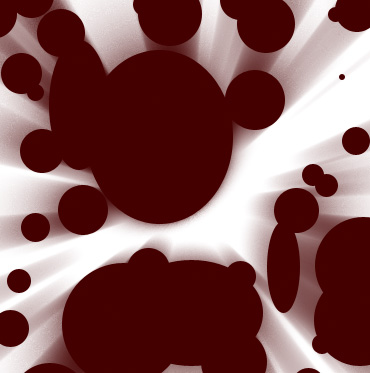
Select and merge all the layers. Duplicate layer. From filter menu select blur>>radial blur. Apply settings as shown.
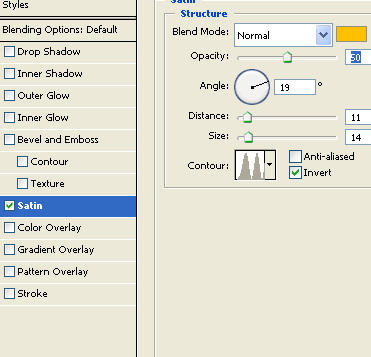
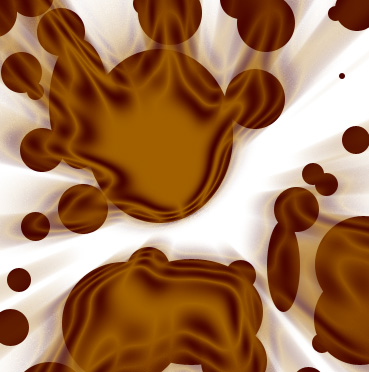
Double click the layer to open layer style window. Apply layer style with the settings shown.
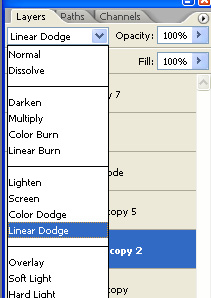
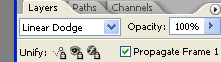
Duplicate the layer and change the layer mode to linear dodge.
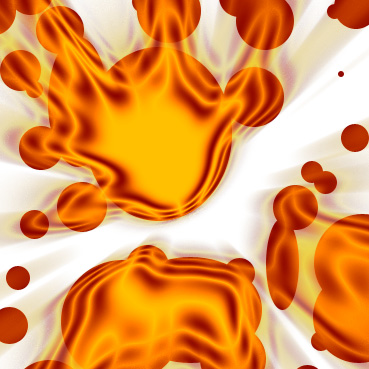
Select and merge all the layers.
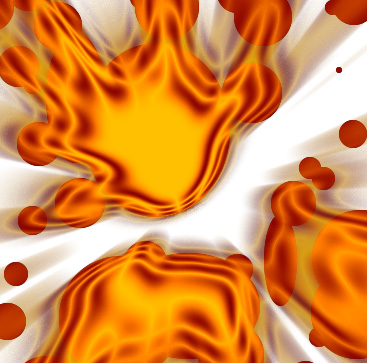
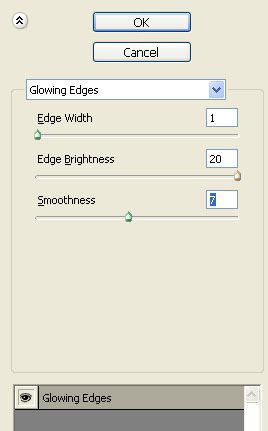
From filter menu select stylize>>glowing edges. Apply settings as shown.
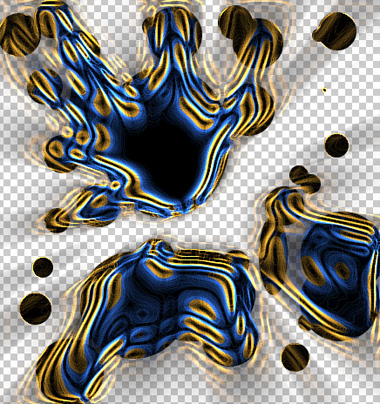
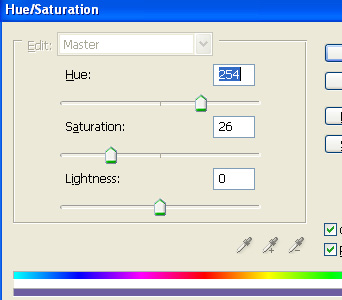
Press Ctrl+U to open hue/saturation window. Apply settings as shown.
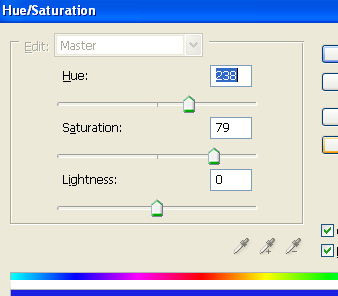
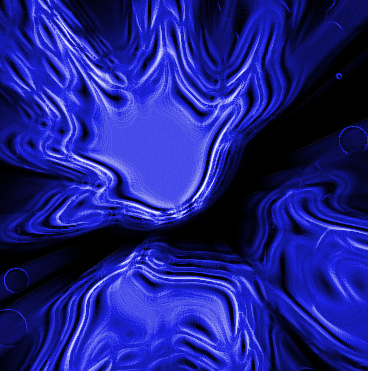
Duplicate the layer. Press Ctrl+T. Right click the layer and select flip horizontal. Press Ctrl+U to open hue/saturation window. Apply settings as shown.
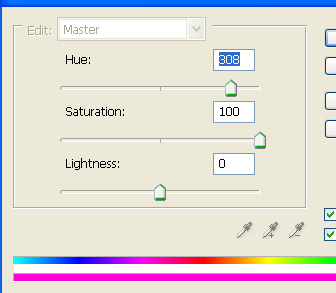
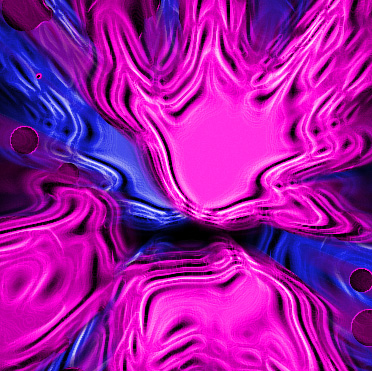
Change the layer mode to linear dodge.
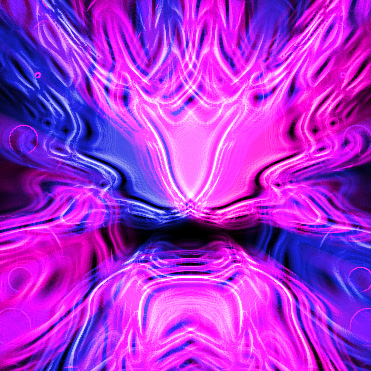
Select and merge both the layers. Press Ctrl+U to desaturate.
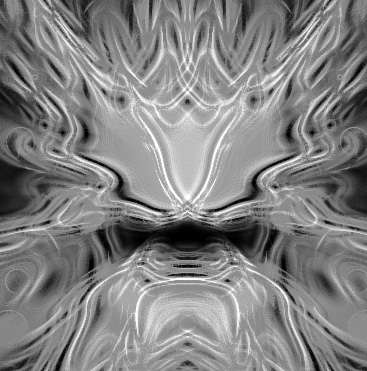
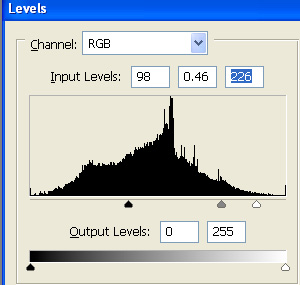
Press Ctrl+L to open level settings. Apply settings as shown.
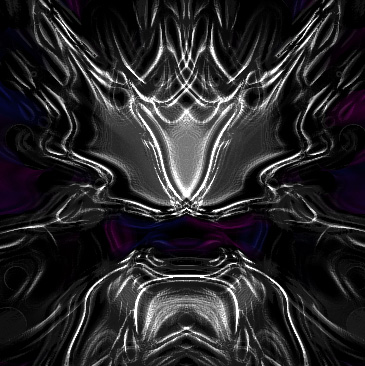
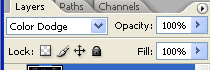
Duplicate the layer and change the layer mode to color dodge.
Press Ctrl+U to open hue/saturation window. Apply settings as shown.